


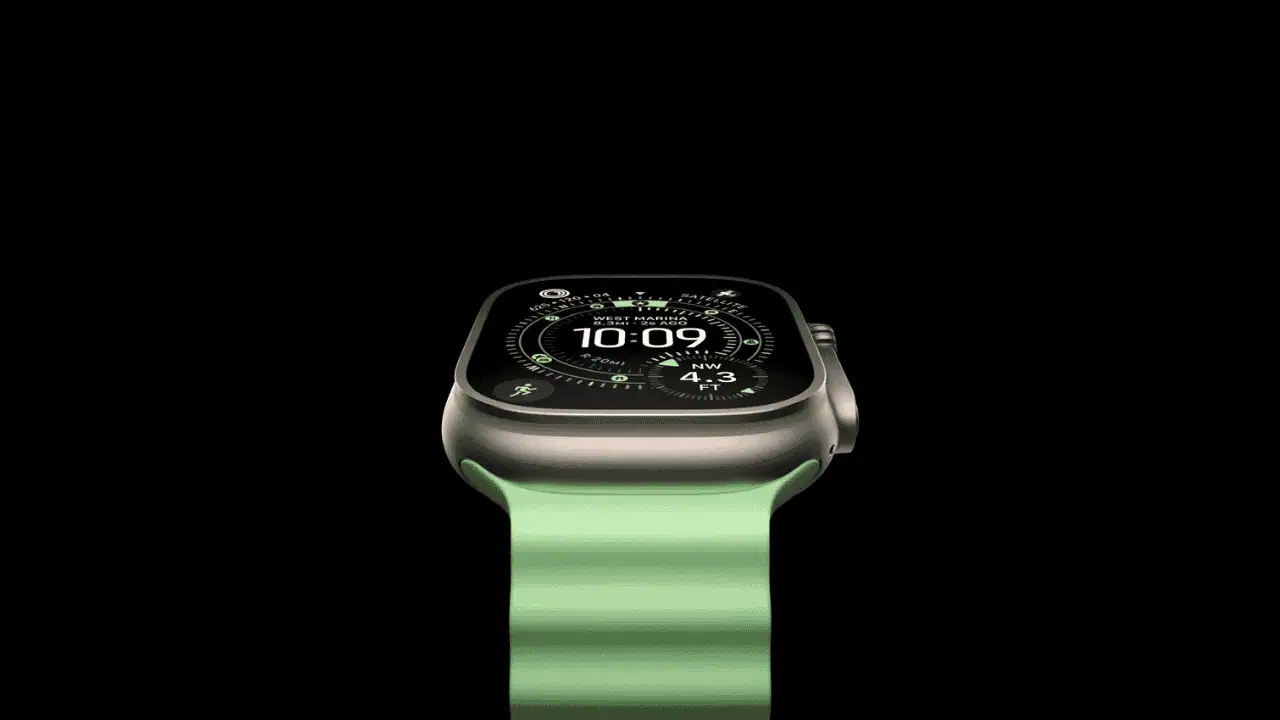
Unpairing your Apple Watch from your iPhone is a simple process that ensures the devices are no longer connected and prepares the watch for a new connection or owner. This guide will walk you through both methods of unpairing and offer tips for a smooth process.
Unpair Using Your iPhone
The fastest and easiest way to unpair your Apple Watch is through the Watch app on your iPhone. This method automatically disables Activation Lock, which prevents someone from using the watch without your Apple ID.
- Open the Watch app on your iPhone.
- Select your Apple Watch at the top of the screen.
- Tap the info icon next to your watch name.
- Choose Unpair Apple Watch.
- If you have a cellular model, you’ll be asked whether to keep or remove your cellular plan.
- Enter your Apple ID password to turn off Activation Lock.
- Wait for the process to complete. Your watch will reset and unpair.
Unpair Directly from Your Apple Watch
If you don’t have access to your iPhone, you can still erase and unpair the watch, but Activation Lock will remain enabled until you remove it from your Apple ID account.
- Open Settings on your Apple Watch.
- Go to General.
- Scroll down and tap Reset.
- Tap Erase All Content and Settings.
- If prompted, enter your passcode.
- Confirm the reset.
After this, sign in to your Apple ID account on a browser and remove the watch from your devices list to disable Activation Lock.
Tips for a Smooth Unpairing
- Backup your iPhone first if you plan to restore your watch later.
- Keep your iPhone and Apple Watch on chargers during the unpairing process if their batteries are low.
- Remove your cellular plan if you’re switching carriers or planning to sell the watch.
- Make sure your Apple ID password is correct before starting the process.
FAQ
Does unpairing erase my Apple Watch?
Yes, unpairing through your iPhone erases all content on the watch and creates a backup, which you can restore later.
Can I unpair without my iPhone?
Yes, but you’ll need to remove Activation Lock separately through your Apple ID account.
Do I need to remove my cellular plan?
Only if you’re changing carriers, selling the watch, or no longer using the same plan.
Summary
- Use the Watch app on your iPhone for the cleanest unpairing process.
- Disable Activation Lock by entering your Apple ID password.
- If no iPhone is available, erase from the watch and remove it from your Apple ID.
- Remove the cellular plan only if you’re changing ownership or carriers.
Conclusion
Unpairing your Apple Watch from your iPhone is a straightforward task. Whether you’re upgrading, selling, or troubleshooting, following these steps will ensure your watch is reset and ready for its next setup.




