


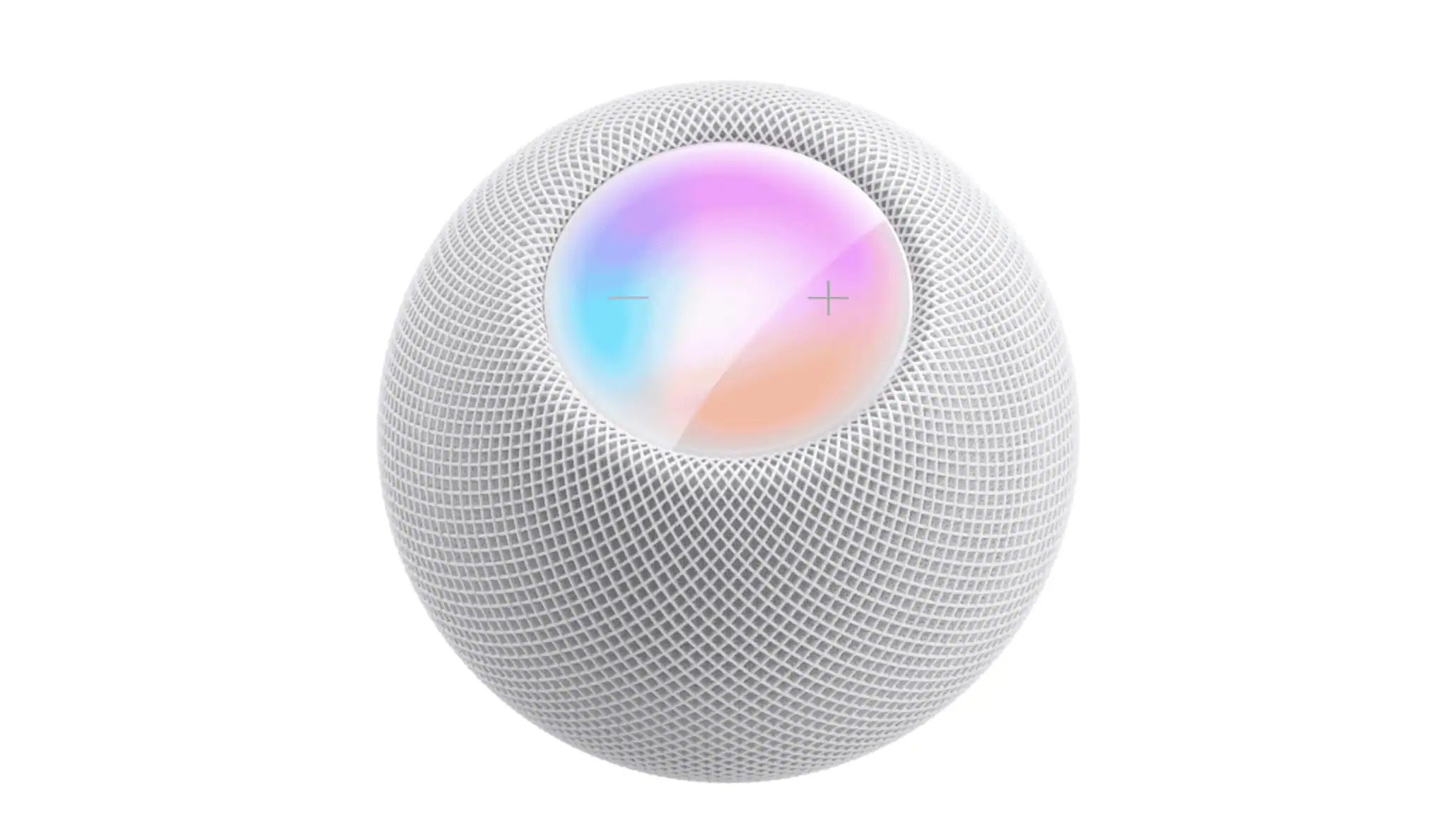
If your HomePod mini is acting up or you need to set it up for a new user, a factory reset is the solution. There are two ways to reset your HomePod mini: through the Home app or manually using the touch surface. Here’s a step-by-step guide to help you reset your device.
Reset Using the Home App
This method is ideal when your HomePod mini is still connected to your network and appears in the Home app.
- Open the Home app on your iPhone, iPad, or Mac.
- Select your HomePod mini from the device grid.
- Scroll down and tap Remove Accessory.
- Confirm that you want to reset the device.
- Wait for the HomePod mini to erase its data and restart.
Reset Directly on the HomePod Mini
If your HomePod mini is unresponsive or doesn’t appear in the Home app, you can reset it manually using the touch surface.
- Unplug the HomePod mini.
- Wait 10 seconds, then plug it back in.
- Wait another 10 seconds.
- Touch and hold the top of the HomePod mini.
- Keep holding until you see a white spinning light, which will turn red.
- Continue holding until you hear three beeps.
- Release your finger to complete the reset.
After resetting, the HomePod mini will return to its factory settings and is ready for pairing again.
Tips for a Smooth Reset
- Ensure your iPhone or Mac is signed in with the correct Apple ID before removing the accessory.
- Plug the HomePod mini into its original power adapter to avoid interruptions.
- Keep the device plugged in during the entire reset process.
- If troubleshooting, try restarting your iPhone or router first to rule out other issues.
FAQ
Do I lose all settings when I reset the HomePod mini?
Yes, a factory reset will erase all settings, including Wi-Fi information, Siri data, and room assignments.
Can I reset without the Home app?
Yes, you can reset manually by following the touch surface steps, even if the HomePod mini is not connected to the Home app.
Why is the reset failing?
Ensure the power source is stable, and make sure you’re holding the top surface for the correct duration to hear the three beeps.
Summary
- Use the Home app if the HomePod mini is connected.
- Select Remove Accessory to erase and reset the device.
- For manual reset, unplug and hold the top surface until the red light and three beeps confirm the reset.
Conclusion
A factory reset of your HomePod mini can resolve issues that basic troubleshooting doesn’t fix. Whether you’re resetting for a new user or fixing a glitch, these easy steps will help you start fresh with your HomePod mini.




