The Apple Vision Pro is a revolutionary mixed-reality headset that blends digital content with the real world. One of the standout features of the Vision Pro is its highly customizable Home View, which allows users to tailor their experience according to their preferences. Whether you want to optimize the layout for productivity, entertainment, or immersive virtual environments, customizing the Home View helps you make the most of this advanced technology.
Apple’s Home View is where all your apps, widgets, and virtual environments come together, serving as the central hub for your activities. By personalizing this view, you can streamline your daily tasks and enhance your overall experience with the device. In this guide, we’ll take you through the steps to customize your Home View on the Apple Vision Pro, ensuring that your mixed-reality experience is tailored to your unique needs.
Steps to Customize Home View on Apple Vision Pro
1. Accessing Home View Settings
The first step in customizing your Home View on the Apple Vision Pro is accessing the settings that allow you to personalize your virtual environment.
- Activate Apple Vision Pro
Put on your Apple Vision Pro and ensure that it’s connected to your device. Make sure you’ve already completed the initial setup process. - Open Settings
Navigate to the Settings app within the Apple Vision Pro interface. You can do this by activating the virtual menu using your hand gestures or the touch controls. - Go to Home View Settings
In the settings menu, find the section dedicated to Home View customization. This is where you can adjust the layout, appearance, and content of your Home View.
2. Customizing the Layout
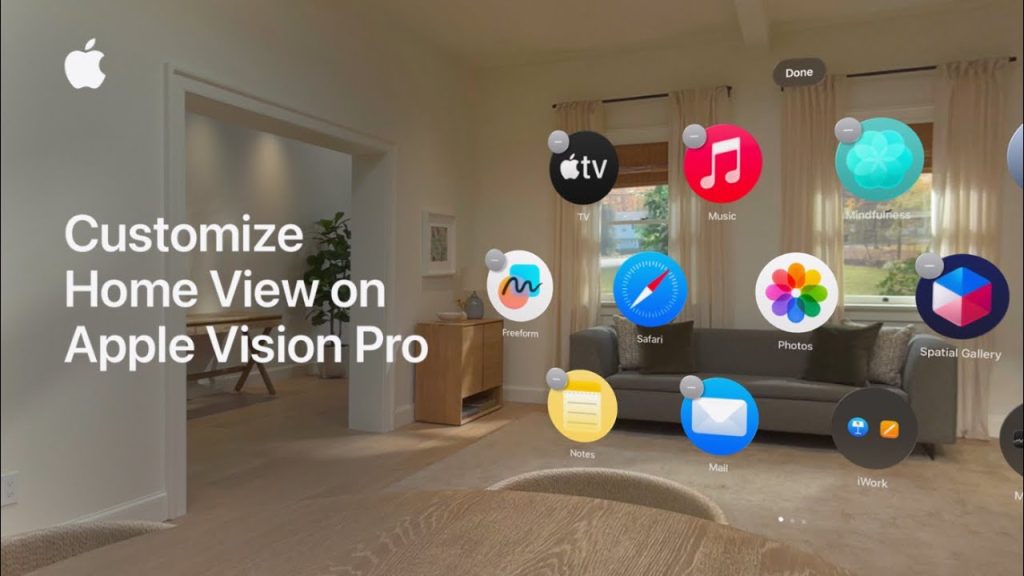
The layout of your Home View is key to organizing how apps, widgets, and other elements are displayed. Apple Vision Pro allows you to move, resize, and arrange these items for an optimized experience.
- Resize and Arrange Apps
You can select and resize apps or widgets on the Home View screen. Use gestures or touch controls to drag and drop these items to your desired position. Whether you want to prioritize productivity apps or entertainment content, the layout is fully flexible. - Create App Groups
Group similar apps together to keep your Home View organized. For instance, you can place work-related apps in one section and entertainment apps in another. This makes it easy to access your most-used apps without having to search through a cluttered screen. - Adjust App Size
Each app or widget can be resized to fit your preferences. Larger icons might be better for apps you use frequently, while smaller icons can be used for less frequently accessed apps.
3. Adding and Removing Widgets
Widgets are an essential part of the Home View, providing at-a-glance information and quick access to features.
- Add Widgets
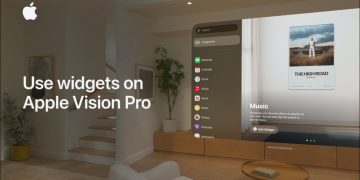
To add widgets, navigate to the Home View settings and select the “Add Widget” option. You’ll be able to choose from a variety of pre-installed widgets, including weather, calendar, music, and more. Once selected, these widgets can be dragged into your Home View layout. - Remove or Edit Widgets
If you no longer need a widget, you can easily remove it by selecting the delete option in the widget settings. You can also edit the widget’s settings to change the displayed information, like switching between different calendar views or adjusting weather preferences.
4. Choosing Your Virtual Environment
The Home View on the Apple Vision Pro is designed to integrate seamlessly with virtual environments. You can adjust the background of your Home View to better suit the mood of your activities.
- Select a Virtual Background
Apple Vision Pro allows you to choose from a variety of virtual backgrounds, whether you prefer a calming natural landscape, a futuristic cityscape, or even an abstract design. Changing the background can significantly impact your experience, so choose one that enhances your focus or relaxation. - Adjust Environment Features
In addition to background settings, you can also adjust other elements within the virtual environment. For example, you can modify the lighting, ambient sounds, or even the overall color palette of the environment to suit your preferences.
5. Organizing Spaces for Different Activities
Apple Vision Pro enables you to set up multiple spaces or “views” tailored to different activities, such as work, entertainment, or relaxation.
- Create Separate Work and Leisure Spaces
Use the Home View settings to create distinct spaces for work and leisure. For example, you can dedicate one area of your Home View for work-related apps like email, productivity tools, and calendar, and another space for entertainment apps like games, movies, or media streaming. - Switch Between Spaces
Easily switch between these different spaces with a simple gesture or voice command. This allows you to transition from a focused work environment to a relaxing entertainment setup without needing to manually rearrange your apps.
6. Voice Control for Customization
Apple Vision Pro comes with robust voice control capabilities, allowing you to make adjustments to your Home View without using your hands.
- Activate Voice Commands
Use voice commands to open settings, add or remove apps, change the background, or even rearrange your widgets. Simply say “Hey Siri” followed by the action you want to perform, such as “Add the calendar widget to Home View” or “Switch to the work environment.” - Voice Command Customization
You can also create custom voice shortcuts to quickly access your most used settings and Home View layouts. This provides a hands-free way to personalize your experience while using the Apple Vision Pro.
Finalizing Your Custom Home View
After making all the desired adjustments, take some time to fine-tune the Home View layout for maximum efficiency. Test out different configurations and environments to see which one feels the most comfortable for your daily activities. Whether you’re using the Vision Pro for work, entertainment, or a combination of both, a personalized Home View ensures you have the most seamless experience.
Additional Tips for Customizing Your Apple Vision Pro Home View
- Keep it Organized: Regularly tidy up your Home View by removing unused apps or widgets. A clutter-free screen can help you stay focused and make navigation easier.
- Experiment with Backgrounds: Change up your virtual environment depending on your mood or the task at hand. A new background can refresh your experience and help you stay engaged.
- Sync with Other Apple Devices: If you’re using multiple Apple devices, ensure that your Home View is synced across all devices to maintain consistency in your settings.