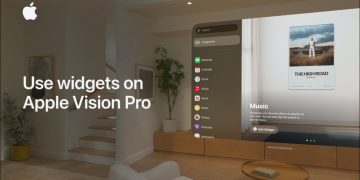
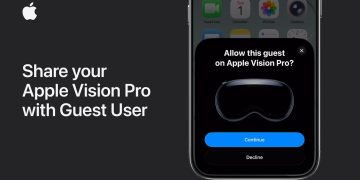
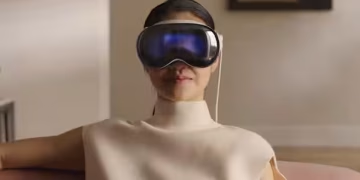
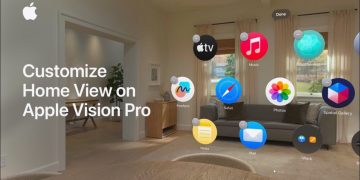
Apple Vision Pro is a revolutionary device designed to enhance your augmented reality (AR) and virtual reality (VR) experiences. When used with your Mac, it opens up a whole new world of productivity, creativity, and entertainment. Whether you’re designing 3D models, browsing the web, or interacting with apps in a fully immersive environment, Apple Vision Pro integrates seamlessly with your Mac to take your computing experience to the next level.
In this guide, we’ll walk you through how to use your Mac with Apple Vision Pro, covering setup, key features, and practical use cases that will help you make the most of this innovative combination.
Step 1: Setting Up Apple Vision Pro with Your Mac
Before you can start using Apple Vision Pro with your Mac, you’ll need to pair the two devices. Setting up is simple and requires just a few steps:
- Ensure Your Mac is Compatible
Apple Vision Pro is designed to work with macOS 14 or later, so make sure your Mac is running the latest version of macOS. Check for any software updates by going to System Preferences > Software Update. - Connect Apple Vision Pro to Your Mac
Apple Vision Pro uses both wireless and wired connections to interact with your Mac. Depending on your use case, you can connect Apple Vision Pro via Bluetooth or use a USB-C cable for faster data transfer. For immersive experiences, a wireless connection may be sufficient, but wired connections may offer better performance for intensive tasks. - Enable macOS Settings for AR/VR
Open System Preferences > Displays and ensure that your Mac recognizes Apple Vision Pro as an extended or mirrored display. You can configure it as a primary display or use it as a secondary screen for multitasking. - Pair Apple Vision Pro
Once the devices are physically connected (or paired wirelessly), follow the on-screen prompts to authenticate the connection. You’ll likely need to grant permissions for Vision Pro to access specific macOS features like display settings, apps, and the system’s audio.
Step 2: Using Apple Vision Pro with Your Mac
Once your devices are connected, you can start using Apple Vision Pro to enhance your Mac experience. Here are some key ways to integrate Vision Pro with macOS:
1. Immersive Workspace
Apple Vision Pro allows you to create an immersive workspace with multiple virtual screens. This is particularly useful for multitasking or viewing large amounts of data, such as during video editing, design work, or web browsing.
- Multiple Screens: You can display several virtual desktops at once within the Vision Pro headset. This allows you to have multiple apps open at the same time, making it easier to switch between tasks.
- 3D Workspace: For creative professionals, Vision Pro provides a 3D workspace where you can manipulate designs or models in augmented reality, enhancing your workflow.
2. Virtual Interaction with Apps
With Apple Vision Pro, apps are no longer confined to traditional screens. Instead, they exist in virtual space around you, which can be resized, moved, or arranged according to your preference. Here’s how to interact with your Mac apps:
- Gestural Controls: Use gestures to interact with your Mac apps. Apple Vision Pro allows you to use hand movements to control, select, or manipulate items in the virtual space.
- Voice Commands: With built-in Siri integration, you can issue voice commands to control your Mac. This is especially useful for hands-free multitasking or adjusting settings in your virtual environment.
- AR and VR Apps: Vision Pro opens up the ability to use AR and VR applications on your Mac. Whether you’re working with 3D models, simulating environments, or browsing immersive media, the device expands your creative possibilities.
3. Enhanced Productivity Tools
Apple Vision Pro integrates seamlessly with Mac’s productivity tools like Pages, Keynote, Numbers, and Safari, bringing enhanced usability through immersive displays and intuitive controls.
- Safari: You can browse the web in a multi-window setup, with Safari content displayed around you in a 3D space. This allows for a more interactive and engaging browsing experience, especially with media-heavy websites.
- Office Suite: Manage documents, spreadsheets, and presentations in augmented reality. You can view your documents in full 3D space, zoom in and out with ease, and collaborate on shared virtual displays.
4. Media and Entertainment
Apple Vision Pro enhances your media experience on your Mac by providing an immersive environment for video streaming, gaming, and virtual reality.
- Movies and Videos: Watch movies in a virtual theater with stunning visual quality. You can adjust the size and positioning of the display, making it feel like you’re sitting in a real cinema.
- Gaming: Experience macOS games in VR/AR, with Vision Pro providing spatial awareness for interactive gaming environments.
- Music: Listen to music and enjoy 3D audio for an enhanced listening experience. Apple Vision Pro can sync with Apple Music for spatial audio, providing an immersive sound environment.
5. Virtual Meetings and Collaboration
With Apple Vision Pro, you can take virtual meetings and collaborate with colleagues in a more dynamic and engaging way. The device integrates with platforms like Zoom, Microsoft Teams, and FaceTime for virtual communication:
- FaceTime in AR: Conduct virtual meetings with colleagues using FaceTime, now enhanced with augmented reality features. You can see a 3D version of your meeting participants, making the experience feel more lifelike.
- Collaborative Workspace: Use tools like Pages or Keynote for collaborative document editing, allowing teams to work together in virtual spaces with multiple participants.
Step 3: Customizing Your Mac and Apple Vision Pro Experience
To make the most of your Apple Vision Pro and Mac combination, you can customize settings to better suit your preferences:
- Display Settings
Adjust the display preferences for how content appears on your Apple Vision Pro. Go to System Preferences > Displays to set how your virtual workspace will appear, such as adjusting screen size, orientation, and resolution. - Gestures and Controls
Fine-tune your gestures for interacting with apps in the virtual environment. In the Accessibility settings, you can customize gestures and hand movements for ease of use. - Sound Preferences
Apple Vision Pro comes with spatial audio, which you can adjust based on your preferences in System Preferences > Sound. Customize the audio balance, volume levels, and spatial audio settings for a more immersive experience.
Step 4: Troubleshooting and Maintenance
If you encounter issues when using Apple Vision Pro with your Mac, here are some common troubleshooting steps:
- Check Connectivity
Ensure that your devices are properly connected, whether through Bluetooth or a wired connection. If the connection is weak, try reconnecting or switching to a wired setup for better performance. - Update Software
Keep your macOS and watchOS updated to the latest versions to ensure compatibility and smooth operation with Apple Vision Pro. - Restart Both Devices
If the devices aren’t syncing correctly, restart both the Mac and the Apple Vision Pro and try reconnecting.