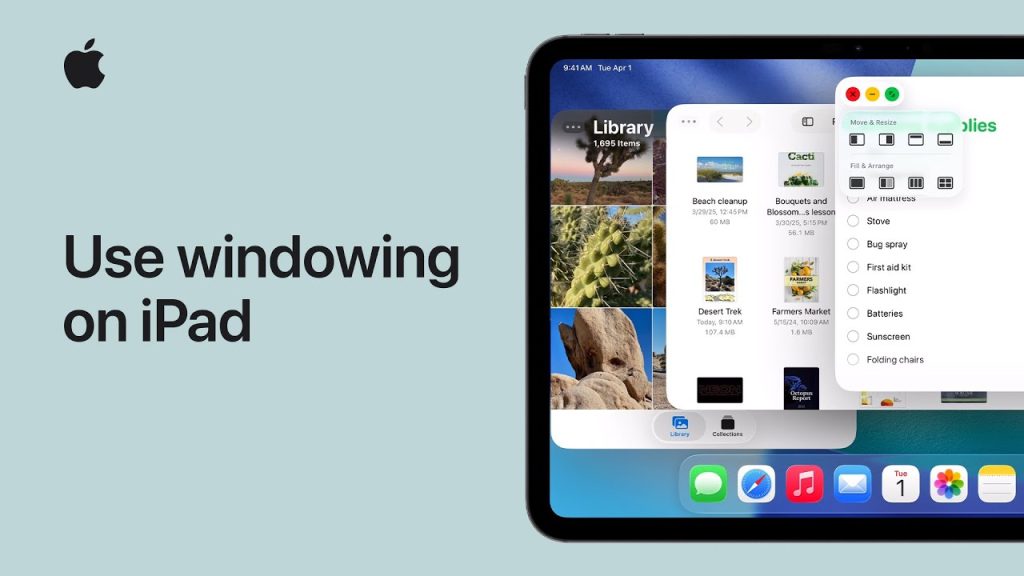
The iPad is a powerful device, and with the introduction of windowing features, it has become even more efficient for multi-tasking. Whether you’re working on documents, browsing the web, or streaming content, being able to organize multiple apps on your iPad screen simultaneously can dramatically improve your productivity. The windowing feature allows you to manage several apps at once, giving you the flexibility to switch between tasks without losing focus.
In this guide, we’ll show you how to use windowing on your iPad effectively. Whether you’re looking to split your screen, work in multiple apps side by side, or create resizable windows for a more customized layout, mastering windowing can help you get more done in less time. We’ll walk you through the steps and features, including how to use Split View, Slide Over, and multitask seamlessly on your iPad.
Steps to Use Windowing on iPad
1. Enable Split View for Multi-tasking
Split View is one of the most popular windowing features on the iPad, allowing you to run two apps side by side on your screen. This is ideal for tasks like writing an email while referencing a webpage or working on two documents at once.
- Open the First App
Start by opening the first app you want to use. For example, you could open Safari to browse the web. - Activate Split View
Once the first app is open, swipe up from the bottom of the screen (or press the Home button on older iPads) to bring up the Dock. Then, drag the second app you want to use from the Dock to the left or right side of the screen. This will activate Split View and display both apps side by side. - Adjust the Split
You can adjust the size of each app window by dragging the divider in the middle of the screen. Move the divider left or right to give one app more screen space, depending on your preference. - Exit Split View
To exit Split View, simply drag the divider all the way to one side, or swipe the second app off the screen. This will return you to using just one app at a time.
2. Using Slide Over for Floating Apps
Slide Over allows you to have a floating app window that hovers over the main app. This is great for quickly checking notifications, referencing another document, or jotting down notes without leaving the current app.
- Open the First App
Start by opening the app you want to use as your main window. - Activate Slide Over
To open a second app in Slide Over, swipe up from the Dock and drag the second app to the center of the screen. The app will appear as a small floating window on top of the current app. - Move the Slide Over Window
You can drag the Slide Over window from one side of the screen to the other. To move the window, simply swipe it from the edge of the screen. - Interact with Both Apps
You can interact with the apps in Slide Over and Split View simultaneously. To hide the Slide Over window, swipe it to the side of the screen. To bring it back, swipe from the edge of the screen again. - Exit Slide Over
To exit Slide Over, swipe the floating app off the screen to close it.
3. Using Multiple Windows in Slide Over
If you need more than one app in Slide Over, you can add additional windows to the floating area. This feature allows you to multitask even more efficiently.
- Open the First App in Slide Over
Start by opening the first app in Slide Over as described above. - Add Another App to Slide Over
While the first app is floating in Slide Over, swipe up from the Dock again and drag another app to the center of the screen. This will add a second floating window to the Slide Over stack. - Switch Between Floating Apps
To switch between the apps in Slide Over, swipe the stack of apps left or right. You can have multiple apps open in Slide Over and switch between them easily.
4. Managing App Windows with the App Switcher
The App Switcher allows you to quickly navigate between open apps, making multitasking even smoother.
- Open the App Switcher
To open the App Switcher, swipe up from the bottom of the screen and pause, or double-press the Home button on older iPads. - Switch Between Open Apps
In the App Switcher, you’ll see all the apps you currently have open. Swipe left or right to find the app you want to switch to, and tap on it to bring it to the foreground. - Close Apps
If you want to close an app, swipe it up and off the screen. This helps keep your iPad running smoothly by freeing up resources.
5. Using Picture-in-Picture Mode for Videos
Picture-in-Picture (PiP) mode allows you to watch a video while using another app. This is ideal for streaming content and browsing the web at the same time.
- Start Playing a Video
Open an app like Safari, YouTube, or a video player, and start playing a video. - Activate Picture-in-Picture Mode
While the video is playing, swipe up from the bottom or press the Home button to return to the Home screen. The video will shrink into a small, movable window that you can drag around the screen. - Adjust the Picture-in-Picture Window
You can resize the video window by dragging the corners, or tap the PiP window to pause, play, or close the video.
Additional Tips for Windowing on iPad
- Use the Dock for Quick Access: The Dock on your iPad provides easy access to your most frequently used apps, allowing you to quickly drag and drop them into Split View or Slide Over.
- Master Gestures for Efficiency: To make the most of windowing on your iPad, practice using gestures like swiping up for the Dock, swiping down for notifications, and using multi-finger swipes for app switching.
- Keep Your Screen Organized: To maintain a smooth workflow, avoid overloading your screen with too many windows. Use Split View and Slide Over in moderation to keep your workspace organized.
Why Windowing is Useful on iPad
Windowing on iPad is a powerful tool for multitasking, allowing you to run multiple apps simultaneously, manage your workflow, and enhance productivity. Whether you’re editing documents, browsing the web, or watching videos, the ability to organize apps in a split screen or floating windows ensures that you stay focused and efficient.
Final Thoughts on Using Windowing on iPad
Mastering the windowing features on your iPad is key to unlocking its full potential. By utilizing Split View, Slide Over, and Picture-in-Picture modes, you can boost productivity, switch between tasks seamlessly, and make the most of your iPad’s powerful capabilities. Whether you’re working on a project, watching videos, or browsing the web, windowing makes multitasking easier and more intuitive.