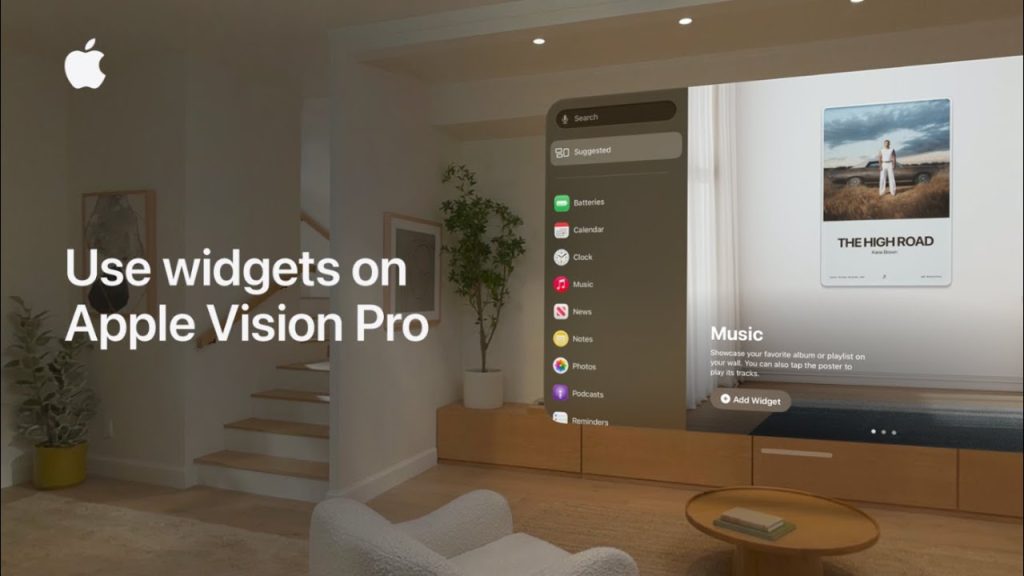
Apple Vision Pro brings a new level of interactivity and customization to the world of mixed reality, and one of the standout features is its ability to use widgets. Widgets on the Apple Vision Pro allow you to access essential information, control settings, and interact with your virtual environment in a convenient and organized way. Whether you’re checking the weather, managing your calendar, or quickly accessing apps, widgets make your virtual experience even more seamless and productive.
In this guide, we’ll walk you through how to use, add, and customize widgets on your Apple Vision Pro. By the end, you’ll be able to organize your virtual space, streamline your workflow, and make the most of the advanced features the Apple Vision Pro offers.
Steps to Use Widgets on Apple Vision Pro
1. Accessing Widgets on Apple Vision Pro
The first step in using widgets on your Apple Vision Pro is accessing the widget menu. This allows you to view available widgets and choose which ones to display on your virtual environment.
- Open the Home Screen
Put on your Apple Vision Pro headset and ensure you’re in your Home View. You can activate the Home View by either using voice commands or selecting the Home icon in the virtual menu. - Swipe to the Widgets Screen
To access widgets, swipe left or right within the Home View to navigate to the widgets screen. Depending on your settings, widgets might appear by default on one of the sides of your virtual workspace or as a separate screen that you can swipe through. - Select Widgets to Display
Once you’re in the widgets screen, you’ll see a variety of available widgets. These can include the weather, calendar, reminders, news, and more. Some apps may also offer their own widgets, such as music apps, fitness trackers, or productivity tools.
2. Adding Widgets to Your Virtual Workspace
Once you’ve accessed the widgets screen, you can easily add widgets to your virtual environment. Widgets can be placed anywhere in your workspace for quick access.
- Activate the Add Widget Option
On the widgets screen, look for the “Add Widget” button, typically located at the bottom or in a sidebar. Clicking on this button will bring up a menu of widgets you can add to your workspace. - Choose Your Desired Widget
Browse through the available widgets, and select the one you want to add. You can choose from a range of options, including weather, clock, calendar, or third-party widgets from other installed apps. - Drag and Drop the Widget
After selecting the widget, drag it to your preferred spot within your virtual workspace. You can resize and reposition it by simply holding and dragging it across the screen. - Confirm the Widget Placement
Once you’ve placed the widget in your desired position, release it. It will stay in that spot and remain accessible as long as the widget is active.
3. Customizing Widgets on Apple Vision Pro
Apple Vision Pro allows you to customize the look and functionality of your widgets to suit your needs. Customization options vary depending on the widget but may include adjusting the displayed information, resizing, and changing the appearance.
- Resize Widgets
Many widgets on Apple Vision Pro are resizable. To resize a widget, select it and use your hand gestures to expand or shrink it. This can be helpful if you want a larger view of calendar events or a smaller, more compact weather widget. - Edit Widget Settings
To edit the settings of a widget, hover your gaze over it and look for the edit icon (usually represented by a pencil or settings gear). Tap the icon to bring up the customization options. From here, you can change the data shown, such as selecting which calendar to display, which location the weather widget should track, or what news sources you want updates from. - Change Widget Appearance
Depending on the widget, you may be able to change its color scheme, layout, or content format. For example, the weather widget may let you switch between a detailed forecast and a simple current temperature display. Experiment with different settings to find the style that works best for you.
4. Managing Widgets in Your Apple Vision Pro Workspace
Over time, you may want to reorganize, remove, or replace widgets as your needs change. Apple Vision Pro makes it easy to manage your widgets without disrupting your virtual environment.
- Move Widgets
If you want to move a widget to a different spot, simply hold it and drag it to the new location in your virtual workspace. You can position widgets anywhere within your field of view for easy access. - Remove Widgets
To remove a widget, hover your gaze over it, and look for the trash can icon or delete option. Confirm the action, and the widget will be removed from your workspace. You can always add it back later using the “Add Widget” feature. - Customize Widget Groups
If you use multiple widgets frequently, consider grouping related widgets together. You can create custom widget sections for your most-used apps or organize them by category (e.g., work, entertainment, fitness) for a cleaner, more efficient workspace.
5. Using Widgets for Enhanced Productivity
Widgets on Apple Vision Pro are not just for aesthetics—they also play a vital role in improving your productivity. By having important information and tools within your line of sight, you can stay organized and on top of tasks without switching between apps.
- Use Widgets for Quick Access to Information
With widgets like reminders, to-do lists, and calendar events, you can have real-time updates and quick access to important data, all within your virtual environment. This helps you manage tasks, deadlines, and appointments efficiently. - Monitor Your Health and Fitness
Widgets from health apps can display real-time metrics, such as step count, heart rate, and exercise progress. By adding these widgets to your Home View, you can track your health and fitness goals throughout the day. - Stay Updated with News and Weather
Stay informed with widgets that deliver daily news updates, weather forecasts, and more. You can customize these widgets to pull information from your favorite sources, ensuring you’re always in the loop.
Final Thoughts on Using Widgets on Apple Vision Pro
Widgets on Apple Vision Pro enhance the device’s versatility by allowing you to access important information, control settings, and streamline your workflow—all within an immersive, virtual environment. By following the steps to add, customize, and manage your widgets, you can create a highly personalized experience that suits your needs and preferences. Whether for work, entertainment, or fitness, widgets help you stay organized, informed, and efficient while using your Apple Vision Pro.