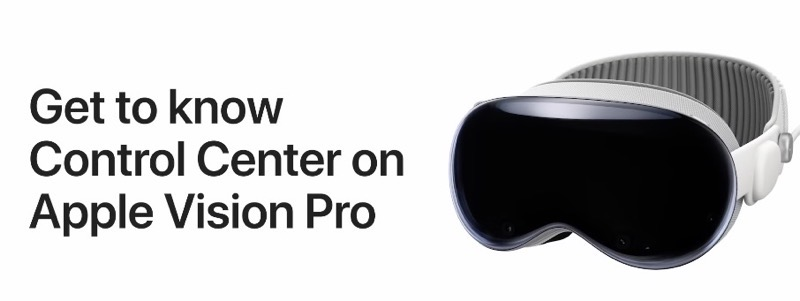
The Apple Vision Pro is a cutting-edge device that integrates augmented reality (AR) and virtual reality (VR) to offer an immersive and intuitive experience. One of the key features that enhances the usability of the Apple Vision Pro is its Control Center, which provides quick access to essential settings and tools. Whether you’re adjusting system preferences, managing media, or enabling specific features, the Control Center simplifies your experience by centralizing everything you need.
In this guide, we’ll explore how to use Control Center on the Apple Vision Pro, including what it is, how to access it, and how to customize it for a more personalized and seamless experience.
What is Control Center on Apple Vision Pro?
Control Center on the Apple Vision Pro is a user-friendly interface designed to give you fast access to the most important system controls. Think of it as the heart of your device’s settings, allowing you to make adjustments to features like volume, display settings, and network connections without needing to leave your current experience.
How to Access Control Center on Apple Vision Pro
Accessing Control Center on the Apple Vision Pro is simple and can be done with just a few gestures or commands:
- Activate Control Center with Gestures
The Apple Vision Pro uses advanced gesture recognition, so you can swipe or pinch in specific ways to bring up the Control Center. Typically, you can swipe down from the top or make a specific pinch gesture in the air to activate the Control Center. - Voice Commands
Since the Apple Vision Pro also integrates Siri for voice control, you can activate Control Center by simply saying “Hey Siri, open Control Center.” - Quick Access from the Home Screen
If you’re navigating the Vision Pro’s home screen, you can quickly access Control Center by tapping or selecting the corresponding icon on your virtual dashboard.
Key Features and Controls in Control Center on Apple Vision Pro
Once you’ve accessed Control Center, you’ll notice several sections designed to help you manage the various aspects of your device. Below are the key features and controls you’ll find:
1. Display Settings
- Brightness: Adjust the brightness of your Apple Vision Pro’s display to suit your environment. Whether you’re in bright light or a darker setting, you can easily tweak the display to ensure optimal visibility.
- Night Mode: Activate Night Mode to reduce blue light emissions for a more comfortable viewing experience, especially in low-light environments.
- Text Size & Zoom: Modify the text size or enable zoom for better readability within AR/VR experiences.
2. Audio Controls
- Volume Adjustments: Easily adjust the audio levels for media, system sounds, or calls directly from Control Center.
- Sound Modes: Switch between different audio modes, such as stereo or surround sound, depending on the content you’re engaging with.
3. Connectivity and Network
- Wi-Fi: Connect or disconnect from Wi-Fi networks, or manage network settings for faster access to the internet.
- Bluetooth: Turn Bluetooth on or off to connect or disconnect from other devices like headphones or external speakers.
- AirDrop: Manage AirDrop settings to share content with nearby devices or receive content from others.
4. System Preferences
- Do Not Disturb: Toggle Do Not Disturb to avoid interruptions when you’re in an immersive experience or in a meeting.
- AirPlay: Share your screen or media to another compatible Apple device using AirPlay.
- Focus Modes: Adjust focus settings to customize how you’re notified during different activities, whether it’s work or personal time.
5. Battery and Power Management
- Battery Percentage: View the current battery level and get an estimate of how much time you have left before needing a charge.
- Low Power Mode: Enable Low Power Mode to extend battery life when you’re running low and need your device to last longer.
- Charging Status: Check the charging status of your Apple Vision Pro and any connected accessories.
6. Privacy and Security Settings
- Face ID/Touch ID: Quickly access authentication settings for security features like Face ID or Touch ID, which ensure that your device is secure.
- Location Services: Enable or disable location tracking based on your preferences, especially useful when using AR apps.
Customizing Control Center on Apple Vision Pro
Just like on iPhones and iPads, you can customize your Control Center to suit your needs. Here’s how:
- Rearranging Controls
You can choose which controls appear in your Control Center by adjusting the settings. If you use certain features more frequently, such as Wi-Fi or brightness, you can prioritize them for faster access. - Adding or Removing Controls
Go to Settings on your Apple Vision Pro, find the Control Center options, and add or remove controls according to your preferences. This allows you to personalize the experience and only have the most relevant options at your fingertips. - Adjusting Gestures
If you prefer different gestures to activate or navigate the Control Center, check the settings to modify gestures to fit your comfort.
How Control Center Enhances Your Apple Vision Pro Experience
The Control Center on Apple Vision Pro is designed to enhance your overall user experience by providing quick and efficient access to key features. Here’s how it improves your device usage:
- Convenience: With instant access to settings and tools, you can make adjustments without interrupting your experience. Whether you’re in an AR game or watching a movie, you can easily manage volume, screen brightness, and more.
- Efficiency: Customize Control Center so that you can access the features you use most, making it easier and faster to control your device.
- Seamless Integration: The Control Center’s features are fully integrated with macOS and iOS, allowing you to manage devices and media effortlessly across the Apple ecosystem.