
Nyongesa Sande
No Result
View All Result
  • News
    • World
    • Africa
  • Politics
  • Business
  • Tech
  • AI
  • Telecom
  • Sports
  • Opinion
  • Lifestyle
  • Live
  • World Cup 2026
    • World Cup 2026 Standings
    • World Cup 2026
Nyongesa Sande
  • About Us
    • Nyosake Designers
      • Nyosake Webmasters
      • Nyosake Investment
  • Contact Us
    • Newsroom Contact
  • Ownership Disclosure
  • Advertise
No Result
View All Result
Nyongesa Sande
No Result
View All Result
  • News
  • Politics
  • Business
  • Tech
  • AI
  • Telecom
  • Sports
  • Opinion
  • Lifestyle
  • Live
  • World Cup 2026
ADVERTISEMENT

Home » How to Add an Email Account to Your iPhone

How to Add an Email Account to Your iPhone

Step-by-Step Guide to Setting Up Email Accounts on Your iPhone

NyongesaSande News Desk by NyongesaSande News Desk
5 months ago
in Instructables
Reading Time: 5 mins read
A A

Setting up an email account on your iPhone is simple and ensures that you can stay connected on the go. Whether you’re adding a Gmail, Yahoo, Outlook, or another email account, the process is quick and easy. Once added, your email will sync automatically with the Mail app on your iPhone, giving you access to your inbox, calendar, and contacts.

  • Step 1: Open the Settings App on Your iPhone
  • Step 2: Add Your Email Account
  • Step 3: Enter Your Email Credentials
  • Step 4: Choose What to Sync
  • Step 5: Access Your Email on Your iPhone
  • Step 6: Manage Your Email Account Settings
  • Step 7: Troubleshooting Email Account Issues

In this guide, we’ll show you how to add an email account to your iPhone and walk you through each step to ensure a smooth setup.

Step 1: Open the Settings App on Your iPhone

To begin, you’ll need to open the Settings app on your iPhone. This app is where you can adjust system preferences, including adding and managing email accounts.

ADVERTISEMENT
  1. Open Settings
    Find the Settings app on your home screen and tap to open it.
  2. Scroll Down and Tap Mail
    In the Settings menu, scroll down and tap on Mail. This is where you manage all your email-related settings.

Step 2: Add Your Email Account

Now that you’re in the Mail settings, follow these steps to add your email account:

  1. Tap Accounts
    Under the Mail settings, tap Accounts. This will show all the email accounts currently linked to your iPhone.
  2. Tap Add Account
    Tap Add Account at the bottom of the list to begin adding a new email account.
  3. Choose Your Email Provider
    You will now be presented with a list of popular email providers, including iCloud, Google, Yahoo, Outlook, and others. Choose your email provider from the list. If your provider isn’t listed, tap Other to add your email manually.

Step 3: Enter Your Email Credentials

Once you’ve selected your email provider, you’ll need to enter your account information.

ADVERTISEMENT
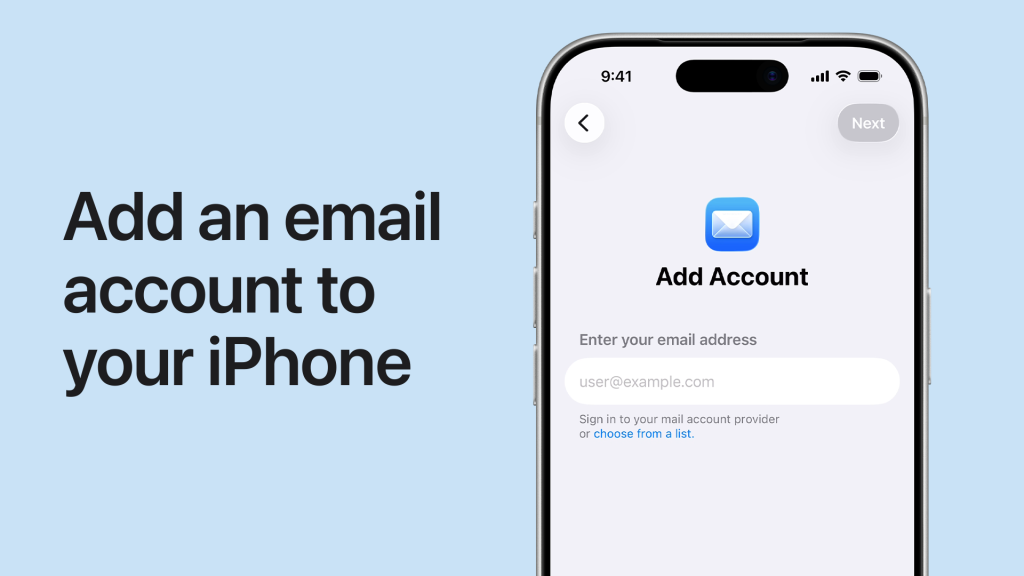
  1. Enter Your Email Address and Password
    For most providers like Gmail, Yahoo, or Outlook, you’ll be prompted to enter your email address and password. Enter the credentials for your account, and tap Next to continue.
  2. Allow Permissions (if applicable)
    For certain email services (like Google), you may be prompted to allow permissions for syncing contacts, calendars, and other data with your iPhone. Make sure to review these permissions and allow them to sync if needed.
  3. Manual Setup (for Other Accounts)
    If you selected Other as your email provider, you’ll need to manually enter the server settings. These include:
    • IMAP or POP: Choose IMAP for syncing your emails across devices.
    • Incoming Mail Server: Enter the incoming mail server (e.g., imap.yourprovider.com).
    • Outgoing Mail Server: Enter the outgoing mail server (e.g., smtp.yourprovider.com).
    You may need to contact your email provider for these settings if you’re unsure.

Step 4: Choose What to Sync

After entering your email credentials, you will be asked what you want to sync with your iPhone.

  1. Select What You Want to Sync
    You can choose to sync your email, contacts, calendars, and notes. Toggle the switches on for the data you want to sync with your iPhone.
  2. Tap Save
    Once you’ve made your selections, tap Save to finish adding the email account.

Step 5: Access Your Email on Your iPhone

After adding your email account, you can access it from the Mail app on your iPhone.

  1. Open the Mail App
    Find the Mail app on your home screen and tap to open it.
  2. View Your Emails
    Your new email account will appear in the Mail app, and any emails you have will automatically sync to your device. You can now send, receive, and manage your email directly from your iPhone.

Step 6: Manage Your Email Account Settings

Once your email account is added, you can manage the settings for that account. Here’s how:

ADVERTISEMENT
  1. Go to Settings > Mail > Accounts
    To adjust settings for any of your email accounts, go to Settings > Mail > Accounts, and tap the email account you want to manage.
  2. Change Settings for Syncing, Notifications, and More
    Here you can adjust settings such as:
    • Sync duration: Choose how many days’ worth of emails you want to sync to your device.
    • Notifications: Set up how you’d like to be notified for new emails.
    • Mail Settings: You can adjust your account’s name, email address, and password if needed.

Step 7: Troubleshooting Email Account Issues

If you encounter issues with your email account, such as not receiving or sending emails, here are a few troubleshooting steps to follow:

  1. Check Your Network Connection
    Make sure your iPhone is connected to Wi-Fi or cellular data. Email syncing requires a stable internet connection.
  2. Verify Email Settings
    If you’re not receiving emails, go back to Settings > Mail > Accounts and check your account settings, including your password and server settings.
  3. Restart Your iPhone
    If problems persist, restart your iPhone to ensure that any temporary software glitches are resolved.
  4. Contact Your Email Provider
    If you’re still experiencing issues, contact your email provider’s support team for assistance, especially if you’re using a third-party email provider with custom settings.
Tags: add email to iPhoneemail account iPhoneiPhone email setupiPhone mail setup
ShareTweetSendShareScanSharePinShareShare
Google Add as a Preferred Source on Google
Previous Post

Get to Know Control Center on Apple Vision Pro

Next Post

How to Use Your Mac with Apple Vision Pro

NyongesaSande News Desk

NyongesaSande News Desk

Nyongesa Sande offers diverse content across news, technology, entertainment, and more, aiming to provide readers with a wide range of informative and engaging articles. NYONGESA SANDE's dedicated team provides our audience not only with the highly relevant news but also with outstanding interactive experience.

Related Posts

How To Send Please Call Me On Airtel Kenya
Instructables

Can You Share Data on Airtel Kenya?

2 months ago
Recover Lost or Permanently Deleted Data from iPhone
Instructables

Recover Lost or Permanently Deleted Data from iPhone

3 months ago
How to Clean the Meshes on Your AirPods
Instructables

How to Clean the Meshes on Your AirPods

5 months ago
How to Customize Notification Summaries on iPhone or iPad – Full Guide
iPad

How to Customize Notification Summaries on iPhone or iPad – Full Guide

5 months ago
How to Use AirPlay to Stream Video or Mirror the Screen on iPhone and iPad – Easy Guide
Instructables

How to Use AirPlay to Stream Video or Mirror the Screen on iPhone and iPad – Easy Guide

5 months ago
How to Add Your Home Address in Contacts and Maps on iPhone or iPad – Easy Guide
Instructables

How to Add Your Home Address in Contacts and Maps on iPhone or iPad – Easy Guide

5 months ago
Load More
Next Post
How to Use Your Mac with Apple Vision Pro

How to Use Your Mac with Apple Vision Pro

How to Share Your Accessibility Settings on iPhone or iPad

How to Share Your Accessibility Settings on iPhone or iPad

ADVERTISEMENT

Who We Are

Nyongesa Sande

NyongesaSande.com is a digital news and media platform covering breaking news, business, technology, AI, politics, sports, world affairs and African innovation.

News Sections

  • News
    • World
    • Africa
  • Politics
  • Business
  • Tech
  • AI
  • Telecom
  • Sports
  • Opinion
  • Lifestyle
  • Live
  • World Cup 2026
    • World Cup 2026 Standings
    • World Cup 2026

Editorial Standards

  • Editorial Policy
  • Fact Checking Policy
  • Corrections Policy
  • Ethics Policy
  • AI Usage Policy
  • News Tips
  • Submit Press Release

Legal

  • Privacy Policy
  • Terms of Use
  • Cookie Policy
  • Disclaimer
  • Risk Disclaimer
  • DMCA
  • Ad Choices

Our Company

  • About Us
    • Nyosake Designers
      • Nyosake Webmasters
      • Nyosake Investment
  • Contact Us
    • Newsroom Contact
  • Ownership Disclosure
  • Advertise
  • Privacy Policy
  • Terms of Use
  • Cookie Policy
  • Disclaimer
  • Risk Disclaimer
  • DMCA
  • Ad Choices

NyongesaSande.com is an independent digital news and media platform covering Africa, business, technology, AI, politics and global developments.

© 2026 NyongesaSande.com. All rights reserved.

No Result
View All Result
  • News
    • World
    • Africa
  • Politics
  • Business
  • Tech
  • AI
  • Telecom
  • Sports
  • Opinion
  • Lifestyle
  • Live
  • World Cup 2026
    • World Cup 2026 Standings
    • World Cup 2026

NyongesaSande.com is an independent digital news and media platform covering Africa, business, technology, AI, politics and global developments.

© 2026 NyongesaSande.com. All rights reserved.
