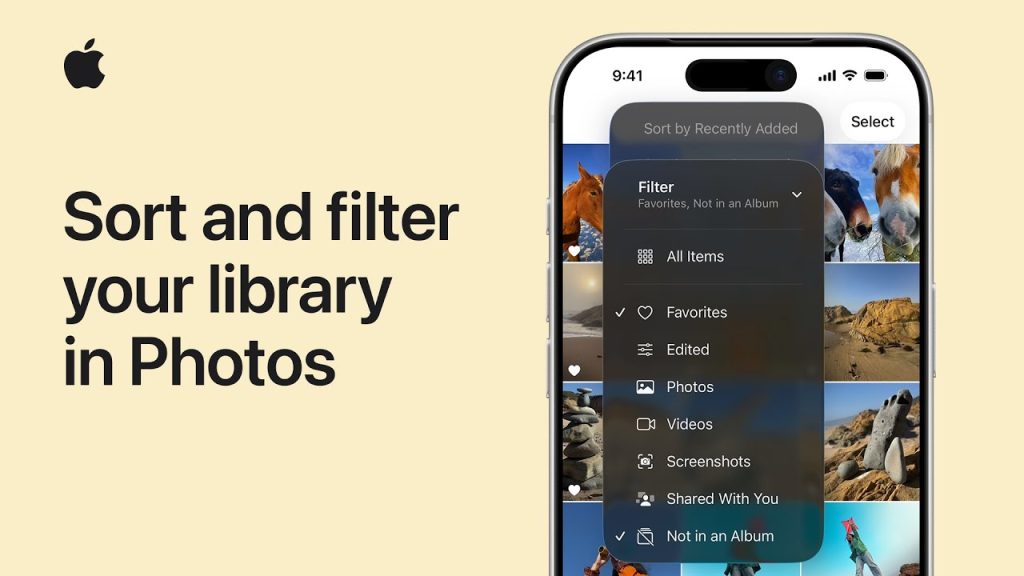
Keeping your Photos library organized on iPhone and iPad can make a world of difference when you need to find a specific photo or create albums for different events. With the right tools, you can easily sort and filter your photos, ensuring you always have quick access to what you need. Whether you’re looking to organize by date, location, or even people, Apple’s Photos app offers a range of sorting and filtering features to help streamline your experience.
In this guide, we’ll show you how to sort and filter your Photos library on iPhone and iPad, so you can stay organized and get the most out of your photo collection. By using these features, you’ll be able to easily locate and manage your photos, whether you’re trying to find that perfect vacation snapshot or creating a special album for memories.
Steps to Sort and Filter Your Photos Library on iPhone and iPad
1. Using the Photos Tab to Sort Your Library
The Photos app on iPhone and iPad automatically organizes your photos by Years, Months, and Days. This feature helps you easily browse through your entire library in a chronological order.
- Open the Photos App
Start by opening the Photos app on your iPhone or iPad. - Navigate to the Photos Tab
Tap the Photos tab at the bottom of the screen. Here, you’ll see your photos grouped by Years, Months, and Days. This view allows you to scroll through your entire collection in chronological order. - Sort Photos by Date
In the Years view, you can scroll through a timeline of all the years you’ve taken photos. Tap on a specific year, and you’ll be able to view photos taken during different months and days. You can quickly find photos from a particular date by navigating through this sorted view. - Scroll and Zoom
To see more details in your photos, you can zoom in on any of the days, months, or years. For example, tap a specific month to see all the photos taken during that time, making it easier to locate specific memories.
2. Filtering Photos Using Search
The Search function in the Photos app allows you to filter your photos based on specific criteria, such as location, people, objects, or even events. This is a powerful way to find exactly what you’re looking for in seconds.
- Tap on the Search Tab
Open the Photos app, and tap the Search tab at the bottom of the screen. This will bring up a search bar where you can begin filtering your library. - Search by Keywords
You can type in specific keywords like vacation, beach, or birthday to see all related photos. The Photos app will use machine learning to recognize objects, scenes, and even locations in your photos, making it easy to find specific images. - Filter by People
If you’ve set up People in your Photos app, you can search by specific individuals. Simply type the person’s name in the search bar, and the app will show all the photos where they appear. - Search by Location
If location data is enabled, you can search for photos taken in a specific place. For example, typing “Paris” will bring up all photos taken in that city, thanks to the GPS data embedded in your images. - Use Suggested Categories
Below the search bar, you’ll find Suggested categories, like “Selfies,” “Nature,” or “Recent.” Tap on any of these categories to view photos that match the filters automatically generated by the app.
3. Creating Albums to Organize Your Photos
Albums are a great way to keep your photos organized, especially when you want to group them by event, trip, or subject. You can create albums manually or let the Photos app generate them for you.
- Create a New Album
To create an album, go to the Albums tab, then tap + in the top-left corner. Select New Album, and give it a name (e.g., “Family Vacation” or “Summer 2023”). - Add Photos to the Album
After naming your album, the app will prompt you to add photos. You can select individual photos, or use the Select All feature to quickly add a group of images. - Smart Albums
The Photos app also creates Smart Albums automatically, such as Favorites, Recents, and Screenshots. These albums automatically filter photos based on the type or action (e.g., photos you’ve marked as favorites or screenshots you’ve taken). - Move Photos Between Albums
You can move photos between albums at any time by selecting the images, tapping the Share icon, and choosing Add to Album. From there, you can select the album you want to move the photos to.
4. Using the Filter Options in Albums
When viewing an album, you can further filter photos based on specific criteria, such as favorites or specific date ranges.
- Filter by Date or People
Inside an album, tap the Filter button (usually a funnel icon). You can then filter your photos based on the date they were taken, people in the photos, or even the location. This makes it easy to narrow down your album content. - Filter by Media Type
The Photos app also lets you filter by media type, such as Videos, Live Photos, or Selfies. This is helpful if you have a large album and want to find specific types of media quickly.
5. Using iCloud to Access Photos Across Devices
If you use iCloud Photos, all your albums, sorted photos, and filters will be available across all your Apple devices. This means you can organize your photos on your iPhone, and then access them on your iPad, Mac, or even via the iCloud website.
- Enable iCloud Photos
To enable iCloud Photos, go to Settings > [Your Name] > iCloud > Photos, and toggle on iCloud Photos. This will ensure that your library is synced across all devices. - Access Your Photos Anywhere
Once iCloud Photos is set up, any changes you make to albums or sorting on one device will automatically sync across your other devices. This allows for seamless organization and access no matter where you are.
Why Sorting and Filtering Photos Is Important
Sorting and filtering your Photos library on iPhone and iPad is crucial for maintaining an organized and efficient photo collection. With large libraries, finding specific photos can be a hassle—especially when you have thousands of images. Using these features, such as albums, filters, and search, helps streamline your photo management, making it easier to locate, view, and share your memories.
Final Thoughts on Sorting and Filtering Your Photos Library
Apple’s Photos app on iPhone and iPad offers powerful tools to sort, filter, and organize your photo library, whether you’re sorting by date, creating albums, or searching for specific images. By mastering these features, you can enjoy a more streamlined and enjoyable photo experience, whether you’re looking back on memories, sharing photos with friends, or organizing your media.