
Nyongesa Sande
No Result
View All Result
  • News
    • World
    • Africa
  • Politics
  • Business
  • Tech
  • AI
  • Telecom
  • Sports
  • Opinion
  • Lifestyle
  • Live
  • World Cup 2026
    • World Cup 2026 Standings
    • World Cup 2026
Nyongesa Sande
  • About Us
    • Nyosake Designers
      • Nyosake Webmasters
      • Nyosake Investment
  • Contact Us
    • Newsroom Contact
  • Ownership Disclosure
  • Advertise
No Result
View All Result
Nyongesa Sande
No Result
View All Result
  • News
  • Politics
  • Business
  • Tech
  • AI
  • Telecom
  • Sports
  • Opinion
  • Lifestyle
  • Live
  • World Cup 2026
ADVERTISEMENT

Home » How to Sync iPhone Contacts to Mac Using iCloud

How to Sync iPhone Contacts to Mac Using iCloud

NyongesaSande News Desk by NyongesaSande News Desk
2 years ago
in How To
Reading Time: 4 mins read
A A
How to Sync iPhone Contacts to Mac Using iCloud

Syncing your iPhone contacts to your Mac can simplify managing your contact list and ensure you have access to the same contacts across both devices. Here’s a comprehensive guide on how to synchronize your contacts using iCloud, AirDrop, or a physical USB connection.

  • How to Sync iPhone Contacts to Mac Using iCloud
  • How to AirDrop Contacts From iPhone to Mac
  • How to Sync iPhone Contacts to Mac Using a USB Cable
  • Troubleshooting Contact Sync Issues
  • FAQ

How to Sync iPhone Contacts to Mac Using iCloud

1. Setup on iPhone:

  • Open Settings.
  • Tap your profile name at the top.
  • Go to iCloud.
  • Toggle Contacts to ON. If prompted, choose to Merge your contacts with iCloud.

2. Setup on Mac:

ADVERTISEMENT
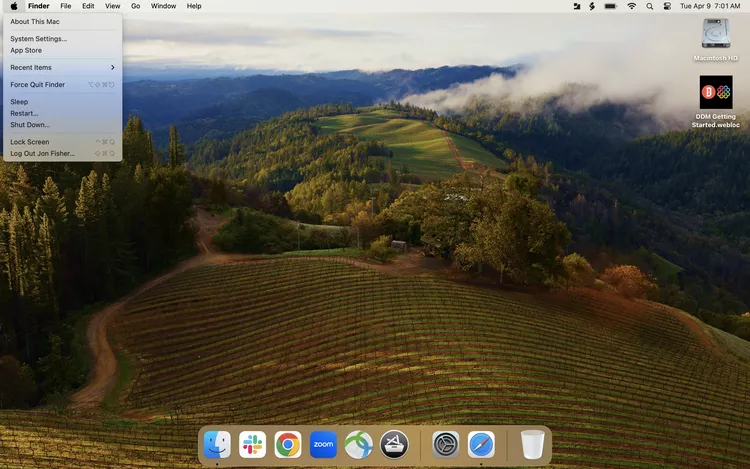
  • Click the Apple icon in the top-left corner.
  • Select System Settings or System Preferences.
  • Click Apple ID, then select iCloud.
  • Enable Contacts by toggling it on.

This method ensures that any changes made to your contacts on one device will automatically update on the other device, keeping your contact list consistent and up-to-date across your Apple devices.

How to AirDrop Contacts From iPhone to Mac

If you just need to transfer a few specific contacts, AirDrop is a convenient option:

ADVERTISEMENT

1. Open the Contacts app on your iPhone. 2. Select the contact you want to share. 3. Tap on Share Contact. 4. Choose AirDrop and select your Mac from the list.

Make sure that both devices have Wi-Fi and Bluetooth enabled and that AirDrop is set to receive from Contacts Only or Everyone on your Mac.

How to Sync iPhone Contacts to Mac Using a USB Cable

For those who prefer using a cable:

ADVERTISEMENT

1. Connect your iPhone to your Mac using a USB cable. 2. Trust the device, if prompted. 3. On your Mac, open Finder and select your iPhone from the sidebar under Locations. 4. Click on the Info tab and check Sync contacts onto [your iPhone’s name]. 5. Click Sync to start syncing your contacts.

This method is ideal if you are not using iCloud or if you prefer to backup your contacts while charging your iPhone.

Troubleshooting Contact Sync Issues

If your contacts are not syncing:

  • Check Network Connection: Ensure both devices are connected to the internet.
  • Verify iCloud Accounts: Both devices should be logged into the same iCloud account.
  • Check iCloud Storage: Insufficient iCloud storage can prevent syncing. Consider clearing space or upgrading your storage plan.
  • Force Refresh: On your iPhone, open Contacts and pull down from the top of the list to refresh.
  • Restart Devices: Sometimes, simply restarting your devices can resolve syncing issues.

FAQ

Q: How do I sync iMessage from my iPhone to my Mac? A: On your Mac, open Messages, go to Preferences > iMessage, and ensure you’re logged in with the same Apple ID used on your iPhone. Check Enable Messages in iCloud and click Sync Now.

Q: How do I sync photos from my iPhone to my Mac? A: On your iPhone, go to Settings > [your name] > iCloud > Photos, and turn on iCloud Photos. On your Mac, go to System Settings > Apple ID > iCloud, and ensure Photos is enabled.

Q: How do I sync music from my iPhone to my Mac? A: Connect your iPhone to your Mac, open the Music app, and under Devices in the sidebar, choose your iPhone. Click Sync Settings to manage your music sync preferences.

By following these steps, you can efficiently manage your contacts and keep your important information consistent across your iPhone and Mac.

Tags: How To
Share1Tweet1SendShareScanSharePinShareShare
Google Add as a Preferred Source on Google
Previous Post

How to Fix a Chromebook Touchscreen That’s Not Working

Next Post

How to Replace a Dead iPad Battery

NyongesaSande News Desk

NyongesaSande News Desk

Nyongesa Sande offers diverse content across news, technology, entertainment, and more, aiming to provide readers with a wide range of informative and engaging articles. NYONGESA SANDE's dedicated team provides our audience not only with the highly relevant news but also with outstanding interactive experience.

Related Posts

How to Weld a 2-Block Rectangular Hollow Block Mold: Measurements, Materials and Step-by-Step Guide
How To

How to Weld a 2-Block Rectangular Hollow Block Mold: Measurements, Materials and Step-by-Step Guide

1 month ago
How to Create a Facebook Account on iPhone App
How To

How to Fix Facebook Confirmation Email Not Received

1 month ago
How to Create a Facebook Account on iPhone App
How To

How to Fix Facebook Confirmation Code Not Received

1 month ago
How to Create a Facebook Account on iPhone App
How To

How to Confirm Your Facebook Email or Phone Number

1 month ago
How to Create a Facebook Account on iPhone App
How To

How to Understand Your Facebook Account and Profiles

1 month ago
How to Create a Facebook Account on iPhone App
How To

How to Fix Facebook Name Not Accepted

1 month ago
Load More
Next Post
How to Replace a Dead iPad Battery

How to Replace a Dead iPad Battery

Essential Guide to Checking and Understanding VRAM on Your Computer

Essential Guide to Checking and Understanding VRAM on Your Computer

Trending

  • Top 10 Richest People in Tripura (2026)

    Top 10 Richest People in Tripura (2026)

    169 shares
    Share 68 Tweet 42
  • Product Review: Bose Portable Smart Speaker

    184 shares
    Share 74 Tweet 46
  • QVSELP Scam Warning: Why Kenyans Should Be Careful

    4 shares
    Share 2 Tweet 1
  • ZimLoan: A Quick Guide to Salary Advance Loans in Zimbabwe

    288 shares
    Share 115 Tweet 72
  • Top 10 Richest People in Manipur (2026)

    58 shares
    Share 23 Tweet 15
  • List of All Phone Numbers for the Kenyan 13th Parliament – Contact your MP today

    156 shares
    Share 62 Tweet 39
  • Final World Cup 2026: Messi, Ronaldo and Veteran Stars Facing Their Last Dance

    1 shares
    Share 0 Tweet 0
  • 2026 World Cup Absentees: Biggest Stars Missing the Tournament

    1 shares
    Share 0 Tweet 0
  • Top 10 Richest People in Jammu & Kashmir (2026)

    90 shares
    Share 36 Tweet 23
  • Top 10 Richest People in Meru County

    86 shares
    Share 34 Tweet 22
ADVERTISEMENT
ADVERTISEMENT

Who We Are

Nyongesa Sande

NyongesaSande.com is a digital news and media platform covering breaking news, business, technology, AI, politics, sports, world affairs and African innovation.

News Sections

  • News
    • World
    • Africa
  • Politics
  • Business
  • Tech
  • AI
  • Telecom
  • Sports
  • Opinion
  • Lifestyle
  • Live
  • World Cup 2026
    • World Cup 2026 Standings
    • World Cup 2026

Editorial Standards

  • Editorial Policy
  • Fact Checking Policy
  • Corrections Policy
  • Ethics Policy
  • AI Usage Policy
  • News Tips
  • Submit Press Release

Legal

  • Privacy Policy
  • Terms of Use
  • Cookie Policy
  • Disclaimer
  • Risk Disclaimer
  • DMCA
  • Ad Choices

Our Company

  • About Us
    • Nyosake Designers
      • Nyosake Webmasters
      • Nyosake Investment
  • Contact Us
    • Newsroom Contact
  • Ownership Disclosure
  • Advertise
  • Privacy Policy
  • Terms of Use
  • Cookie Policy
  • Disclaimer
  • Risk Disclaimer
  • DMCA
  • Ad Choices

NyongesaSande.com is an independent digital news and media platform covering Africa, business, technology, AI, politics and global developments.

© 2026 NyongesaSande.com. All rights reserved.

No Result
View All Result
  • News
    • World
    • Africa
  • Politics
  • Business
  • Tech
  • AI
  • Telecom
  • Sports
  • Opinion
  • Lifestyle
  • Live
  • World Cup 2026
    • World Cup 2026 Standings
    • World Cup 2026

NyongesaSande.com is an independent digital news and media platform covering Africa, business, technology, AI, politics and global developments.

© 2026 NyongesaSande.com. All rights reserved.
