Nyongesa Sande
No Result
View All Result
  • News
    • World
    • Africa
  • Politics
  • Business
  • Tech
  • AI
  • Telecom
  • Sports
  • Opinion
  • Lifestyle
  • Live
Nyongesa Sande
No Result
View All Result
Nyongesa Sande
No Result
View All Result
  • News
  • Politics
  • Business
  • Tech
  • AI
  • Telecom
  • Sports
  • Opinion
  • Lifestyle
  • Live
ADVERTISEMENT

Home » Essential Guide to Checking and Understanding VRAM on Your Computer

Essential Guide to Checking and Understanding VRAM on Your Computer

NyongesaSande News Desk by NyongesaSande News Desk
2 years ago
in Tech News, Technology
Reading Time: 3 mins read
A A
Essential Guide to Checking and Understanding VRAM on Your Computer

Discover how to easily check the VRAM (Video RAM) on your Windows or Mac device and learn why VRAM is crucial for gaming and video editing. Get expert tips on optimizing your computer’s graphics performance.

  • How to Check VRAM on Windows
  • How to Check VRAM on macOS
  • VRAM Requirements and Recommendations
  • FAQs on VRAM
  • Tips for Managing VRAM

Understanding and Checking Your Computer’s VRAM

Video RAM (VRAM) is a crucial component of your computer’s graphics system, impacting everything from gaming to professional video editing. Here’s how you can check your VRAM on both Windows and Mac systems, and why it matters for your digital tasks.

ADVERTISEMENT

How to Check VRAM on Windows

1. Via Settings App:

  • Navigate to Settings > System > Display > Advanced display settings > Display adapter properties for your display.
  • The “Dedicated Video Memory” entry shows how much VRAM is available.

2. Using DirectX Diagnostic Tool:

ADVERTISEMENT
  • Open the tool by typing dxdiag in the search bar or Run dialog.
  • Select the “Display” tab to view VRAM for each graphics card installed under “Display Memory.”

How to Check VRAM on macOS

1. Basic VRAM Info:

  • Click the Apple icon and select About This Mac.
  • Look next to “Graphics” for VRAM details.

2. Detailed Graphics Information:

  • In “About This Mac”, click System Report and select Graphics/Displays.
  • VRAM information is listed next to each graphics device.

VRAM Requirements and Recommendations

  • Minimum VRAM: 4GB is typically needed for basic gaming at 1080p, but 8GB or more is recommended for better performance and future-proofing, especially for video editing.
  • Is 128 MB VRAM Enough? No, this amount is significantly lower than what modern applications require. Aim for at least 4GB for any serious graphics work or gaming.

FAQs on VRAM

How much VRAM is enough? For gaming and heavy graphics work, 8GB is a strong starting point, with 12GB or 16GB being ideal for high-end performance needs.

ADVERTISEMENT

How do I increase VRAM? Increasing VRAM usually requires upgrading to a new graphics card, as VRAM is physically built into the GPU. For adjustable systems, you can change settings in the BIOS under “Graphics Settings” or “VRAM Size.”

Tips for Managing VRAM

  • Keep Your System Updated: Regular updates can help optimize VRAM usage.
  • Close Unnecessary Applications: Running multiple programs can consume VRAM, affecting performance.
  • Adjust Graphics Settings in Games: Lowering resolution or detail settings can reduce VRAM usage, improving gameplay on systems with lower VRAM.

Understanding your system’s VRAM capabilities helps in optimizing performance and ensures that your computer meets the demands of your preferred activities, whether gaming, video editing, or running complex simulations. Always consider VRAM as a key factor when upgrading or setting up a new computer for graphics-intensive tasks.

Tags: computer graphicsgaminghow to check VRAMincrease VRAMvideo editingvideo RAMVRAMVRAM on MacVRAM on Windows
Google Add as a Preferred Source on Google
Previous Post

How to Replace a Dead iPad Battery

Next Post

Ultimate Guide: How to Troubleshoot a Non-Scrolling Mouse Wheel

NyongesaSande News Desk

NyongesaSande News Desk

Nyongesa Sande offers diverse content across news, technology, entertainment, and more, aiming to provide readers with a wide range of informative and engaging articles. NYONGESA SANDE's dedicated team provides our audience not only with the highly relevant news but also with outstanding interactive experience.

Related Posts

Galaxy Z Fold8 Could Be Lighter Than S26 Ultra
Tech News

Galaxy Z Fold8 Could Be Lighter Than S26 Ultra

by NyongesaSande News Desk
2 days ago
0

Samsung's next-generation foldable smartphone may achieve something that once seemed impossible: becoming lighter than a...

Read moreDetails
Nvidia Vera CPU Promises 80% Faster AI Performance
Tech News

Nvidia Vera CPU Promises 80% Faster AI Performance

by NyongesaSande News Desk
2 days ago
0

Nvidia has unveiled one of its most ambitious server processors yet: the Nvidia Vera CPU....

Read moreDetails
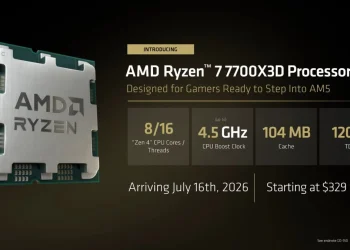
AMD Unveils 5800X3D, 7700X3D and RX 9070 GRE
Tech News

AMD Unveils 5800X3D, 7700X3D and RX 9070 GRE

by NyongesaSande News Desk
2 days ago
0

AMD's Computex 2026 presentation may not have featured a next-generation CPU architecture or a flagship...

Read moreDetails
Leaked iPhone Fold Photo Reveals New Design
Tech News

Leaked iPhone Fold Photo Reveals New Design

by NyongesaSande News Desk
2 days ago
0

Apple's long-rumored foldable iPhone may have just appeared in one of its most revealing leaks...

Read moreDetails
Google Opens First Store Outside the US
Tech News

Google Opens First Store Outside the US

by NyongesaSande News Desk
2 days ago
0

Google is preparing to open its first physical retail store outside the United States, marking...

Read moreDetails
Xiaomi Adds AirDrop Support to Quick Share
Tech News

Xiaomi Adds AirDrop Support to Quick Share

by NyongesaSande News Desk
2 days ago
0

Xiaomi has announced support for Apple's AirDrop within Android's Quick Share ecosystem, becoming the latest...

Read moreDetails
Load More
Next Post
Ultimate Guide: How to Troubleshoot a Non-Scrolling Mouse Wheel

Ultimate Guide: How to Troubleshoot a Non-Scrolling Mouse Wheel

Understanding the Role of the Motherboard in Your Computer

Understanding the Role of the Motherboard in Your Computer

ADVERTISEMENT

Who We Are

Nyongesa Sande

NyongesaSande.com is a digital news and media platform covering breaking news, business, technology, AI, politics, sports, world affairs and African innovation.

News Sections

  • News
    • World
    • Africa
  • Politics
  • Business
  • Tech
  • AI
  • Telecom
  • Sports
  • Opinion
  • Lifestyle
  • Live

Editorial Standards

  • Editorial Policy
  • Fact Checking Policy
  • Corrections Policy
  • Ethics Policy
  • AI Usage Policy
  • News Tips
  • Submit Press Release

Legal

  • Privacy Policy
  • Terms of Use
  • Cookie Policy
  • Disclaimer
  • Risk Disclaimer
  • DMCA
  • Ad Choices

Our Company

  • About Us
    • Nyosake Designers
      • Nyosake Webmasters
      • Nyosake Investment
  • Contact Us
    • Newsroom Contact
  • Ownership Disclosure
  • Advertise
  • Privacy Policy
  • Terms of Use
  • Cookie Policy
  • Disclaimer
  • Risk Disclaimer
  • DMCA
  • Ad Choices

NyongesaSande.com is an independent digital news and media platform covering Africa, business, technology, AI, politics and global developments.

© 2026 NyongesaSande.com. All rights reserved.

No Result
View All Result
  • News
    • World
    • Africa
  • Politics
  • Business
  • Tech
  • AI
  • Telecom
  • Sports
  • Opinion
  • Lifestyle
  • Live

NyongesaSande.com is an independent digital news and media platform covering Africa, business, technology, AI, politics and global developments.

© 2026 NyongesaSande.com. All rights reserved.