


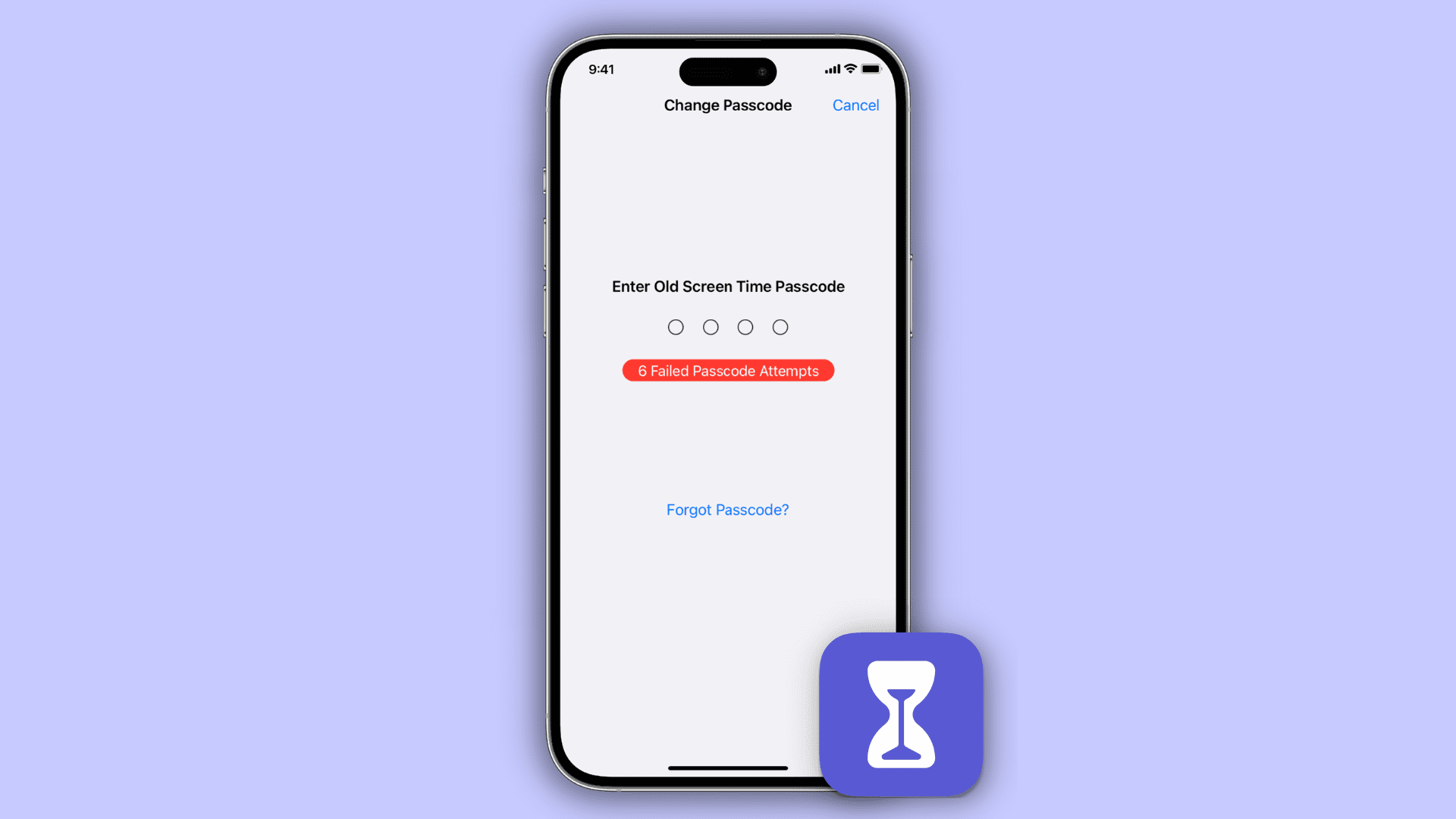
Forgetting your Screen Time passcode is one of those frustrating issues that can block your device access, especially when trying to manage distractions or set limits. But don’t worry—Apple has provided legitimate methods to reset your Screen Time passcode as long as you know where to look.
Resetting Screen Time on Your Own iPhone or iPad
If the Screen Time passcode is tied to your Apple ID, you can easily reset it directly from your device.
- Open Settings on your iPhone or iPad.
- Tap Screen Time, then tap Change Screen Time Passcode.
- When prompted, select Forgot Passcode.
- Enter the Apple ID and password that you originally used to set up Screen Time.
- Note: If you used a different Apple ID, this method won’t work.
- Once authenticated, you can set a new four-digit passcode.
- If Share Across Devices is enabled, the new passcode will sync automatically across your other Apple devices.
Troubleshooting:
If you don’t see the Forgot Passcode option:
- You might be signed into the wrong Apple Account.
- Your device might be managed by Family Sharing or Mobile Device Management (MDM).
- Your iOS version may be outdated.
Resetting Screen Time for a Child’s Device
When Screen Time is set up through Family Sharing, only the family organizer can reset it. The child can’t do this themselves.
- On the organizer’s iPhone or iPad, open Settings.
- Tap Screen Time, scroll to the child’s name, and select Manage Screen Time.
- Tap Change Screen Time Passcode and authenticate using Face ID, Touch ID, or the device passcode.
- Set a new Screen Time passcode for the child’s device.
This change will also sync across the child’s devices if Share Across Devices is enabled.
Resetting Screen Time on a Mac
On macOS, Screen Time settings are managed through System Settings.
- Open System Settings, then click Screen Time in the sidebar.
- Scroll down to Content & Privacy within the Screen Time app.
- For your own Mac, click Change Passcode.
- For a child’s device, select their name from the Family Member menu, then click Manage Screen Time and Change Passcode.
- You’ll need the current passcode or your Apple ID credentials to proceed.
- If you no longer need the Screen Time passcode, you can also remove it by turning off Lock Screen Time Settings.
When Resetting Doesn’t Work
If you can’t reset the Screen Time passcode:
- Double-check that you’re using the correct Apple ID. This is the most common issue.
- If all else fails, you can erase the device and set it up again, but backing up your data beforehand is essential.
Final Thoughts
Screen Time is a helpful tool, but it’s only useful if you can access the settings. Apple’s reset process is secure but can feel rigid when things go wrong. Once you identify which Apple ID controls the passcode and who has organizer access, resetting is straightforward. After setting a new passcode, store it safely and continue without the headache!




