
Nyongesa Sande
No Result
View All Result
  • News
    • World
    • Africa
  • Politics
  • Business
  • Tech
  • AI
  • Telecom
  • Sports
  • Opinion
  • Lifestyle
  • Live
  • World Cup 2026
    • World Cup 2026 Standings
    • World Cup 2026
Nyongesa Sande
  • About Us
    • Nyosake Designers
      • Nyosake Webmasters
      • Nyosake Investment
  • Contact Us
    • Newsroom Contact
  • Ownership Disclosure
  • Advertise
No Result
View All Result
Nyongesa Sande
No Result
View All Result
  • News
  • Politics
  • Business
  • Tech
  • AI
  • Telecom
  • Sports
  • Opinion
  • Lifestyle
  • Live
  • World Cup 2026
ADVERTISEMENT

Home » Phantom Vibrations After watchOS 26.2 Update: What’s Going On and How to Stop It

Phantom Vibrations After watchOS 26.2 Update: What’s Going On and How to Stop It

NyongesaSande News Desk by NyongesaSande News Desk
6 months ago
in How To
Reading Time: 4 mins read
A A
Phantom Vibrations After watchOS 26.2 Update: What’s Going On and How to Stop It

Phantom Vibrations After watchOS 26.2 Update: What’s Going On and How to Stop It

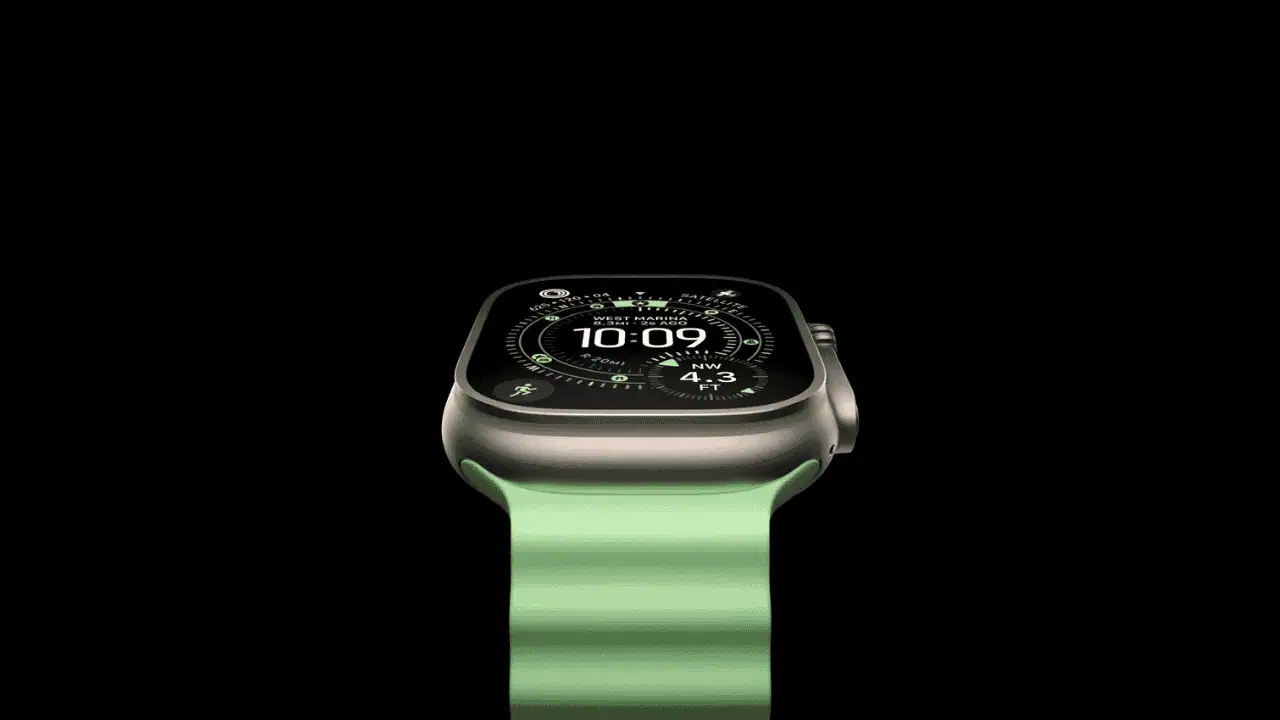
If your Apple Watch started buzzing for no apparent reason after the watchOS 26.2 update, you’re not imagining things. Many users are reporting phantom vibrations with no visible notifications, no alert banners—just a tap on the wrist that leads to confusion and a glance at a perfectly idle screen. Here’s how to resolve this issue and stop the phantom vibrations.

  • Phantom Vibrations After watchOS 26.2 Update: What’s Going On and How to Stop It
  • Why watchOS 26.2 Triggered Phantom Vibrations
  • Check Notifications First, Not Last
  • Restart and Clear the Noise
  • Watch Faces Can Be Sneaky
  • Adjust or Disable Haptics If Needed
  • When to Reset or Call It In
  • The Bottom Line

Why watchOS 26.2 Triggered Phantom Vibrations

watchOS 26.2 introduced changes to how notifications, background processes, and haptics are handled. These changes likely led to the phantom vibration issue. Common causes include:

  • Background apps sending silent or partial notifications
  • System alerts that trigger haptics but fail to render visually
  • Watch faces or complications refreshing data more aggressively than before
  • Software bugs that slipped through unnoticed

It doesn’t mean your watch is broken; it’s likely a software bug causing the haptic engine to activate incorrectly.

ADVERTISEMENT

Check Notifications First, Not Last

Start with notifications, as they are often the root cause of phantom vibrations.

  1. Open the Watch app on your iPhone.
  2. Go to Notifications.
  3. Scroll through your apps one by one.
  4. If there’s an app that doesn’t need to vibrate your wrist, turn it off.

Focus on messaging apps, fitness trackers, email clients, and anything running quietly in the background.

ADVERTISEMENT

For a more thorough check, temporarily disable notifications for most apps. Then, re-enable them slowly to identify the culprit.


Restart and Clear the Noise

A restart may sound basic, but it can help clear out stuck background processes.

  1. Restart your Apple Watch.
  2. Restart your iPhone.

This resets the communication loop between the two devices and clears out any notification queues that might be causing ghost haptics.

ADVERTISEMENT

Watch Faces Can Be Sneaky

Some watch faces are more active than others. Complications that refresh weather, fitness, stocks, or calendar data can trigger haptics.

Try switching to a simple watch face for a day—one with no complications. If the phantom vibrations stop, you’ve found the issue. Add complications back one at a time until the vibrations return.


Adjust or Disable Haptics If Needed

If the vibrations are driving you crazy, you can temporarily reduce haptic feedback.

  1. On your Apple Watch, go to Settings > Sounds & Haptics.
  2. From here, you can turn off alert haptics, crown haptics, or system haptics individually.

You don’t have to disable everything, just enough to restore peace while Apple works on a fix.


When to Reset or Call It In

If none of the above helps, unpairing and re-pairing your Apple Watch may reset deeper system issues.

  1. Unpair the Apple Watch from your iPhone.
  2. Re-pair it and check if the issue persists.

If the watch keeps vibrating even with notifications off and haptics disabled, contact Apple Support. This is especially important if the watch has experienced water or impact damage.


The Bottom Line

Phantom vibrations after the watchOS 26.2 update are a known issue that many users face. It’s mostly software-related, and Apple will likely address it in a future update. In the meantime, you can try adjusting your notifications, simplifying your watch face, restarting both devices, and adjusting haptic settings. These steps should help you regain control over the issue while Apple works on a permanent fix.

Share2Tweet2SendShareScanSharePin1ShareShare
Google Add as a Preferred Source on Google
Previous Post

How to Use Jump Desktop on Mac for Fast, Reliable Remote Access

Next Post

How to Close or Force Quit Apps on iPhone and iPad

NyongesaSande News Desk

NyongesaSande News Desk

Nyongesa Sande offers diverse content across news, technology, entertainment, and more, aiming to provide readers with a wide range of informative and engaging articles. NYONGESA SANDE's dedicated team provides our audience not only with the highly relevant news but also with outstanding interactive experience.

Related Posts

How to Weld a 2-Block Rectangular Hollow Block Mold: Measurements, Materials and Step-by-Step Guide
How To

How to Weld a 2-Block Rectangular Hollow Block Mold: Measurements, Materials and Step-by-Step Guide

1 month ago
How to Create a Facebook Account on iPhone App
How To

How to Fix Facebook Confirmation Email Not Received

1 month ago
How to Create a Facebook Account on iPhone App
How To

How to Fix Facebook Confirmation Code Not Received

1 month ago
How to Create a Facebook Account on iPhone App
How To

How to Confirm Your Facebook Email or Phone Number

1 month ago
How to Create a Facebook Account on iPhone App
How To

How to Understand Your Facebook Account and Profiles

1 month ago
How to Create a Facebook Account on iPhone App
How To

How to Fix Facebook Name Not Accepted

1 month ago
Load More
Next Post
How to Close or Force Quit Apps on iPhone and iPad

How to Close or Force Quit Apps on iPhone and iPad

iOS 26.3 Beta 1: Easier Transfers to Android and Notification Forwarding

iOS 26.2 Stuck on “Update Requested”? Here’s How to Fix It

Trending

  • FIFA 2026 World Cup Stadiums: Everything to Know

    FIFA 2026 World Cup Stadiums: Everything to Know

    3 shares
    Share 1 Tweet 1
  • List of Elected MCAs in Nakuru County for the 2017 General Elections

    23 shares
    Share 9 Tweet 6
  • World Cup 2026 Venues, Tickets and Fan Festivals

    2 shares
    Share 1 Tweet 1
  • World Cup 2026 Tickets and Hospitality

    1 shares
    Share 0 Tweet 0
  • List of 2022 – 2027 mps contacts in Kenya

    586 shares
    Share 234 Tweet 147
  • List of Elected MCAs in Meru County for the 2017 General Elections

    11 shares
    Share 4 Tweet 3
  • Levi’s Stadium World Cup 2026 Guide: Capacity, Location, Matches and Round of 32 Venue

    1 shares
    Share 0 Tweet 0
  • Germany vs Curaçao: 2026 World Cup Match Preview

    1 shares
    Share 0 Tweet 0
  • MTN Router Login

    14 shares
    Share 6 Tweet 4
  • QVSELP Scam Warning: Why Kenyans Should Be Careful

    2 shares
    Share 1 Tweet 1
ADVERTISEMENT
ADVERTISEMENT

Who We Are

Nyongesa Sande

NyongesaSande.com is a digital news and media platform covering breaking news, business, technology, AI, politics, sports, world affairs and African innovation.

News Sections

  • News
    • World
    • Africa
  • Politics
  • Business
  • Tech
  • AI
  • Telecom
  • Sports
  • Opinion
  • Lifestyle
  • Live
  • World Cup 2026
    • World Cup 2026 Standings
    • World Cup 2026

Editorial Standards

  • Editorial Policy
  • Fact Checking Policy
  • Corrections Policy
  • Ethics Policy
  • AI Usage Policy
  • News Tips
  • Submit Press Release

Legal

  • Privacy Policy
  • Terms of Use
  • Cookie Policy
  • Disclaimer
  • Risk Disclaimer
  • DMCA
  • Ad Choices

Our Company

  • About Us
    • Nyosake Designers
      • Nyosake Webmasters
      • Nyosake Investment
  • Contact Us
    • Newsroom Contact
  • Ownership Disclosure
  • Advertise
  • Privacy Policy
  • Terms of Use
  • Cookie Policy
  • Disclaimer
  • Risk Disclaimer
  • DMCA
  • Ad Choices

NyongesaSande.com is an independent digital news and media platform covering Africa, business, technology, AI, politics and global developments.

© 2026 NyongesaSande.com. All rights reserved.

No Result
View All Result
  • News
    • World
    • Africa
  • Politics
  • Business
  • Tech
  • AI
  • Telecom
  • Sports
  • Opinion
  • Lifestyle
  • Live
  • World Cup 2026
    • World Cup 2026 Standings
    • World Cup 2026

NyongesaSande.com is an independent digital news and media platform covering Africa, business, technology, AI, politics and global developments.

© 2026 NyongesaSande.com. All rights reserved.
