
Nyongesa Sande
No Result
View All Result
  • News
    • World
    • Africa
  • Politics
  • Business
  • Tech
  • AI
  • Telecom
  • Sports
  • Opinion
  • Lifestyle
  • Live
  • World Cup 2026
    • World Cup 2026 Standings
    • World Cup 2026
Nyongesa Sande
  • About Us
    • Nyosake Designers
      • Nyosake Webmasters
      • Nyosake Investment
  • Contact Us
    • Newsroom Contact
  • Ownership Disclosure
  • Advertise
No Result
View All Result
Nyongesa Sande
No Result
View All Result
  • News
  • Politics
  • Business
  • Tech
  • AI
  • Telecom
  • Sports
  • Opinion
  • Lifestyle
  • Live
  • World Cup 2026
ADVERTISEMENT

Home » How to Fix HomePod Mini Not Showing in Home App

How to Fix HomePod Mini Not Showing in Home App

NyongesaSande News Desk by NyongesaSande News Desk
6 months ago
in How To
Reading Time: 6 mins read
A A
HomePod Not Playing? Here’s What’s Actually Going On and How to Fix It

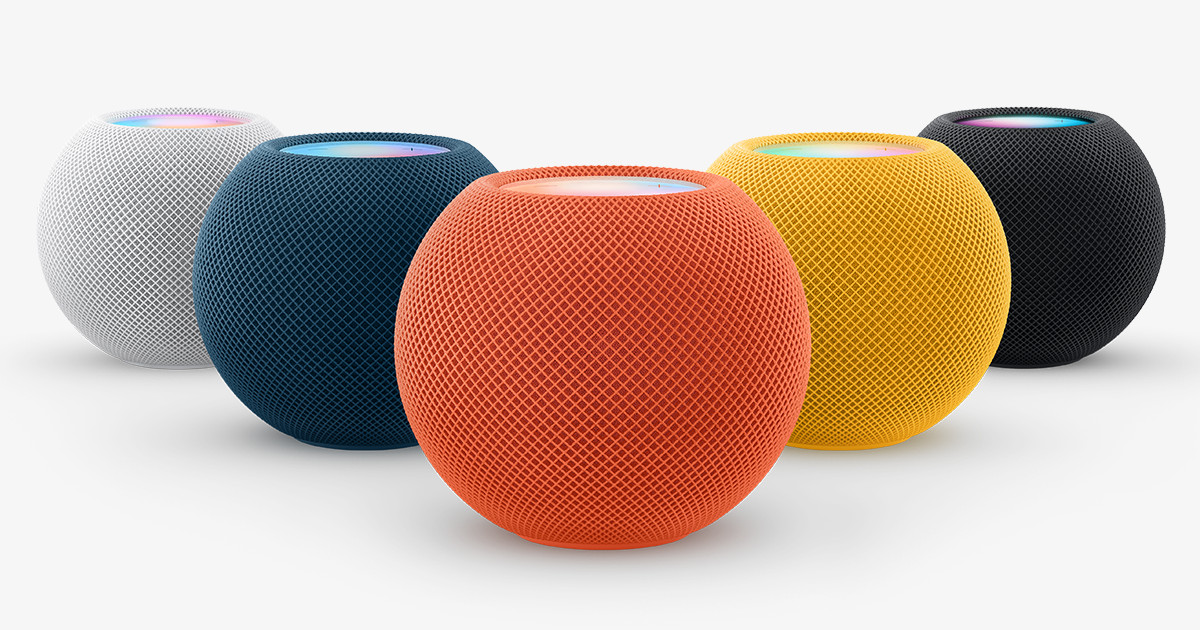
When your HomePod mini doesn’t appear in the Home app, it can be frustrating. Fortunately, most of the time, this issue is linked to a few simple settings that need adjustment. The key steps involve confirming that your HomePod mini is on the right Wi-Fi network, verifying Apple ID syncing, and ensuring iCloud is functioning properly.

  • Confirm Your Devices Share the Same Network
    • 1. Check Wi-Fi on Your iPhone or iPad
    • 2. Inspect Your Router Environment
  • Restart the HomePod Mini and Refresh the Home App
    • 1. Restart the HomePod mini
    • 2. Refresh the Home App
  • Verify Your Apple ID and iCloud Settings
    • 1. Check Apple ID Syncing
    • 2. Confirm Apple ID Consistency
  • Reset the HomePod Mini if It Still Won’t Appear
    • 1. Reset from the HomePod mini
    • 2. Restore Using a Mac
  • Tips to Keep Your HomePod Mini Visible in the Home App
  • FAQ
  • Summary
  • Conclusion

Confirm Your Devices Share the Same Network

The first step in troubleshooting is making sure your HomePod mini is on the same Wi-Fi network as your iPhone or iPad. If the networks are different, your HomePod mini won’t show up in the Home app.

1. Check Wi-Fi on Your iPhone or iPad

  • Open Settings and select Wi-Fi.
  • Make sure you are connected to your home network.
  • Toggle Wi-Fi off and back on to refresh the connection.

2. Inspect Your Router Environment

  • Ensure the router isn’t isolating devices from one another. Avoid using guest networks for setup.
  • If the network is unstable, restart your router.

Restart the HomePod Mini and Refresh the Home App

A simple restart can fix many issues related to HomePod mini detection. It resets the device for re-discovery by the Home app.

ADVERTISEMENT

1. Restart the HomePod mini

  • Unplug the HomePod mini and wait for 10 seconds.
  • Plug it back in and wait for the white pulsing light.
  • Open the Home app and check if it appears.

2. Refresh the Home App

  • Force close the Home app.
  • Reopen the app and let it reload your devices.

Verify Your Apple ID and iCloud Settings

The HomePod mini uses iCloud to sync settings and ensure it appears in the Home app. If iCloud syncing is turned off or there’s a mismatch in Apple IDs, the HomePod mini won’t show up.

1. Check Apple ID Syncing

  • Open Settings and tap your name at the top.
  • Ensure iCloud, Keychain, and Two-Factor Authentication are enabled.

2. Confirm Apple ID Consistency

  • If someone else in your household set up the HomePod mini, ensure that all devices use the same Apple ID.

Reset the HomePod Mini if It Still Won’t Appear

If the HomePod mini still isn’t showing up after all the above steps, you may need to perform a factory reset.

ADVERTISEMENT

1. Reset from the HomePod mini

  • Unplug the HomePod mini for 5 seconds.
  • Plug it back in and wait for the white light.
  • Press and hold the top of the device until the light turns red.
  • Continue holding until you hear the reset confirmation.
  • Set it up again in the Home app.

2. Restore Using a Mac

  • If the HomePod mini shows an orange light or is unresponsive, connect it to your Mac via USB-C.
  • Open Finder and select the HomePod.
  • Choose Restore and wait for the software to reinstall.

Tips to Keep Your HomePod Mini Visible in the Home App

  • Keep your iPhone close to the HomePod mini during setup.
  • Update iOS, iPadOS, and HomePod software regularly.
  • Turn off VPNs during setup.
  • Avoid networks with client isolation.
  • Disable Low Power Mode if wireless connectivity drops.

FAQ

Why does my HomePod mini show up and then disappear?

  • This typically happens due to unstable Wi-Fi or interrupted iCloud syncing.

Does Bluetooth affect HomePod discovery?

  • Yes, Bluetooth helps with detection during setup.

Can the Home app hide devices if I have multiple homes?

ADVERTISEMENT
  • Yes, ensure you are viewing the correct home and room.

Can the HomePod mini work without an Apple ID?

  • You need an Apple ID with iCloud enabled for managing the HomePod mini in the Home app.

Summary

If your HomePod mini isn’t showing in the Home app, check your Wi-Fi settings, restart both your HomePod and the app, and ensure Apple ID syncing is working correctly. If these steps don’t help, a reset may be necessary. By following this troubleshooting guide, you’ll ensure that your HomePod mini appears and functions properly in the Home app.


Conclusion

When the HomePod mini doesn’t show up in the Home app, it’s usually related to network settings, Apple ID issues, or syncing problems. After verifying Wi-Fi connections, restarting the devices, and confirming iCloud settings, your HomePod mini should be visible in the Home app once again. If needed, a factory reset will restore the device to pairing mode for another attempt at setup.

Share1Tweet1SendShareScanSharePinShareShare
Google Add as a Preferred Source on Google
Previous Post

Apple’s Smart Glasses May Solve Battery Life Issues with Efficient Chip Design

Next Post

How to Fix macOS Finder Showing Hidden Files on Mac

NyongesaSande News Desk

NyongesaSande News Desk

Nyongesa Sande offers diverse content across news, technology, entertainment, and more, aiming to provide readers with a wide range of informative and engaging articles. NYONGESA SANDE's dedicated team provides our audience not only with the highly relevant news but also with outstanding interactive experience.

Related Posts

How to Weld a 2-Block Rectangular Hollow Block Mold: Measurements, Materials and Step-by-Step Guide
How To

How to Weld a 2-Block Rectangular Hollow Block Mold: Measurements, Materials and Step-by-Step Guide

1 month ago
How to Create a Facebook Account on iPhone App
How To

How to Fix Facebook Confirmation Email Not Received

1 month ago
How to Create a Facebook Account on iPhone App
How To

How to Fix Facebook Confirmation Code Not Received

1 month ago
How to Create a Facebook Account on iPhone App
How To

How to Confirm Your Facebook Email or Phone Number

1 month ago
How to Create a Facebook Account on iPhone App
How To

How to Understand Your Facebook Account and Profiles

1 month ago
How to Create a Facebook Account on iPhone App
How To

How to Fix Facebook Name Not Accepted

1 month ago
Load More
Next Post
How to Fix macOS Finder Showing Hidden Files on Mac

How to Fix macOS Finder Showing Hidden Files on Mac

How to Control Favicons in Safari’s Favorites Bar

How to Fix the Safari Home Button Missing on Mac

Trending

  • FIFA 2026 World Cup Stadiums: Everything to Know

    FIFA 2026 World Cup Stadiums: Everything to Know

    3 shares
    Share 1 Tweet 1
  • List of Elected MCAs in Nakuru County for the 2017 General Elections

    23 shares
    Share 9 Tweet 6
  • World Cup 2026 Venues, Tickets and Fan Festivals

    2 shares
    Share 1 Tweet 1
  • World Cup 2026 Tickets and Hospitality

    1 shares
    Share 0 Tweet 0
  • List of 2022 – 2027 mps contacts in Kenya

    586 shares
    Share 234 Tweet 147
  • List of Elected MCAs in Meru County for the 2017 General Elections

    11 shares
    Share 4 Tweet 3
  • Levi’s Stadium World Cup 2026 Guide: Capacity, Location, Matches and Round of 32 Venue

    1 shares
    Share 0 Tweet 0
  • Germany vs Curaçao: 2026 World Cup Match Preview

    1 shares
    Share 0 Tweet 0
  • MTN Router Login

    14 shares
    Share 6 Tweet 4
  • QVSELP Scam Warning: Why Kenyans Should Be Careful

    2 shares
    Share 1 Tweet 1
ADVERTISEMENT
ADVERTISEMENT

Who We Are

Nyongesa Sande

NyongesaSande.com is a digital news and media platform covering breaking news, business, technology, AI, politics, sports, world affairs and African innovation.

News Sections

  • News
    • World
    • Africa
  • Politics
  • Business
  • Tech
  • AI
  • Telecom
  • Sports
  • Opinion
  • Lifestyle
  • Live
  • World Cup 2026
    • World Cup 2026 Standings
    • World Cup 2026

Editorial Standards

  • Editorial Policy
  • Fact Checking Policy
  • Corrections Policy
  • Ethics Policy
  • AI Usage Policy
  • News Tips
  • Submit Press Release

Legal

  • Privacy Policy
  • Terms of Use
  • Cookie Policy
  • Disclaimer
  • Risk Disclaimer
  • DMCA
  • Ad Choices

Our Company

  • About Us
    • Nyosake Designers
      • Nyosake Webmasters
      • Nyosake Investment
  • Contact Us
    • Newsroom Contact
  • Ownership Disclosure
  • Advertise
  • Privacy Policy
  • Terms of Use
  • Cookie Policy
  • Disclaimer
  • Risk Disclaimer
  • DMCA
  • Ad Choices

NyongesaSande.com is an independent digital news and media platform covering Africa, business, technology, AI, politics and global developments.

© 2026 NyongesaSande.com. All rights reserved.

No Result
View All Result
  • News
    • World
    • Africa
  • Politics
  • Business
  • Tech
  • AI
  • Telecom
  • Sports
  • Opinion
  • Lifestyle
  • Live
  • World Cup 2026
    • World Cup 2026 Standings
    • World Cup 2026

NyongesaSande.com is an independent digital news and media platform covering Africa, business, technology, AI, politics and global developments.

© 2026 NyongesaSande.com. All rights reserved.
