
Nyongesa Sande
No Result
View All Result
  • News
    • World
    • Africa
  • Politics
  • Business
  • Tech
  • AI
  • Telecom
  • Sports
  • Opinion
  • Lifestyle
  • Live
  • World Cup 2026
    • World Cup 2026 Standings
    • World Cup 2026
Nyongesa Sande
  • About Us
    • Nyosake Designers
      • Nyosake Webmasters
      • Nyosake Investment
  • Contact Us
    • Newsroom Contact
  • Ownership Disclosure
  • Advertise
No Result
View All Result
Nyongesa Sande
No Result
View All Result
  • News
  • Politics
  • Business
  • Tech
  • AI
  • Telecom
  • Sports
  • Opinion
  • Lifestyle
  • Live
  • World Cup 2026
ADVERTISEMENT

Home » How to Fix HomePod Mini Not Connecting to iPhone

How to Fix HomePod Mini Not Connecting to iPhone

NyongesaSande News Desk by NyongesaSande News Desk
6 months ago
in How To
Reading Time: 6 mins read
A A
HomePod Not Playing? Here’s What’s Actually Going On and How to Fix It

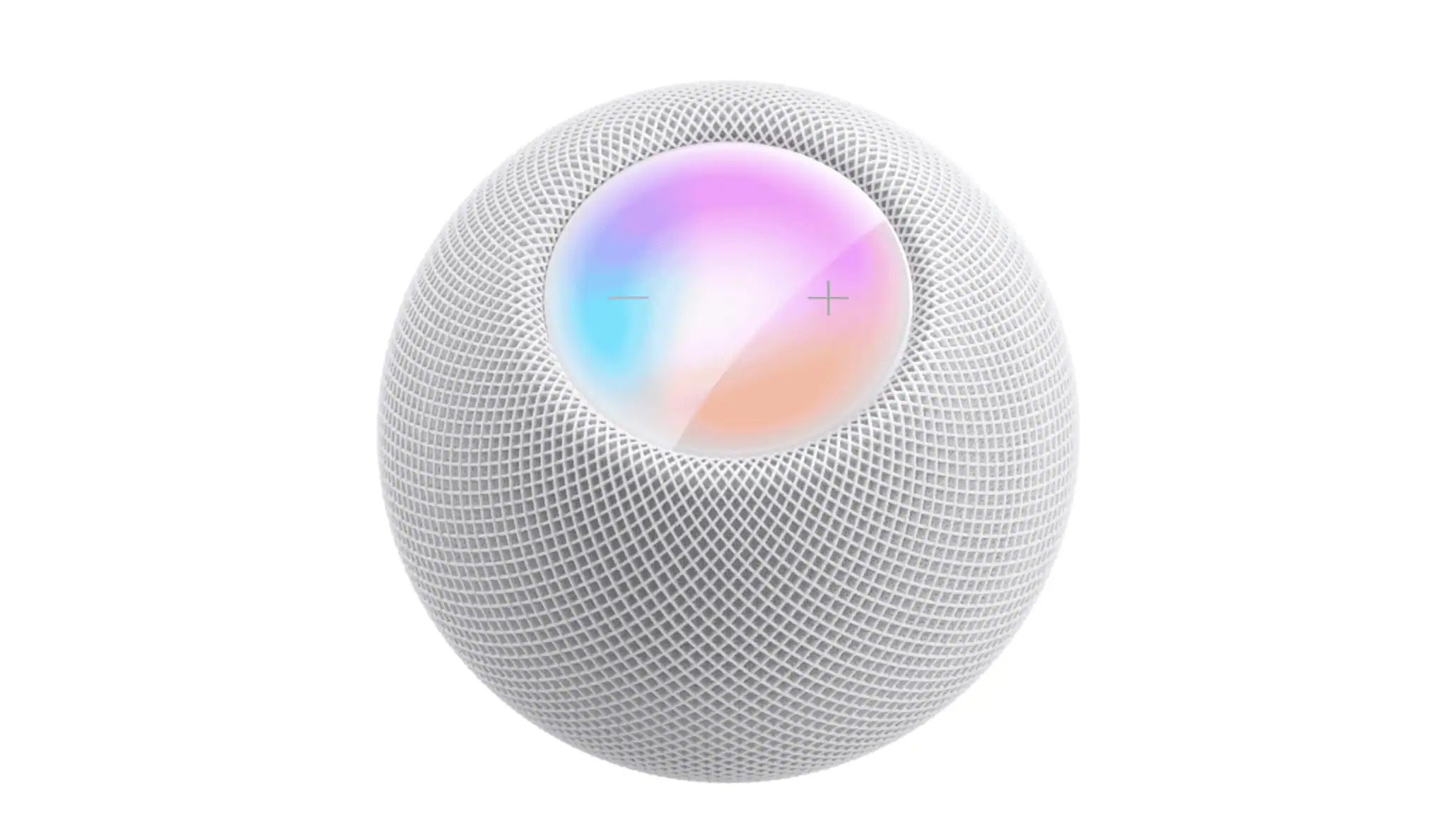
If your HomePod mini won’t connect to your iPhone, you’re not alone. This issue can be caused by problems with Bluetooth, Wi-Fi, or iCloud permissions, or by an incomplete setup. The good news is that fixing it is often straightforward. Here’s how to get your HomePod mini and iPhone connected again.

  • Verify Bluetooth and Wi-Fi
    • Check Wireless Settings on Your iPhone
    • Confirm Apple ID and iCloud Status
  • Restart Both Devices
    • Restart the HomePod mini:
    • Restart the iPhone:
  • Reset the HomePod Mini if Pairing Fails
    • Reset Using the HomePod Mini:
    • Reset Through the Home App:
  • Tips for Keeping the Connection Stable
  • FAQ
    • Why does the setup card not appear when I bring the iPhone close?
    • Does the HomePod mini require Wi-Fi for setup?
    • Can the HomePod mini connect if another person set it up?
    • Why does my HomePod mini ask to be set up repeatedly?
  • Summary
  • Conclusion

Verify Bluetooth and Wi-Fi

The HomePod mini requires Bluetooth to start the connection and Wi-Fi to maintain it. If either of these is disabled or unstable, you won’t be able to complete the setup.

Check Wireless Settings on Your iPhone

  1. Open Settings.
  2. Turn on Bluetooth.
  3. Select Wi-Fi and ensure you’re connected to your primary home network.
  4. If you have an active VPN, turn it off—VPNs can block local device communication.
  5. Bring the iPhone close to the HomePod mini.
  6. Wait a moment for the setup card to appear.
    • If it doesn’t show up, try locking and unlocking your iPhone and try again.

Confirm Apple ID and iCloud Status

The HomePod mini needs iCloud to sync settings and authenticate your devices.

ADVERTISEMENT
  1. Open Settings.
  2. Tap your name at the top to ensure you’re signed in with the correct Apple ID.
  3. Make sure iCloud, Keychain, and Two-Factor Authentication are enabled.

Restart Both Devices

Restarting your devices can resolve temporary Bluetooth or network conflicts and restore pairing functionality.

Restart the HomePod mini:

  1. Unplug the HomePod mini.
  2. Wait for about 10 seconds.
  3. Plug it back in and wait for the white pulsing light to appear.

Restart the iPhone:

  1. Power off your iPhone.
  2. Wait a few seconds, then turn it back on.
  3. Try connecting again.

Reset the HomePod Mini if Pairing Fails

If restarting doesn’t work, resetting the HomePod mini can help. This restores the device to factory settings.

ADVERTISEMENT

Reset Using the HomePod Mini:

  1. Unplug the speaker.
  2. Plug it back in and wait for the white light.
  3. Press and hold the top of the device.
  4. Continue holding until you hear a tone and the light turns red.
  5. Release and wait for the reset to finish.

Reset Through the Home App:

  1. Open Home on your iPhone.
  2. Press and hold the HomePod mini tile.
  3. Tap Settings.
  4. Choose Reset HomePod and select Remove Accessory.

Tips for Keeping the Connection Stable

  1. Keep Bluetooth enabled at all times.
  2. Stay within range of your Wi-Fi router when setting up the HomePod mini.
  3. Update your iPhone and HomePod to the latest software.
  4. Avoid using guest Wi-Fi or networks that block device-to-device communication.
  5. Use only your primary home network for setup.

FAQ

Why does the setup card not appear when I bring the iPhone close?

This can happen if Bluetooth is off, Wi-Fi is unstable, or the HomePod mini is not powered on properly.

Does the HomePod mini require Wi-Fi for setup?

Yes, Wi-Fi is needed to complete the setup, as Bluetooth only initiates the connection.

Can the HomePod mini connect if another person set it up?

It can, but it must be added to a Home shared with your Apple ID for it to work.

ADVERTISEMENT

Why does my HomePod mini ask to be set up repeatedly?

This usually means the setup was incomplete. A reset can resolve this.


Summary

  1. Ensure Bluetooth and Wi-Fi are enabled on your iPhone.
  2. Bring your iPhone close to the HomePod mini to trigger the setup.
  3. Confirm Apple ID and iCloud settings are correct.
  4. Restart both devices and try again.
  5. If needed, reset the HomePod mini to restore default settings.

Conclusion

If your HomePod mini isn’t connecting to your iPhone, the issue is likely tied to wireless settings, iCloud permissions, or an incomplete setup. Once you confirm these settings, pairing should work as expected. Follow the steps above to quickly fix the issue and restore your connection.

Share2Tweet1SendShareScanSharePinShareShare
Google Add as a Preferred Source on Google
Previous Post

How to Make Your Lock Screen Background Holographic in iOS 26

Next Post

How to Fix AirPods Pro 3 Disconnecting: Why It Happens and How to Fix It

NyongesaSande News Desk

NyongesaSande News Desk

Nyongesa Sande offers diverse content across news, technology, entertainment, and more, aiming to provide readers with a wide range of informative and engaging articles. NYONGESA SANDE's dedicated team provides our audience not only with the highly relevant news but also with outstanding interactive experience.

Related Posts

How to Weld a 2-Block Rectangular Hollow Block Mold: Measurements, Materials and Step-by-Step Guide
How To

How to Weld a 2-Block Rectangular Hollow Block Mold: Measurements, Materials and Step-by-Step Guide

1 month ago
How to Create a Facebook Account on iPhone App
How To

How to Fix Facebook Confirmation Email Not Received

1 month ago
How to Create a Facebook Account on iPhone App
How To

How to Fix Facebook Confirmation Code Not Received

1 month ago
How to Create a Facebook Account on iPhone App
How To

How to Confirm Your Facebook Email or Phone Number

1 month ago
How to Create a Facebook Account on iPhone App
How To

How to Understand Your Facebook Account and Profiles

1 month ago
How to Create a Facebook Account on iPhone App
How To

How to Fix Facebook Name Not Accepted

1 month ago
Load More
Next Post
AirPods Pro 3 Teardown Reveals Abysmal Repairability Score

How to Fix AirPods Pro 3 Disconnecting: Why It Happens and How to Fix It

Apple AirPods Pro 3 case has smaller battery

How to Fix AirPods Pro 3 Pairing Mode: How to Connect Your Earbuds Quickly

Trending

  • Top 10 Richest People in Tripura (2026)

    Top 10 Richest People in Tripura (2026)

    169 shares
    Share 68 Tweet 42
  • Product Review: Bose Portable Smart Speaker

    184 shares
    Share 74 Tweet 46
  • QVSELP Scam Warning: Why Kenyans Should Be Careful

    4 shares
    Share 2 Tweet 1
  • ZimLoan: A Quick Guide to Salary Advance Loans in Zimbabwe

    288 shares
    Share 115 Tweet 72
  • Top 10 Richest People in Manipur (2026)

    58 shares
    Share 23 Tweet 15
  • List of All Phone Numbers for the Kenyan 13th Parliament – Contact your MP today

    156 shares
    Share 62 Tweet 39
  • Final World Cup 2026: Messi, Ronaldo and Veteran Stars Facing Their Last Dance

    1 shares
    Share 0 Tweet 0
  • 2026 World Cup Absentees: Biggest Stars Missing the Tournament

    1 shares
    Share 0 Tweet 0
  • Top 10 Richest People in Jammu & Kashmir (2026)

    90 shares
    Share 36 Tweet 23
  • Top 10 Richest People in Meru County

    86 shares
    Share 34 Tweet 22
ADVERTISEMENT
ADVERTISEMENT

Who We Are

Nyongesa Sande

NyongesaSande.com is a digital news and media platform covering breaking news, business, technology, AI, politics, sports, world affairs and African innovation.

News Sections

  • News
    • World
    • Africa
  • Politics
  • Business
  • Tech
  • AI
  • Telecom
  • Sports
  • Opinion
  • Lifestyle
  • Live
  • World Cup 2026
    • World Cup 2026 Standings
    • World Cup 2026

Editorial Standards

  • Editorial Policy
  • Fact Checking Policy
  • Corrections Policy
  • Ethics Policy
  • AI Usage Policy
  • News Tips
  • Submit Press Release

Legal

  • Privacy Policy
  • Terms of Use
  • Cookie Policy
  • Disclaimer
  • Risk Disclaimer
  • DMCA
  • Ad Choices

Our Company

  • About Us
    • Nyosake Designers
      • Nyosake Webmasters
      • Nyosake Investment
  • Contact Us
    • Newsroom Contact
  • Ownership Disclosure
  • Advertise
  • Privacy Policy
  • Terms of Use
  • Cookie Policy
  • Disclaimer
  • Risk Disclaimer
  • DMCA
  • Ad Choices

NyongesaSande.com is an independent digital news and media platform covering Africa, business, technology, AI, politics and global developments.

© 2026 NyongesaSande.com. All rights reserved.

No Result
View All Result
  • News
    • World
    • Africa
  • Politics
  • Business
  • Tech
  • AI
  • Telecom
  • Sports
  • Opinion
  • Lifestyle
  • Live
  • World Cup 2026
    • World Cup 2026 Standings
    • World Cup 2026

NyongesaSande.com is an independent digital news and media platform covering Africa, business, technology, AI, politics and global developments.

© 2026 NyongesaSande.com. All rights reserved.
