


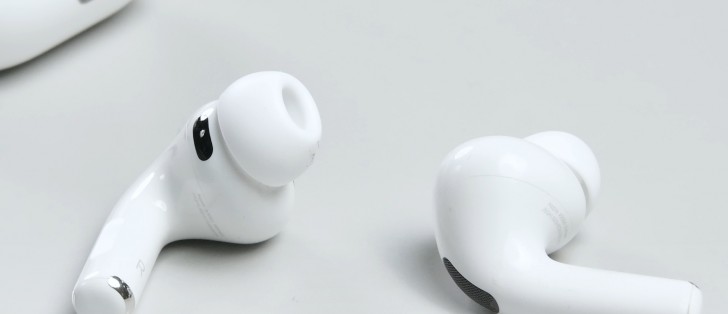
If your AirPods Pro 3 keep disconnecting, it’s not a unique issue. Many users experience this, whether it’s from Bluetooth interference, outdated software, or other connectivity problems. The good news? Most of these issues are easy to fix with a few quick steps. Let’s break down how to get your AirPods Pro 3 working smoothly again.
Why AirPods Pro 3 Disconnect in the First Place
AirPods Pro 3 disconnect due to several factors, such as:
- Weak Bluetooth connection or physical interference
- Outdated firmware
- Low battery in the AirPods or the case
- Conflicts with automatic ear detection or automatic device switching
- Wi-Fi interference
- Too many paired devices trying to connect at once
- Hardware damage
Knowing the root cause helps streamline troubleshooting.
Quick Fixes to Stop the Disconnects
- Put the AirPods Back in the Case
- Since AirPods don’t have a physical power button, placing them in the case and closing the lid resets the connection. Wait for a few seconds and then reconnect.
- Bring the AirPods Closer to Your Device
- Bluetooth range can be affected by walls or distance. Keep your iPhone or Mac within 30 to 50 feet of your AirPods Pro 3 for a stronger connection.
- Toggle Bluetooth Off and On
- On your iPhone:
- Go to Settings → Bluetooth.
- Turn Bluetooth off, then back on.
- This can often clear temporary glitches.
- On your iPhone:
- Unpair and Re-Pair the AirPods Pro 3
- Go to Settings → Bluetooth, tap the info button next to your AirPods Pro 3, and select Forget This Device.
- Reconnect by opening the case near your iPhone and following the on-screen prompts.
- Check Battery Levels
- Low battery can affect Bluetooth stability. Use the Batteries widget on your iPhone or open the case near your phone to check the charge levels.
- Turn Off Wi-Fi Temporarily
- Wi-Fi can interfere with Bluetooth signals. Try turning Wi-Fi off temporarily to see if the connection stabilizes.
Software Tweaks That Make a Bigger Difference Than You’d Think
- Update Your AirPods Firmware
- AirPods update automatically when placed in their case, plugged in, and next to your iPhone. Ensure your iPhone is connected to the internet, and leave the AirPods in the case for a while to trigger the firmware update.
- Disable Automatic Ear Detection
- If the sensors misread your ear position, audio cuts out. To disable:
- Go to Settings → Bluetooth → AirPods → Automatic Ear Detection.
- Toggle it off to see if this resolves the issue.
- If the sensors misread your ear position, audio cuts out. To disable:
- Disable Automatic Device Switching
- This feature can cause random disconnects. Disable it by:
- Go to Settings → Bluetooth → AirPods → Connect to This iPhone.
- Select When Last Connected to This iPhone.
- This feature can cause random disconnects. Disable it by:
Less Obvious Fixes You Should Try Before Calling Apple
- Keep Them Away from Interference
- Devices like microwaves, baby monitors, and wireless cameras can interfere with Bluetooth. If disconnects only happen in certain rooms, that’s a sign of interference.
- Reset the AirPods Pro 3
- To reset:
- Place the AirPods in the case.
- Open the lid and hold the button on the front of the case until the light flashes amber, then white.
- Reconnect them using the setup card.
- To reset:
- Consider Hardware Damage
- Physical damage, like dropping or water exposure, can cause connection issues. If you’ve had any of these events, the issue could be with the hardware.
When to Call It and Visit Apple Support
If your AirPods Pro 3 still disconnect after:
- A reset
- Firmware updates
- Disabling automatic switching
- Testing on multiple devices
There’s a chance the Bluetooth antenna or internal circuitry is damaged. Apple Support can diagnose this within minutes, and they may replace the earbuds if needed.
Final Takeaway
AirPods Pro 3 disconnecting can be caused by a variety of issues, but the most common are Bluetooth interference, outdated firmware, or conflicting settings. After following the fixes above, most users see a stable connection again. If the problem persists, consider reaching out to Apple Support for hardware-related concerns.




