


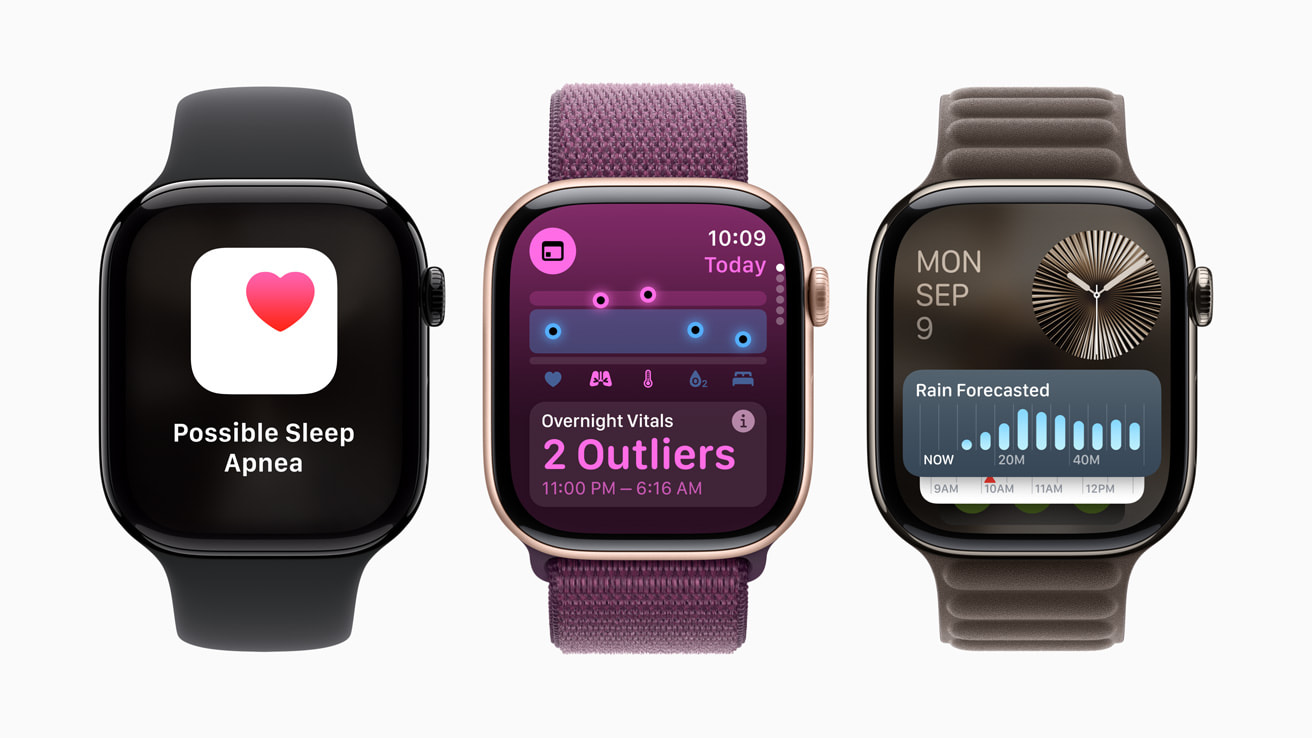
Many Apple Watch users have noticed significant battery drain after updating to iOS 26.2. Complaints range from the watch losing up to 23% of its battery in just seven hours of light use to complete depletion in a few hours when using specific apps. This issue has been observed on multiple models, including Series 5 and Series 8. If you’re experiencing the same problem, here’s a comprehensive guide to help improve your Apple Watch battery life.
Why Is Your Apple Watch Battery Draining So Fast?
The iOS 26.2 update introduced several new features, including alarms for Reminders, improved AirDrop, Podcasts, and regional app updates. During the update, background processes such as indexing may cause higher battery consumption, especially on older devices or those with a lot of data. Additionally, exposure to power-intensive apps can lead to rapid battery drain.
Fixes and Workarounds to Improve Battery Life
1. Restart and Restore from Backup
Sometimes, a simple restart and restoring from a backup can fix battery performance issues. This process resets background tasks and may resolve the problem.
- Open the Watch app on your iPhone.
- Unpair your Apple Watch.
- Re-pair and choose to restore from a previous backup.
2. Disable Bluetooth Temporarily
Turning off Bluetooth on your iPhone forces the Apple Watch to use Wi-Fi, which can accelerate the indexing process and help reduce battery strain.
- Go to Settings on your iPhone.
- Toggle Bluetooth off.
- Wait a few hours and monitor your Apple Watch’s battery performance.
3. Enable Low Power Mode
Low Power Mode helps conserve battery by limiting background activities and reducing screen brightness.
- Swipe up on your Apple Watch to access Control Center.
- Tap on the battery percentage.
- Enable Low Power Mode.
4. Update or Remove Battery-Intensive Apps
Some apps, like SwingU, have been linked to rapid battery drain. Consider updating or removing such apps to improve battery performance.
- Open the App Store on your Apple Watch.
- Check for app updates.
- Delete any apps that are not essential.
5. Monitor Battery Health
If your Apple Watch’s battery health is below 80%, it could be causing significant performance degradation. Check your Apple Watch battery health to see if a replacement is needed.
FAQ
Is this issue affecting all Apple Watch models?
- No, users of Series 5 and Series 8 have reported the most issues, though other models may also experience some battery drain.
Will Apple release a fix?
- Apple has not confirmed a patch for the issue, but future updates may address it.
Can I downgrade from iOS 26.2?
- Downgrading watchOS is not officially supported, but Apple may resolve the issue in future updates.
Does battery replacement help?
- Yes, if your battery health is below 80%, replacing the battery may improve performance and resolve the issue.
Should You Replace Your Battery?
If none of the fixes listed above solve the issue and your battery health is significantly degraded, it may be time for a battery replacement. Monitoring your battery health is essential for maintaining optimal performance. If your Apple Watch continues to experience rapid battery drain, replacing the battery could be the solution.




