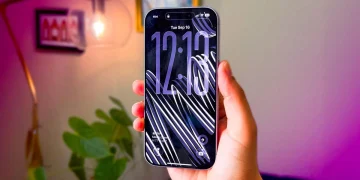
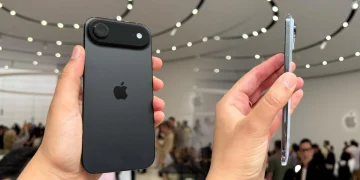
The iPhone 17 Pro features ProMotion technology, which allows for a high refresh rate to improve visual fluidity. While this makes animations smoother, it can also drain your battery faster. If you’re looking to extend your iPhone’s battery life, limiting the refresh rate can help conserve power without sacrificing basic performance. Here’s how you can disable ProMotion Max on your iPhone 17 Pro and save battery.
Turn Off ProMotion Max (Limit the Frame Rate)
Apple does not provide a direct toggle to turn off ProMotion Max in the settings, but you can limit the frame rate to 60Hz, which reduces the power usage. Here’s how to do it:
- Open Settings on your iPhone.
- Tap Accessibility.
- Select Motion under the Accessibility settings.
- Turn on Limit Frame Rate. This will limit your iPhone to a maximum refresh rate of 60Hz.
Once enabled, the iPhone 17 Pro will stop using higher refresh rates for tasks like scrolling and animations. This change takes effect immediately and helps to reduce battery drain. While the visual smoothness may be slightly reduced, most users will not notice a significant difference in everyday tasks like messaging, browsing, or reading.
Additional Ways to Reduce Display Power Usage
In addition to limiting the frame rate, you can take a few more steps to reduce battery drain caused by your iPhone’s display.
Adjust Automatic Brightness
A bright screen uses more power, so enabling auto-brightness helps manage power more efficiently:
- Go to Settings.
- Tap Accessibility.
- Select Display & Text Size.
- Turn on Auto-Brightness to let your iPhone adjust brightness automatically based on ambient light conditions.
Shorten Auto-Lock
Reducing the time before your iPhone’s screen turns off also helps conserve battery:
- Open Settings.
- Tap Display & Brightness.
- Select Auto-Lock.
- Set it to a shorter interval like 30 seconds or 1 minute.
Tips for Saving Even More Battery
- Lower the screen brightness manually when indoors to save battery.
- Turn off Always-On Display in Display & Brightness if you don’t need it.
- Enable Low Power Mode to automatically limit performance and refresh rate for maximum battery saving.
- Disable Background App Refresh for apps you rarely use to save power.
- Update iOS regularly to benefit from the latest battery optimizations.
FAQ
Does limiting the frame rate noticeably change how the display feels?
While animations and scrolling may look slightly less smooth, basic tasks like messaging, browsing, and reading will feel nearly the same.
Does the frame rate return to higher levels automatically?
No, the frame rate remains limited to 60Hz unless you turn off Limit Frame Rate or activate features that restore adaptive behavior.
Does Low Power Mode also limit refresh rate?
Yes, Low Power Mode reduces background activity and limits display performance to help save battery life.
Is this the same as turning off ProMotion entirely?
While not a full ProMotion toggle, limiting the frame rate effectively disables the higher-end performance of ProMotion Max.
Summary
To save battery on your iPhone 17 Pro:
- Open Settings.
- Tap Accessibility and select Motion.
- Turn on Limit Frame Rate to limit the refresh rate to 60Hz.
- Adjust Auto-Brightness and Auto-Lock for additional savings.
ProMotion enhances visual quality, but limiting the frame rate is an effective way to preserve battery life. With just a few settings adjustments, you can extend your device’s battery life without losing essential performance.