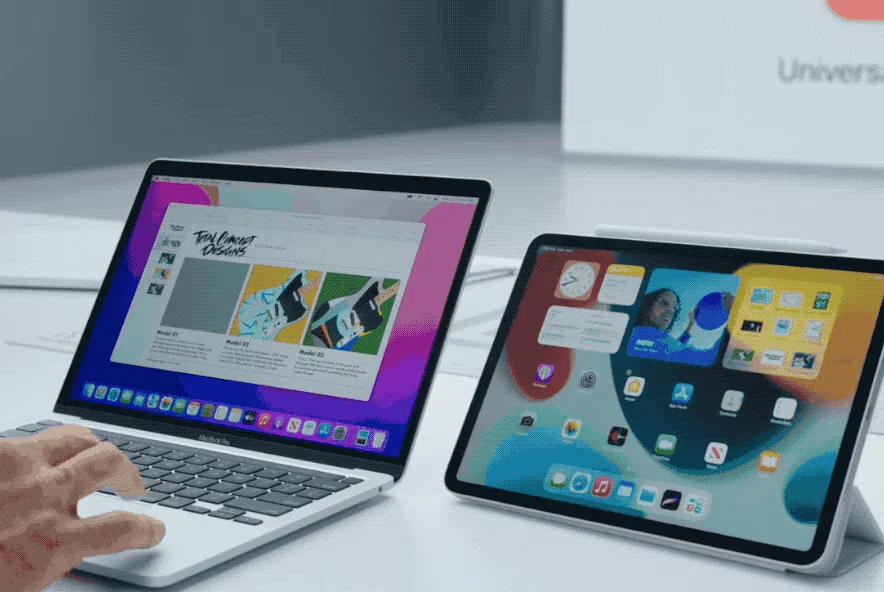
How to use Universal Control on Mac and iPad has become a common question as more people work across multiple devices at the same time. Apple designed Universal Control to remove friction between macOS and iPadOS, allowing users to move naturally from one screen to another without changing keyboards, mice, or trackpads. Instead of juggling accessories or constantly switching inputs, everything works as one connected workspace.
For many users, Universal Control replaces older habits like emailing files to themselves or relying on AirDrop for every small transfer. With a simple cursor movement, text, images, and files can move between a Mac and an iPad in seconds. This workflow feels especially natural for research, writing, design, and multitasking, where information constantly moves between devices.
Although Universal Control is powerful, it works best when set up correctly and paired with the right habits. Some users turn it on and never explore its full potential, while others combine it with productivity tools to build a highly efficient setup. Understanding how Universal Control works, what it requires, and how to customize it makes a noticeable difference in daily use.
This guide explains how to use Universal Control on Mac and iPad, from setup and file sharing to workspace expansion and customization. It also covers system requirements and practical tips that help Universal Control feel like a natural extension of your workflow rather than a novelty.
What Universal Control Does
Universal Control allows you to control multiple Apple devices with one keyboard, mouse, or trackpad. You can move your pointer between screens, type on different devices, and drag content across them without pairing accessories manually.
Universal Control supports up to three devices at once, including Macs and iPads. Each device keeps its own desktop and apps, which makes it different from screen mirroring or display extension features.
System Requirements for Universal Control
Before learning how to use Universal Control on Mac and iPad, make sure your devices meet Apple’s requirements.
macOS Monterey 12.4 or later is required on Mac
iPadOS 15.4 or later is required on iPad
Compatible Macs include:
MacBook Pro 2016 or later
MacBook Air 2018 or later
iMac 2017 or later
Mac mini 2018 or later
Mac Pro 2019 or later
Mac Studio
Compatible iPads include:
iPad Pro all models
iPad Air 3rd generation or later
iPad 6th generation or later
iPad mini 5th generation or later
All devices must be signed into the same Apple Account with two-factor authentication enabled. Wi-Fi, Bluetooth, and Handoff must be turned on, and devices should be within about 10 meters of each other.
How to Turn On Universal Control
Setting up Universal Control is simple once requirements are met.
On your Mac, open System Settings and go to Displays.
Select Advanced and enable Allow your pointer and keyboard to move between any nearby Mac or iPad.
Turn on Push through the edge of a display to connect a nearby Mac or iPad.
Enable Automatically reconnect to any nearby Mac or iPad.
On your iPad, open Settings and go to General, then AirPlay & Continuity.
Make sure Handoff is enabled.
Place your iPad near your Mac. Move your pointer to the edge of the Mac screen until it crosses onto the iPad. After the first connection, devices usually reconnect automatically.
How to Drag and Drop Files Between Devices
One of the biggest advantages of learning how to use Universal Control on Mac and iPad is fast file transfer. You can drag files, images, text, and screenshots directly from one device to another.
Click and hold a file on your Mac.
Move the cursor toward the edge of the screen.
Continue moving onto the iPad display.
Drop the file into a compatible app or location.
This method is often faster than AirDrop and avoids waiting for cloud sync. It works well for documents, photos, notes, and screenshots.
For managing multiple dragged items, Yoink provides a temporary holding space that makes multi-item transfers easier.
For screenshots and recordings, CleanShot X allows you to capture content on your Mac and immediately drag it onto your iPad without exporting or uploading files.
Expanding Your Workspace Across Devices
Universal Control effectively expands your workspace by letting you use your Mac and iPad side by side. You can keep research, references, or messaging apps on the iPad while focusing on your main task on the Mac.
This setup reduces window clutter and improves focus. Many users find it helpful for writing, studying, or creative work where secondary information needs to stay visible.
Universal Control keeps desktops separate, unlike Sidecar. If you want to mirror or extend your Mac display onto the iPad, you can combine Universal Control with Sidecar for more complex setups.
Customizing Universal Control for Your Workflow
Once enabled, Universal Control works automatically, but customization improves efficiency.
To make Universal Control connect every time, ensure all three display options are enabled in System Settings under Displays and Advanced. This allows devices to reconnect without manual input whenever they are unlocked and nearby.
For advanced input customization, BetterTouchTool lets you assign gestures, shortcuts, and actions to your keyboard, mouse, or trackpad. This is useful for window snapping, app switching, or custom commands across devices.
Enhancing Universal Control with Supporting Tools
Universal Control handles pointer and file movement, but some tasks benefit from additional tools.
Transloader allows you to start downloads on your Mac from your iPad or iPhone. This is useful when you find Mac apps or files while browsing on another device.
Yoink helps manage multiple drag actions.
CleanShot X improves screenshot sharing.
BetterTouchTool enhances window and input control.
These tools complement Universal Control rather than replace it, making multi-device workflows smoother.
Why Universal Control Is Different from Other Apple Features
Universal Control is often compared to Sidecar, but the two serve different purposes. Sidecar turns an iPad into a Mac display. Universal Control keeps devices independent while sharing input.
This design allows you to move between environments naturally. Each device keeps its own apps, files, and notifications, which avoids confusion and accidental changes.
Common Issues and How to Avoid Them
If Universal Control does not work, common causes include outdated operating systems, devices signed into different Apple Accounts, or disabled Wi-Fi, Bluetooth, or Handoff.
VPNs and Personal Hotspot can also interfere. Turning these off often resolves connection problems. Keeping devices updated ensures the best experience.
Everyday Use Cases for Universal Control
Knowing how to use Universal Control on Mac and iPad benefits a wide range of workflows.
Writers use it to reference notes on iPad while typing on Mac.
Designers drag assets between devices.
Students organize research across screens.
Professionals reduce desk clutter by using one input setup.
The feature adapts easily to different work styles.