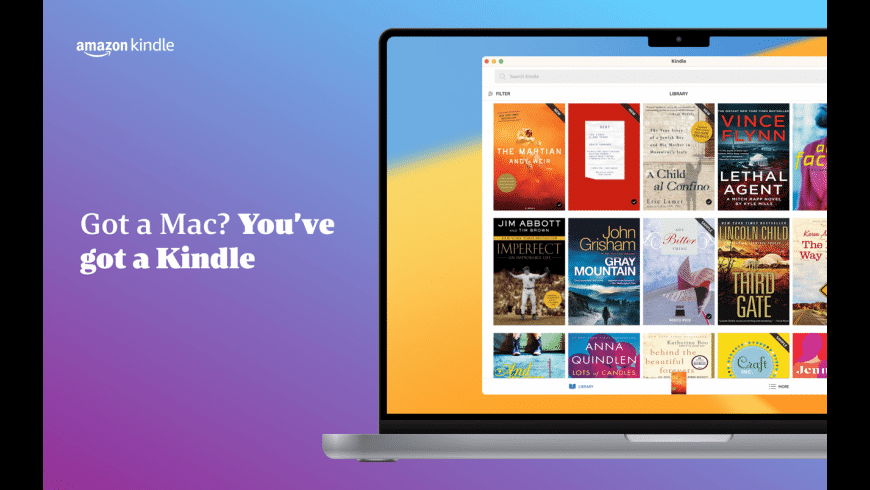
How to use the Kindle app for Mac is a common question among readers who want to enjoy Kindle books without carrying an extra device. Many people assume that a physical Kindle is required, yet Amazon offers a dedicated macOS app that brings the full Kindle reading experience to your computer. With it, you can read, highlight, and sync books just as you would on a Kindle e-reader or phone.
Reading on a Mac has unique advantages. A larger screen makes long reading sessions more comfortable, while a keyboard allows faster navigation and note-taking. The Kindle app for Mac also syncs automatically with your Amazon account, so your place in a book is always saved, no matter which device you use next.
Beyond basic reading, learning how to use the Kindle app for Mac opens the door to deeper focus and active study. With the right supporting tools, you can reduce distractions, capture ideas, and turn highlights into structured notes. This guide explains how to set up Kindle on Mac, read offline, stay focused, and enhance your reading workflow.
What Is the Kindle App for Mac
Kindle for Mac is Amazon’s official desktop reading app for macOS. It gives you access to all Kindle books linked to your Amazon account without requiring a physical Kindle device.
With the Kindle app for Mac, you can:
Access your full Kindle library
Download books for offline reading
Sync reading progress across devices
Highlight and review text
The app is free to download and works with the same Amazon account you use on other Kindle devices.
How to Download and Set Up Kindle on Mac
Setting up the Kindle app for Mac takes only a few minutes.
To download the app:
Open the Mac App Store
Search for “Kindle”
Click Get and install the app
Launch Kindle from Applications
When prompted, sign in with your Amazon account email and password. Once signed in, your Kindle library appears automatically. Any books you previously purchased will be available instantly.
If the app does not open or behaves unexpectedly, basic macOS troubleshooting or system checks usually resolve the issue.
How to Use the Kindle App for Mac to Read Books
Using Kindle on Mac is straightforward and familiar if you have used Kindle on other devices.
Your books appear in the Library view. By default, most titles are stored in the cloud. To read a book offline:
Open the Library
Locate the book with a cloud icon
Click the icon to download
Double-click the book to open
Once downloaded, the book remains available even without an internet connection.
You can also organize books using Collections:
Open Collections
Create a new collection
Drag books into it
This is useful for separating finished books, active reading, and future reads.
Buying Kindle Books for the Mac App
If your library is empty, you can purchase Kindle books directly from Amazon.
To add books:
Visit amazon.com
Sign in with the same Amazon account
Search for a title
Select the Kindle edition
Complete the purchase
The book will appear automatically in your Kindle app for Mac once the purchase syncs.
How to Use Kindle Cloud Reader on Mac
If you prefer not to install the app, Kindle books can be read online using the Kindle Cloud Reader.
To use it:
Go to read.amazon.com
Sign in with your Amazon account
Select a book and start reading
The cloud reader mirrors most features of the Mac app, including syncing progress and highlights. However, some library organization features are limited compared to the desktop app.
How to Focus While Reading with the Kindle App for Mac
Reading on a computer can be distracting due to notifications and open windows. One way to improve concentration is by dimming background distractions.
HazeOver helps by dimming all inactive windows while keeping the Kindle app fully visible. This creates a reading environment closer to a dedicated e-reader.
With fewer visual distractions, it becomes easier to stay immersed in long chapters, textbooks, or research material.
How to Take Notes and Study with Kindle on Mac
Reading is often part of studying or research, not just leisure. While Kindle supports highlights and notes, some readers need more advanced tools for organizing ideas.
MarginNote transforms highlights into structured notes, mind maps, and flashcards. It allows readers to connect ideas across books and documents, making it ideal for academic or professional reading.
By pairing Kindle for Mac with MarginNote, reading becomes an active learning process rather than passive consumption.
Managing News and Articles Outside Kindle
Kindle works well for books, but it is not ideal for tracking daily news or blogs. Readers who want everything in one place often add a dedicated news reader.
News Explorer collects articles from multiple publications into one interface. This makes it easy to separate book reading from current news while keeping both accessible on Mac.
Where Kindle for Mac Stores Books
Most users do not need to access Kindle files directly. Books are managed inside the app and synced through Amazon’s cloud. When downloaded for offline reading, files are stored locally, but they remain protected by Amazon’s digital rights management.
Because of DRM restrictions, Kindle books cannot be exported to other reading apps or converted for external use.
Does Kindle for Mac Sync with Other Devices
Kindle for Mac automatically syncs:
Reading position
Bookmarks
Highlights
Notes
You can start reading on a Mac and continue on a Kindle device, phone, or tablet without losing your place.
Limitations of the Kindle App for Mac
Although powerful, the Kindle app for Mac has some limits:
You cannot import personal documents into the app
Kindle books cannot be exported
Advanced annotation tools require third-party apps
For most readers, these limitations are minor compared to the convenience of desktop reading.
Why Use the Kindle App for Mac
Learning how to use the Kindle app for Mac is useful for anyone who reads frequently on a computer. It removes the need for extra devices, syncs seamlessly with Amazon’s ecosystem, and works well with productivity tools that improve focus and learning.
With the right setup, your Mac can become a comfortable and efficient reading environment for both leisure and study.