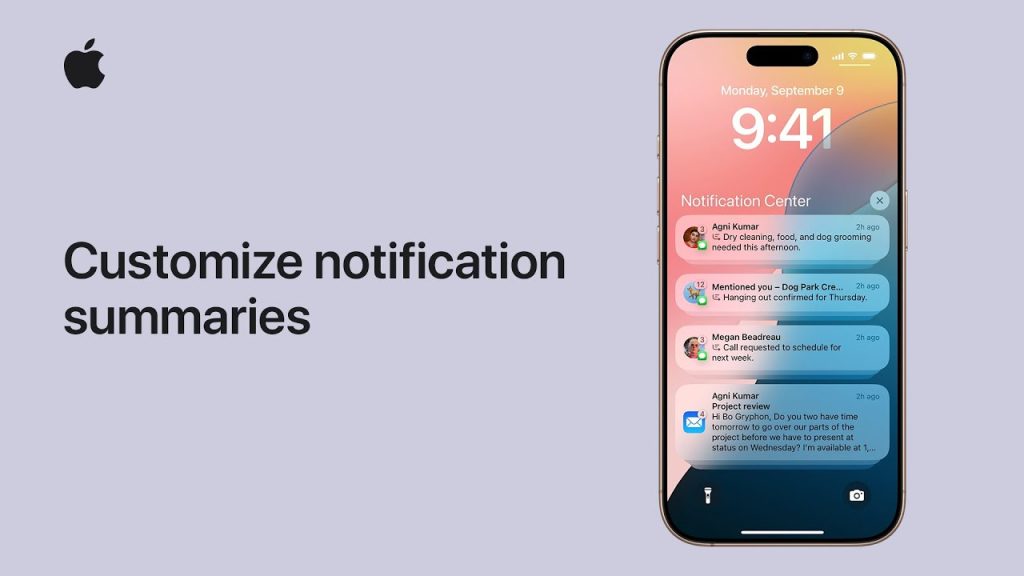
With Notification Summaries, iPhone and iPad users can organize and manage their notifications in a more streamlined way. This feature groups non-urgent notifications into a summary that is delivered at a scheduled time, helping reduce distractions and keep you focused. By customizing these summaries, you can ensure that you receive only the most important notifications in real-time while consolidating less critical alerts for later.
In this guide, we’ll walk you through how to set up and customize Notification Summaries on your iPhone or iPad, so you can control when and how you receive notifications.
How to Customize Notification Summaries on iPhone or iPad
1. Enable Notification Summaries
To start using Notification Summaries, you first need to enable the feature in your Settings.
- Open Settings
Launch the Settings app on your iPhone or iPad. - Tap Notifications
Scroll down and tap on Notifications. - Select Scheduled Summary
In the Notification Style section, tap Scheduled Summary. This will allow you to set up when and how you want your notification summaries delivered. - Enable Scheduled Summary
Toggle the switch to on. You’ll be prompted to set the time when your summaries should be delivered (e.g., Morning, Afternoon, or Evening). You can select multiple times based on your preference. - Set Up Time for Summaries
Choose one or more time slots for when you’d like to receive your notification summary. You can pick specific times like 8:00 AM, 12:00 PM, and 6:00 PM to receive your notifications all at once, reducing constant interruptions throughout the day.
2. Customize Which Apps Appear in Your Summary
You can choose which apps will send notifications to your summary, allowing you to keep the important alerts separate from the non-essential ones.
- Select Apps for Summary
After enabling Scheduled Summary, you’ll see a list of apps that send notifications. Choose which apps you want to include in the summary by turning them on or off. Only notifications from the apps you select will be grouped together in the summary. - Manage App Notifications
For each app, you can select whether you want it to send notifications in the summary or immediately. Apps like Messages, Mail, and Reminders can be prioritized for immediate notifications, while apps like News and Games can be set to send notifications in your summary. - Prioritize Notifications
Some apps will allow you to choose whether they appear immediately or in the summary. To prioritize apps that require urgent attention (e.g., Messages or Calendar), toggle them for Immediate Delivery.
3. Schedule and Adjust Notification Summaries
Once you’ve selected your apps, you can further refine the delivery of your summaries to suit your routine.
- Edit Summary Times
If you want to change the times at which your summaries are delivered, go back to Settings > Notifications > Scheduled Summary, and tap Summary Times. Here, you can add, remove, or adjust the times according to your schedule. - Adjust Frequency of Summaries
In Scheduled Summary, you can choose how often the notifications will be delivered—whether daily, weekly, or with more flexibility depending on your preferences. - Review and Edit the Summary
You can also go back and review the apps that are included in the summary and make adjustments as needed. This ensures that the apps that send the most relevant information are always included in your summary.
4. Use Focus Modes for Better Control
Combining Focus Modes with Notification Summaries gives you better control over when and how you receive notifications, especially if you’re trying to limit distractions during specific activities.
- Enable Focus Mode
Go to Settings > Focus, and choose from options like Do Not Disturb, Work, Sleep, or Custom Focus modes. - Customize Focus Mode Settings
For each Focus mode, you can customize which apps and people can send you notifications. For example, when you’re in Work mode, you might want to receive work-related notifications immediately, while other apps send their notifications in a scheduled summary. - Combine Focus and Summary for Enhanced Control
If you prefer to only receive certain types of notifications during work hours, you can combine Focus with your Notification Summary settings. This will ensure that your non-essential notifications are grouped together, while essential work notifications are sent immediately.
5. Manage Notification Summary Settings in Control Center
For quick access to your Notification Summary settings, you can manage them through the Control Center.
- Open Control Center
Swipe down from the top-right corner of your iPhone or iPad (on iPhone X or newer) or swipe up from the bottom (on older models). - Tap the Focus Icon
Tap the Focus icon to access your Focus modes. You can toggle between different Focus modes (like Do Not Disturb or Work) and also manage whether notifications are delivered immediately or in a summary.
6. How to View and Interact with Notification Summaries
Once your Notification Summaries are set up, they’ll appear as a list at the scheduled times.
- View Your Notification Summary
When the scheduled time arrives, swipe down from the top of your screen to open the Notification Center. The summary will show all the notifications that were grouped during the time frame, and you can tap on individual notifications to view more details or take action. - Manage Notifications in the Summary
You can interact with the notifications directly within the summary—whether it’s opening an app, replying to a message, or marking an email as read. The summary makes it easy to catch up on important updates all at once. - Dismiss the Summary
If you’re done reviewing the notifications, swipe them away, and they’ll be cleared from the Notification Center.
Why Customizing Notification Summaries Is Helpful
Customizing your Notification Summaries allows you to manage your notifications more effectively. Instead of being bombarded by constant alerts throughout the day, you can consolidate non-urgent notifications and receive them at more convenient times. This can help you stay focused, reduce distractions, and make your iPhone or iPad experience more efficient.
Final Thoughts on Customizing Notification Summaries on iPhone and iPad
Notification Summaries are a valuable tool for managing your time and attention, helping you stay organized while reducing distractions. By customizing which apps send notifications immediately and which are grouped into a summary, you can create a more focused, streamlined experience on your device. Follow the steps in this guide to take control of your notifications and ensure you only see what matters, when it matters.