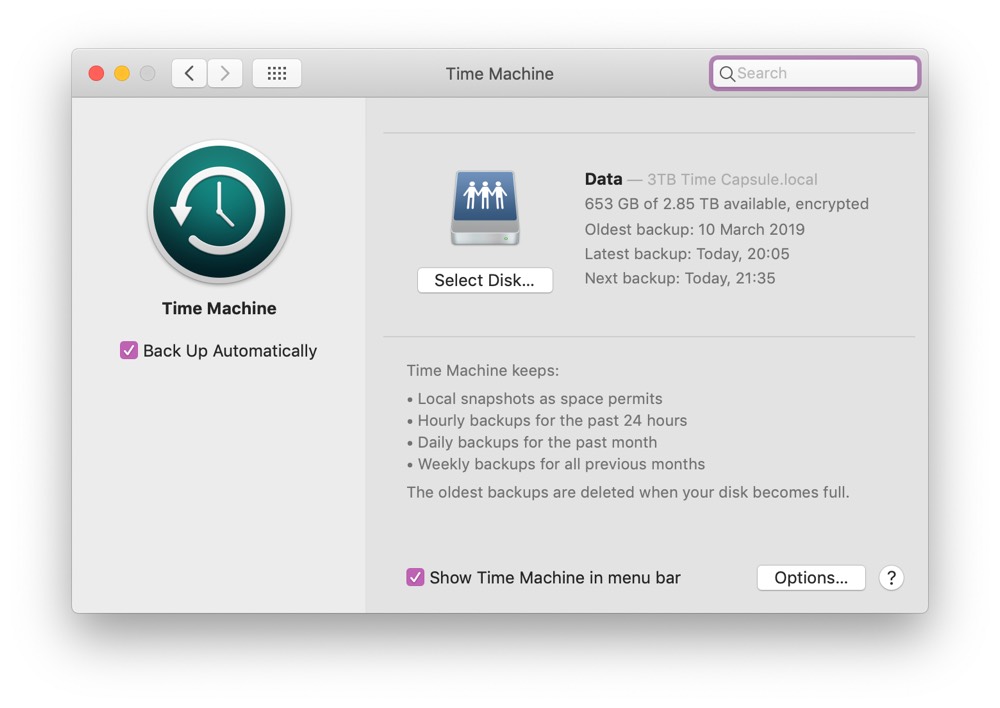
Time Machine is designed to work quietly in the background, creating regular backups without disrupting your workflow. Under normal conditions, the “Preparing backup” stage lasts only a few seconds to a few minutes for incremental backups. However, when Time Machine remains stuck in this phase for 30 minutes or longer, it usually signals a deeper issue that waiting will not resolve. Understanding why Time Machine gets stuck and knowing how to intervene early can save hours of frustration and prevent potential data loss.
When Time Machine prepares a backup, macOS scans your file system, identifies changes since the last snapshot, and checks the destination drive for consistency. If any part of that process encounters corruption, excessive file changes, or conflicts with other system processes, the preparation stage can stall indefinitely. Rather than letting the process run endlessly, it is better to stop the backup and apply targeted fixes that address the root cause.
In most cases, Time Machine issues are linked to large files, disk errors, system clutter, or outdated backup settings. The good news is that these problems are usually fixable without reinstalling macOS or erasing your backup history. The steps below walk through proven solutions that work across modern Mac systems and external backup drives.
Why Time Machine gets stuck on preparing backup
Time Machine can stall during preparation for several reasons. Large files such as virtual machines, disk images, or high-resolution videos often slow the indexing process. Backup drives that are aging, corrupted, or improperly ejected may contain file system errors that prevent Time Machine from completing its checks. In other cases, recent macOS updates, interrupted previous backups, antivirus scans, or excessive cache files can interfere with the backup daemon. Malware is rare, but it can also disrupt disk access and cause Time Machine to hang.
Although first-time backups can legitimately take longer, especially when backing up large volumes of data, repeated stalls during routine incremental backups almost always indicate a problem that requires intervention.
Stop the stuck backup and reset the process
If Time Machine is stuck, the first step is to stop the current backup safely. Open System Settings, go to General, then Time Machine, and click the stop button next to the progress bar. This does not damage existing backups and allows you to troubleshoot without risking corruption. After stopping the backup, temporarily disable automatic backups so you can test fixes one at a time instead of letting Time Machine restart repeatedly.
Restarting your Mac after stopping the backup helps clear temporary system states and resets background services involved in file indexing. Once the system restarts, reconnect your external backup drive and attempt a manual backup. If the issue persists, continue with the fixes below.
Exclude large files from the backup
Large or constantly changing files are a common cause of Time Machine stalls. Virtual machines, video libraries, and large archives can overwhelm the preparation stage. Open Time Machine settings, select Options, and add large folders or files to the exclusion list. You can back these items up separately using manual copies or alternative backup tools.
To quickly identify oversized files, open System Settings, navigate to General, then Storage, and review the Documents section. Sorting by file size helps pinpoint items that may be slowing the backup process.
Repair the external backup drive
File system errors on the backup drive frequently cause Time Machine to hang. Open Disk Utility, select your Time Machine disk, and run First Aid. This tool checks the directory structure and repairs common errors that prevent proper disk access.
If First Aid reports damage it cannot repair, the drive may be failing. Drives used continuously for several years are especially prone to wear. Testing with a different external disk helps determine whether the issue lies with your Mac or the backup hardware. When a drive shows signs of failure, recovering your data before reformatting or replacing it is critical.
Clean system junk before backing up
Time Machine sometimes struggles when backing up thousands of unnecessary cache and temporary files. These files change frequently and can significantly slow the preparation stage. Clearing system junk before running a backup reduces the number of files Time Machine must analyze.
Running a cleanup scan removes outdated caches, leftover application files, and other clutter that interferes with smooth backups. Regular maintenance not only speeds up Time Machine but also improves overall system performance. Making cleanup part of your backup routine can prevent repeated stalls in the future.
Exclude antivirus scans from the backup drive
Antivirus software may scan external drives continuously, creating conflicts with Time Machine. When both processes attempt to access the disk simultaneously, backups can stall. After ensuring the backup drive is clean, add it to your antivirus exclusion list so Time Machine has uninterrupted access.
On older versions of macOS, additional steps may help, such as deleting incomplete backup files from the backup directory or temporarily pausing iCloud syncing during the backup.
Reset Time Machine settings
If standard fixes fail, resetting Time Machine settings can clear corrupted preferences and restart the indexing process. Stop Time Machine, remove the destination disk from settings, and disconnect the drive. Then open Finder, use Go to Folder, navigate to the system preferences directory, and delete the Time Machine preference file. Restart your Mac and reconnect the backup drive.
This process does not delete existing backups. Instead, it forces macOS to rebuild its internal backup configuration, which often resolves persistent preparation issues.
Delete local snapshots to free system resources
macOS creates local Time Machine snapshots on the internal drive when the external disk is unavailable. While useful, excessive or corrupted snapshots can affect backup performance. Using Terminal commands, you can list and remove old snapshots to free space and reduce conflicts.
Before deleting snapshots, confirm that you have a recent external backup or no longer need those restore points. Removing them can improve Time Machine responsiveness but should be done cautiously.
Consider reliable alternatives to Time Machine
When Time Machine continues to fail despite troubleshooting, alternative backup tools may provide a more stable solution. Some tools offer incremental backups, versioned archives, and bootable clones with greater control over what gets backed up and when. These tools often create smaller archives, support flexible scheduling, and allow restores without reinstalling software.
Switching backup strategies can reduce reliance on a single system tool and provide added redundancy for critical data.
Recover data if Time Machine fails completely
In rare cases, Time Machine issues coincide with disk corruption that blocks access to files. When Disk Utility cannot repair a drive, data recovery software can scan the disk directly and retrieve files before reformatting or replacement. This approach is especially useful when a backup drive becomes unreadable or a Mac fails to boot.
How to prevent Time Machine from getting stuck again
Preventive maintenance goes a long way in keeping backups reliable. Keep macOS updated, run disk checks periodically, clean system junk before backups, and use a backup drive with at least twice the capacity of your Mac’s storage. Avoid long gaps between backups, as large changes increase preparation time and the likelihood of errors. High-quality cables and properly ejecting drives also reduce the risk of corruption.
For users who value flexibility and reliability, maintaining a secondary backup method alongside Time Machine provides additional peace of mind and minimizes downtime when issues arise.