


Videos are part of everyday Mac use, whether you are watching online streams, reviewing recorded footage, or playing downloaded clips. When a video not playing on Mac interrupts that experience, the problem can feel frustrating and hard to pinpoint. Sometimes the video refuses to open at all. Other times it loads but freezes, crashes the player, or shows a blank screen. These issues can affect both offline files and browser-based videos, and the cause is not always obvious.
In most cases, video playback problems on macOS come down to a few common factors. Unsupported file formats, corrupted video files, malware, browser conflicts, or unstable network connections can all stop videos from playing properly. Even small issues like outdated caches or browser extensions can block playback without warning. The good news is that most of these problems are fixable with the right approach.
This guide walks you through practical solutions to fix video not playing on Mac issues. You will learn how to troubleshoot offline videos, resolve browser-based playback errors, and improve streaming reliability. By following these steps, you can restore smooth video playback and avoid similar problems in the future.
Why videos stop playing on Mac
When a video does not play on macOS, the system is usually reacting to something it cannot process correctly. The file may use a codec that QuickTime does not support. The download may be incomplete or damaged. Background malware can interfere with media services. Browsers may block playback due to corrupted cache files or disabled settings. Streaming services may also restrict access based on network quality or geographic location.
Identifying whether the issue affects offline videos, online videos, or both is the first step toward fixing it.
How to fix video not playing on Mac for offline files
If an offline video refuses to play, start with the simplest checks before moving on to advanced fixes.
Redownload or recopy the video file
Downloaded videos can become corrupted during transfer, especially if the connection drops. If the file came from the internet, download it again from the original source. If it came from a camera, phone, or SD card, copy it again to your Mac. This step alone resolves many playback failures.
Use a multi-format media player
QuickTime does not support every video format. When a video not playing on Mac occurs with QuickTime, the file itself may be fine, but the player cannot decode it. Using a multi-format media player solves this issue by supporting a wider range of codecs and containers.
A compatible media player can handle common formats such as MP4, MOV, MKV, AVI, FLV, and WMV without additional plugins. This is especially useful for videos recorded on non-Apple devices or downloaded from third-party sources.
Repair corrupted video files by converting them
Corrupted files often fail to open even in advanced media players. Converting the video into another format can rebuild the file structure and restore playback. A video conversion tool allows you to load the damaged file, select a new output format, and generate a playable version.
This method works well for partially corrupted files and videos recorded on unstable devices.
Scan your Mac for malware and cache issues
Malware and system junk can interfere with video playback services. Background threats may block media decoding or crash apps unexpectedly. Cached files can also become corrupted and disrupt playback.
Running a full system scan helps remove malware and clears unnecessary caches that interfere with videos. This step improves overall system stability and reduces the risk of future playback issues.
How to fix online videos not playing on Mac
When online videos fail to load in Safari, Chrome, or another browser, the issue usually lies with browser settings, extensions, or network conditions.
Open the video in a private browser window
A private window disables most extensions and cached data. Opening the video in private browsing mode helps determine whether an extension or stored setting is blocking playback. If the video works in a private window, the problem is likely related to a browser add-on or cache.
Remove unknown browser extensions and enable JavaScript
Extensions can block scripts required for video playback. Reviewing installed extensions and removing unfamiliar ones helps restore normal behavior. JavaScript must also be enabled for most video platforms to function correctly.
After making changes, restart the browser and test the video again.
Clear browser cache to fix playback errors
Corrupted browser cache files can prevent videos from loading or cause them to freeze. Clearing the cache forces the browser to load fresh data from the website. After clearing the cache, fully quit the browser and reopen it before testing playback.
This step often resolves issues with YouTube, streaming platforms, and embedded videos.
Refresh the browser process
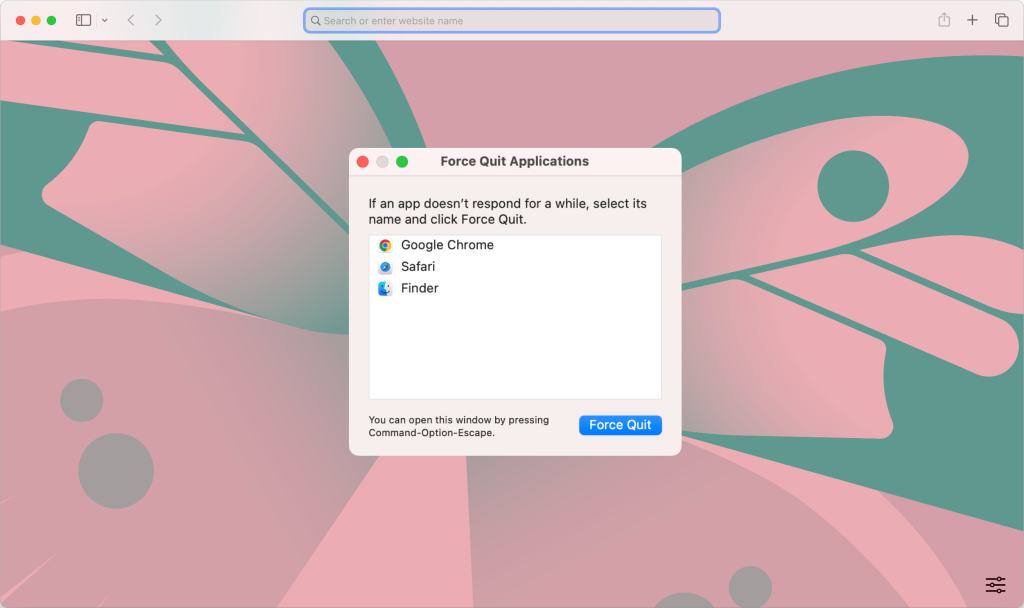
Sometimes the browser itself becomes unstable. Refreshing the browser process through Activity Monitor clears temporary glitches without restarting the entire system. This can restore video playback when other browser fixes fail.
Fix streaming issues caused by network problems
A weak or unstable internet connection can prevent videos from buffering properly. If videos keep stopping or loading endlessly, network quality may be the issue.
Analyzing and optimizing Wi-Fi performance helps identify signal interference, congestion, or poor router placement. Improving network stability often resolves playback interruptions.
Check for geographic restrictions on videos
Some online videos are restricted by region. If a video loads but shows an unavailable message, geographic limitations may apply. Changing your virtual location allows you to confirm whether the restriction is location-based.
This is especially common with streaming platforms and region-locked content.
Why a complete toolset helps fix video issues faster
When a video not playing on Mac problem appears, it often involves multiple factors. One tool fixes formats, another repairs files, while others address malware, browser issues, or network problems. Having access to a complete set of Mac utilities reduces troubleshooting time and prevents repeated failures.
Using reliable tools ensures smoother playback, safer file handling, and better system performance overall.
How to prevent video playback problems on Mac
Preventive maintenance helps avoid future issues. Keep macOS and browsers updated to ensure codec compatibility. Avoid installing unnecessary browser extensions. Maintain sufficient free disk space and clean caches periodically. Download videos from trusted sources and safely eject external storage devices.
These habits reduce the likelihood of encountering video playback errors again.





