Restoring a Mac to a previous date can feel like the fastest escape when something suddenly goes wrong. A system update slows everything down, a new app causes repeated crashes, or an important file disappears without warning. In situations like these, many Mac users look for a way to rewind their system to a time when everything worked as expected. Learning how to restore Mac settings, files, or even the entire operating system can save time and prevent unnecessary stress.
macOS offers several recovery paths depending on how prepared you are. If you have Time Machine backups, restoring your Mac to an earlier date is relatively straightforward. If you do not, your options change, but that does not mean you are out of luck. You can still reinstall macOS, repair system issues, or recover files using dedicated tools. The key is understanding what each method can and cannot do before you proceed.
Restoring a Mac is not only about fixing problems. It is also about protecting data. Rolling back a system can overwrite recent changes, so it is important to approach the process carefully. With the right steps, you can restore stability without losing what matters most.
How restoring a Mac to a previous date works
When you restore Mac systems to a previous date, you are essentially reverting your computer to an earlier snapshot. This snapshot may include system files, applications, user settings, and personal data, depending on the method used. Time Machine restores your Mac exactly as it was at the selected moment, while reinstalling macOS refreshes the operating system without reverting to a specific date.
Understanding this distinction helps avoid surprises. A full restore can undo recent changes, while a reinstall focuses on fixing system-level issues without rolling back time.
Restore Mac to a previous date using Time Machine
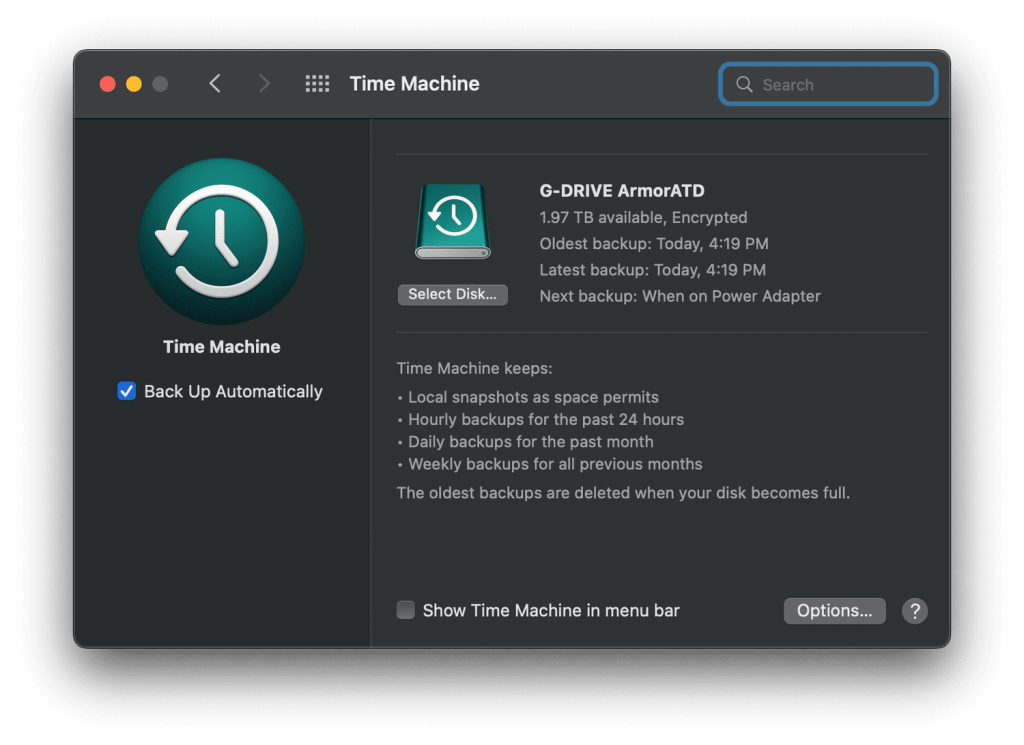
Time Machine is Apple’s built-in backup tool that automatically creates hourly, daily, and weekly backups. If you have been using it, restoring your Mac to a previous date is the most complete and reliable solution.
To restore Mac systems using Time Machine, connect your backup drive and restart your Mac. As it powers on, hold Command and R until the Apple logo or spinning globe appears. This opens macOS Recovery. From the utilities menu, choose Restore From Time Machine Backup and select your backup disk. You can then choose the exact date and time you want to return to and select your startup disk as the destination.
This process restores applications, system settings, and files exactly as they were at that point. It is the closest thing to turning back the clock on a Mac.
Why backing up before restoring is essential
Even though restoring a Mac can fix major issues, it always carries some risk. Files created after the selected restore date may be lost. For that reason, backing up recent data separately before restoring is strongly recommended. A quick backup ensures you can retrieve important documents later if needed.
How to reset a Mac without Time Machine
If you do not have a Time Machine backup, restoring a Mac to a specific date is not possible. However, you can still reinstall macOS to fix system problems. This option refreshes the operating system without erasing your personal files, but it does not roll the system back in time.
To reset your Mac without Time Machine, restart and enter macOS Recovery. On Intel Macs, hold Command and R at startup. On Apple silicon Macs, press and hold the power button until startup options appear, then choose Options. From the utilities menu, select Reinstall macOS and follow the on-screen instructions. Choose your startup disk and allow the installation to complete.
This method resolves many issues caused by corrupted system files or failed updates while keeping user data intact.
Restore Mac files without Time Machine backups
Sometimes the problem is not the entire system but missing or deleted files. Even without Time Machine, you may still be able to recover data. File recovery tools scan storage drives directly and retrieve files that have not yet been overwritten.
This approach is especially useful if you accidentally deleted important documents or if your Mac fails to boot properly. File recovery does not restore the system to a previous date, but it can bring back valuable data when no backup exists.
Reset NVRAM or PRAM to fix system glitches
Some Mac problems stem from corrupted settings stored in non-volatile memory, known as NVRAM or PRAM. Resetting this memory can resolve issues related to startup behavior, display settings, or system performance.
To reset it, shut down your Mac, then turn it on and immediately press Option, Command, P, and R together. Hold the keys for about 20 seconds before releasing them and allowing the Mac to restart normally. While this does not restore the Mac to a previous date, it can correct system-level issues that make restoration seem necessary.
Use Disk Utility to repair disk errors
Disk errors can cause crashes, slowdowns, or failed updates. Before performing a full restore, it is often worth checking the startup disk for errors. Restart your Mac into Recovery mode, open Disk Utility, select your startup disk, and run First Aid. This process scans the disk for issues and repairs them when possible.
In many cases, fixing disk errors restores system stability without requiring a rollback.
When restoring a Mac to an earlier date makes sense
There are several common scenarios where restoring a Mac is the right decision. New software may cause repeated crashes or compatibility issues. Malware infections can compromise system stability. macOS updates may introduce bugs or break essential apps. Over time, accumulated system clutter can also slow performance.
Restoring your Mac to a known good state removes problematic changes and helps you regain control without guessing which setting or app caused the issue.
Keeping your Mac clean to avoid future restores
Preventive maintenance reduces the need to restore your Mac in the first place. Regularly cleaning unnecessary files, keeping macOS updated, and maintaining reliable backups all contribute to long-term stability. A clean system runs faster, backs up more efficiently, and is less likely to encounter serious errors.
Manual file recovery and alternative options
If backups are unavailable, manual recovery through data recovery software remains a last-resort option. Some tools can recover files from unreadable drives or even from Macs that fail to boot. While this does not replace a full system restore, it provides a safety net when traditional backups are missing.
Understanding the limits of iCloud for restoration
iCloud is useful for syncing and retrieving individual files, but it does not store system snapshots. You cannot restore a Mac to a previous date using iCloud alone. It is best used as a complement to local backups rather than a replacement for them.