If you rely on screenshots for work, presentations, tutorials, or online meetings, few things are as frustrating as realizing your screenshot not working on Mac just when you need it. macOS screenshots usually work out of the box, so when they suddenly fail, it can feel confusing and even embarrassing in professional situations.
The good news is that screenshot issues on Mac are rarely serious. In most cases, the problem comes down to disabled shortcuts, storage limits, temporary system glitches, or background processes interfering with the Screenshot utility. With the right steps, you can fix the issue in minutes without reinstalling macOS or calling technical support.
This guide walks you through proven solutions step by step, starting with the fastest checks and moving to deeper fixes only if needed. By the end, you’ll know exactly how to fix a screenshot not working on Mac and how to prevent it from happening again.
Confirm Mac screenshot shortcuts are enabled

Before troubleshooting anything complex, confirm your screenshot shortcuts are still active. Screenshot shortcuts can be disabled accidentally or changed by third-party apps.
To check:
- Click the Apple menu and open System Settings
- Go to Keyboard > Keyboard Shortcuts
- Select Screenshots
- Ensure all options are checked or click Restore Defaults
Once enabled, try:
• Shift + Command + 3 for full screen
• Shift + Command + 4 for selection
• Shift + Command + 4 + Space for window capture
If screenshots work now, the issue was simply a shortcut setting change.
Check where screenshots are being saved
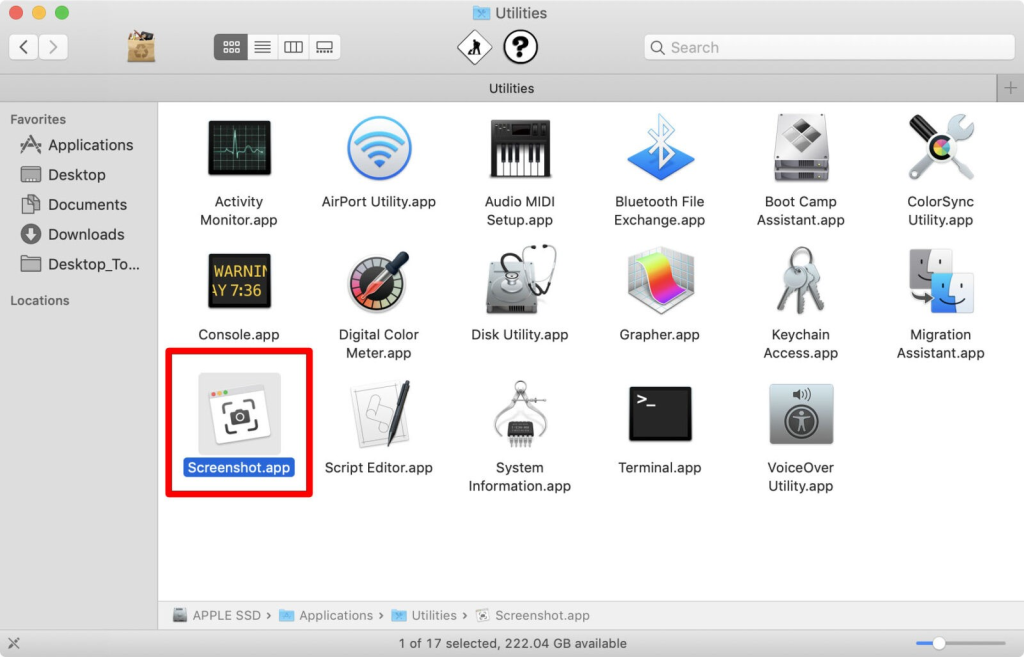

Sometimes screenshots are working but saving somewhere unexpected. This creates the illusion that screenshots are not working on Mac.
To verify the save location:
- Press Shift + Command + 5 to open the Screenshot toolbar
- Click Options
- Check the selected Save to location
If screenshots are set to Clipboard, they won’t appear as files unless you paste them immediately. If you rely on clipboard capture often, a clipboard manager like Paste can help preserve images and text automatically.
Scan your Mac for malware or system interference

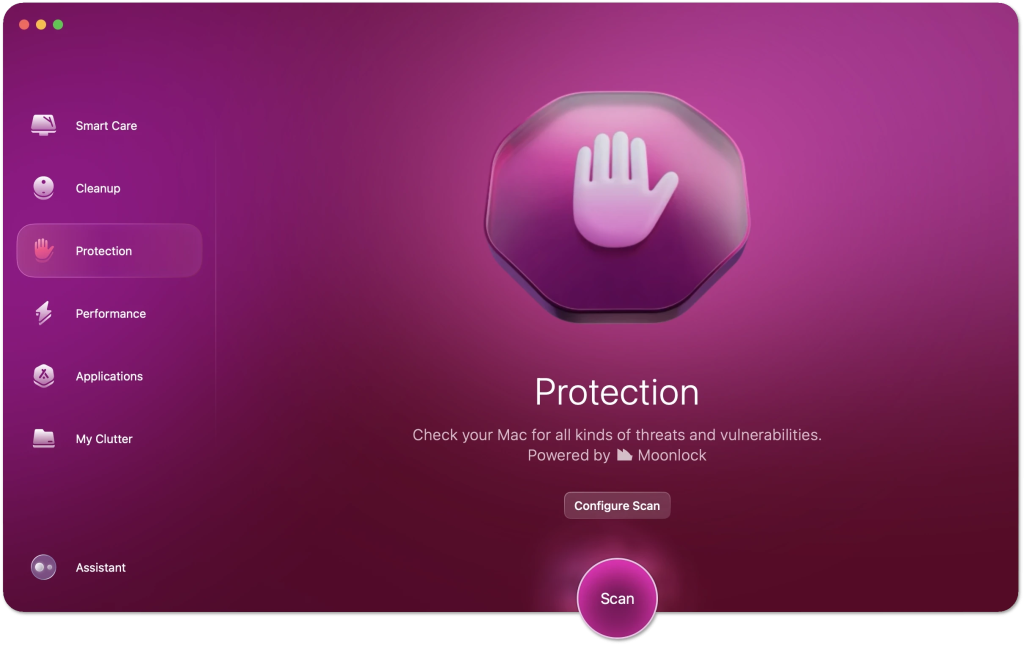
If shortcuts and save locations look correct but screenshots still fail, malware or system corruption could be blocking the Screenshot service.
Running a system scan with CleanMyMac helps identify malicious background processes, remove threats, and clean broken system files that interfere with macOS functions.
After scanning and removing any issues, restart your Mac and test screenshots again.
Restart the Screenshot utility


The Screenshot service can occasionally freeze or stop responding. Restarting it often fixes the issue instantly.
Steps:
- Open Activity Monitor
- Search for Screenshot
- Select it and click Quit or Force Quit
- macOS will relaunch it automatically
Test your screenshot shortcuts again after restarting the process.
Use Preview as a temporary workaround
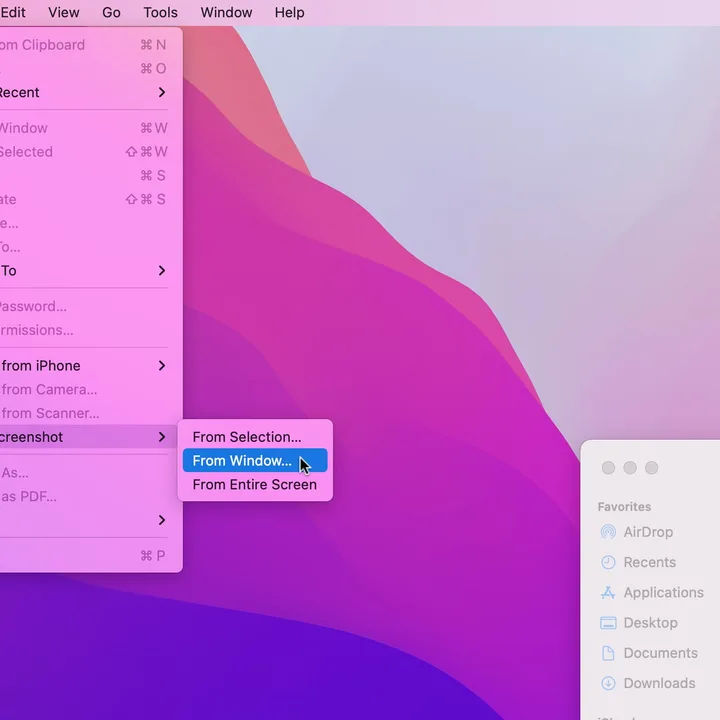

If shortcuts fail during urgent tasks, Preview offers a built-in alternative.
Open Preview, then:
• File > Take Screenshot
• Choose From Selection, From Window, or From Entire Screen
This confirms whether the problem is shortcut-related or system-wide.
Try professional screenshot apps


If the default Screenshot tool keeps failing or feels limited, third-party apps provide more reliability and features.
Recommended options:
• CleanShot X for scrolling capture, cloud uploads, and clean presentations
• Xnapper for styled, social-ready screenshots
• Capto for screenshots and screen recordings
These tools bypass macOS Screenshot issues entirely and are often more powerful.
Restart Mac in Safe Mode
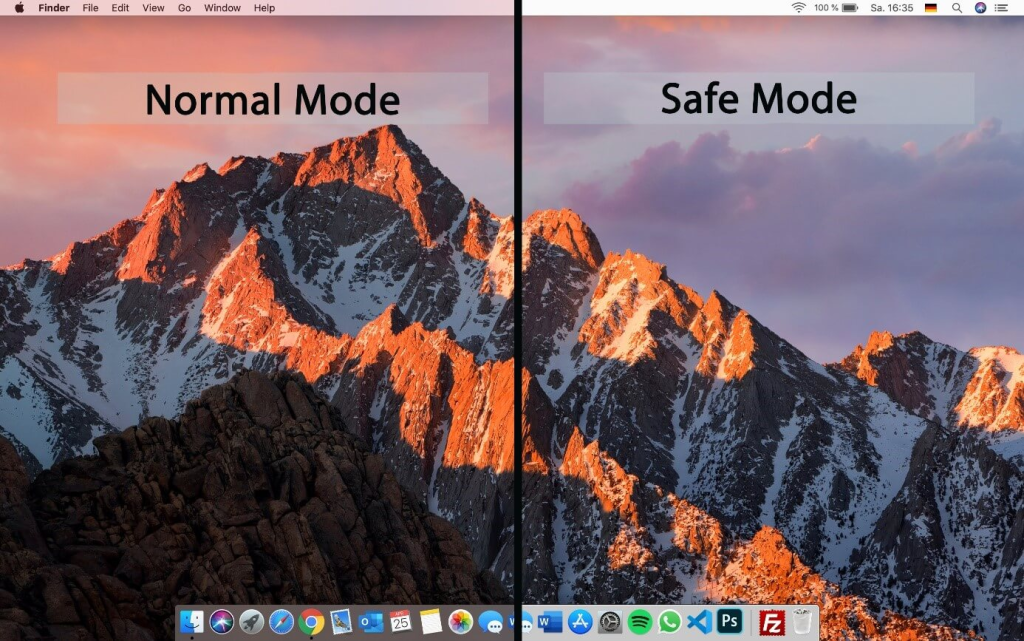
Safe Mode loads macOS with only essential system components. If screenshots work in Safe Mode, a background app is causing the conflict.
To enter Safe Mode:
• Intel Macs: Restart while holding Shift
• Apple silicon Macs: Hold power > Startup Options > Safe Mode
If screenshots work here, uninstall recently added apps until the issue disappears.
Reset NVRAM on Intel Macs
Corrupted NVRAM settings can break system features like screenshots.
Steps for Intel Macs:
- Shut down your Mac
- Turn it on and hold Option + Command + P + R
- Release after restart
Apple silicon Macs handle this automatically, so a normal restart is enough.
Make sure your Mac has enough storage

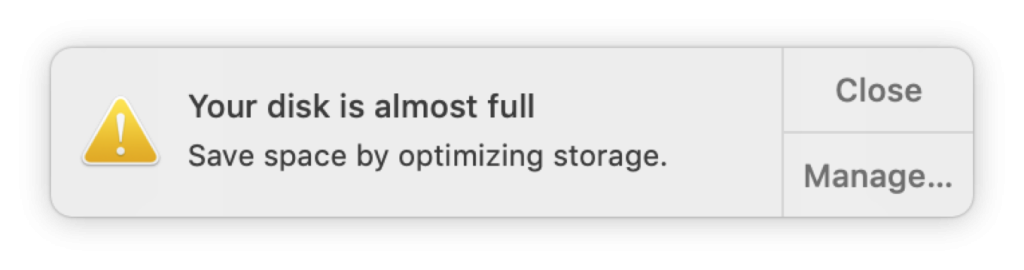
Low storage can silently prevent screenshots from saving.
Check storage at:
System Settings > General > Storage
Free space by deleting unused files or using CleanMyMac to remove junk. You can also move large files to cloud services and manage them locally using CloudMounter.
Why screenshot not working on Mac happens
Screenshot issues usually stem from:
• Disabled shortcuts
• Changed save locations
• Malware or system corruption
• Full storage
• Background app conflicts
Instead of guessing, working through the fixes above systematically resolves the issue faster.
Restore screenshots on Mac and keep them working
If your screenshot not working on Mac issue persists, using a dedicated screenshot app like CleanShot X is the fastest long-term solution. For built-in fixes, keeping shortcuts enabled, storage free, and malware scans regular prevents most problems before they happen.
With these steps, you’ll be able to capture screenshots confidently again — without awkward pauses or lost images.