Mac OS compatibility is one of the most common questions Mac users ask before installing a new operating system. Each macOS release brings performance improvements, security updates, and new features, but not every Mac can support every update. Installing an unsupported or poorly matched system can slow your device, reduce stability, or block essential apps. That is why understanding Mac OS compatibility before upgrading matters.
Many users assume that newer is always better. However, macOS updates are designed with specific hardware generations in mind. Processor type, release year, and system architecture all affect how well your Mac performs on a given operating system. As Apple continues its transition from Intel processors to Apple silicon, compatibility rules have become even more important. Some newer macOS versions focus heavily on Apple silicon, while older Intel models receive limited or no support.
This guide explains Mac OS compatibility in a clear, practical way. You will learn how to check your Mac model, understand which macOS versions it supports, and decide whether upgrading is the right choice. Instead of rushing into an update, you can make an informed decision that protects performance, data, and long-term usability.
In addition, this article shows what to do if your Mac cannot run the newest macOS. Many older systems still receive security updates, and performance optimization can extend their lifespan. Rather than replacing your device immediately, there are proven steps that help keep it reliable and secure.
By the end of this guide, you will know exactly which operating system your Mac can run and how to choose the most stable option for your hardware.
How to Check Mac OS Compatibility on Your Mac
The first step in confirming Mac OS compatibility is identifying your exact Mac model and release year. This process takes less than a minute and gives you the information needed to compare your device against official macOS requirements.
Click the Apple menu in the top-left corner of your screen and select About This Mac. A window will appear showing your Mac’s model name, screen size, processor type, and year of release. Write down these details, especially the model year and whether your Mac uses Intel or Apple silicon.
Once you have this information, compare it with the compatibility requirements of the macOS version you want to install. Apple publishes official support lists for each release, and these lists determine whether an update will appear in Software Update.
Understanding Mac OS Compatibility by macOS Version
Mac OS compatibility changes with every major release. Apple typically supports Macs for several years, but older models are gradually phased out. Knowing these patterns helps you choose the best operating system for your device.
Mac OS Compatibility for Newer macOS Versions
Recent macOS releases focus heavily on Apple silicon. While some Intel Macs remain supported, the range continues to narrow.
macOS Tahoe supports all Apple silicon Macs and a limited group of Intel models released around 2019 and 2020. Advanced features, including Apple Intelligence, only work on Apple silicon devices.
macOS Sequoia supports Apple silicon Macs and many Intel models from 2018 onward. However, several features remain exclusive to Apple silicon.
macOS Sonoma supports a broader range of Intel and Apple silicon Macs, generally from 2018 or later. For many users with Intel Macs, Sonoma offers the best balance between features and performance.
Mac OS Compatibility for Older macOS Versions
If your Mac does not support the latest operating system, older versions may still offer a safe and stable experience.
macOS Ventura supports Macs from around 2017 onward and remains widely compatible with modern apps. macOS Monterey and Big Sur extend support further back, making them ideal for older Intel models that still perform well.
Even earlier versions such as Catalina, Mojave, and High Sierra may continue to function reliably for basic tasks. However, long-term security support becomes more limited with age.
What to Do If Your Mac Cannot Run the Latest macOS
Discovering that your Mac is incompatible with a new operating system does not mean it is obsolete. There are practical options that help you stay productive and secure.
Use Your Current macOS With Security Updates
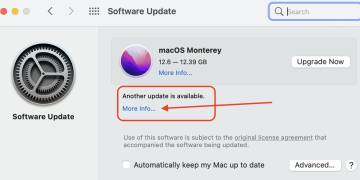
Apple continues to provide security patches for older macOS versions for a limited time. Open System Settings, navigate to Software Update, and install any available updates. This step helps protect your Mac even if feature updates are unavailable.
Optimize Performance Instead of Upgrading
Performance optimization often delivers better results than upgrading an unsupported system. Removing unnecessary files, managing startup items, and monitoring system resources can significantly improve speed and responsiveness.
Tools designed for macOS maintenance help identify storage issues, track hardware performance, and reveal bottlenecks. These improvements extend the usable life of your Mac and reduce the need for immediate replacement.
Evaluate Hardware Upgrade Options
If you need newer macOS features for work or software compatibility, upgrading hardware may be the only solution. Before purchasing a new Mac, benchmark your current system to understand its limitations. This approach helps you decide whether a replacement is necessary or if optimization is sufficient.
Choosing the Best macOS for Your Mac
The best operating system is not always the newest one. The right choice balances stability, security, and performance based on your hardware.
Apple silicon Macs generally benefit from running the latest supported macOS. These systems are optimized for new features and long-term updates. Intel Macs often perform better on slightly older versions that match their hardware capabilities.
Before upgrading, consider how you use your Mac. If you rely on professional software, verify compatibility first. If performance matters more than features, staying on a stable, well-supported version may be the smarter option.
Why Mac OS Compatibility Matters Long Term
Mac OS compatibility affects more than updates. It influences app availability, system security, and daily performance. Installing the wrong macOS version can shorten battery life, increase system load, and reduce reliability.
By checking compatibility first, you protect your Mac from unnecessary strain. You also gain confidence that your system will remain secure and functional over time. Apple’s update cycle rewards informed decisions, not rushed upgrades.
Understanding Mac OS compatibility empowers you to make the best choice for your device today and in the future.