Keeping your Mac updated is essential for maintaining system security, performance, and access to the latest features. Apple frequently releases updates to macOS that improve the operating system’s performance, fix bugs, and add new functionalities. If you’re wondering how to update macOS on your Mac, the process is simple and can be done in just a few steps. Whether you’re upgrading to the latest version or installing security patches, here’s everything you need to know to ensure your Mac is up to date.
Regular updates help prevent vulnerabilities and enhance your Mac’s speed, efficiency, and compatibility with the latest apps and technologies. So, if you’ve been putting off an update, it’s time to dive in and make sure your macOS version is current.
Method 1: Update macOS via System Preferences
The easiest way to update macOS is through System Preferences. This is where you can check for and install available updates directly from your Mac.
- Open System Preferences
Click on the Apple logo in the top-left corner of your screen, then select System Preferences from the drop-down menu. - Go to Software Update
In the System Preferences window, click on Software Update. Your Mac will check for available updates. If there’s a new update, you’ll see it listed here. - Download and Install the Update
If an update is available, click Update Now to start the download process. You may be asked to enter your administrator password to proceed. The update will begin downloading, and once it’s finished, your Mac will install it. Depending on the size of the update, this may take some time. - Restart Your Mac
Once the update is installed, your Mac will likely prompt you to restart. Click Restart to finish the installation process. Your Mac will restart, apply the update, and boot up with the latest macOS version.
Method 2: Update macOS Using the App Store
If you’re using a version of macOS that is older than macOS Catalina, you may need to update your Mac through the Mac App Store.
- Open the Mac App Store
Click on the Apple logo in the top-left corner of your screen and select App Store. - Search for macOS Updates
In the App Store, click on the Updates tab located in the top-right corner. The App Store will show you available updates for apps and macOS. - Install macOS Updates
If a macOS update is available, it will appear under the macOS section. Click the Update button next to the macOS update to download and install it. You may be prompted to restart your Mac after installation.
Method 3: Set Up Automatic macOS Updates
If you want to avoid manually checking for updates, macOS allows you to set up automatic updates. This ensures that your Mac will automatically download and install important updates when they become available.
- Open System Preferences
Click the Apple logo and select System Preferences. - Select Software Update
Click on Software Update. - Enable Automatic Updates
In the Software Update window, check the box that says Automatically keep my Mac up to date. You can click Advanced to customize which updates are automatically installed, including system data files, security updates, and app updates.
What to Do Before Updating macOS
While updating macOS is straightforward, there are a few things to keep in mind to ensure a smooth update process:
- Back Up Your Mac
It’s always a good idea to back up your Mac before updating to ensure that your data is safe in case anything goes wrong during the update. You can use Time Machine to back up your files or another third-party backup service. - Check Compatibility
Make sure your Mac is compatible with the latest version of macOS. Apple regularly drops support for older models, so check the official Apple website for a list of supported devices before updating. - Free Up Space
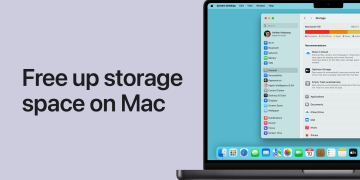
Updates can be large, so make sure you have enough storage space on your Mac to accommodate the update. If needed, delete unnecessary files or move them to an external drive to free up space.
Why Keeping Your Mac Updated is Important
Regularly updating macOS is crucial for several reasons:
- Security: Updates include critical security patches to protect your system from malware, data breaches, and other vulnerabilities.
- Performance: Updates often come with performance improvements that make your Mac run more efficiently.
- Bug Fixes: Many updates include fixes for bugs and glitches that may be affecting your system.
- New Features: With each new version of macOS, Apple introduces new features and functionalities that enhance your user experience.
By following the steps outlined above, you can easily update your macOS to the latest version and enjoy the best performance, security, and features that Apple offers.