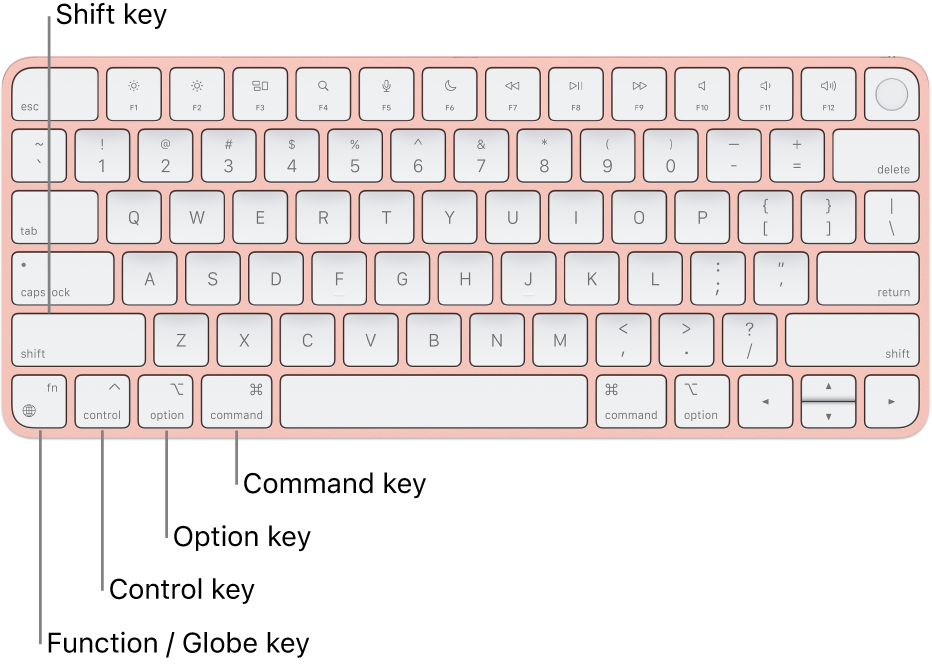
Mac keyboard shortcuts are powerful tools that can help you navigate macOS more efficiently, allowing you to perform tasks quickly and boost your productivity. Whether you’re working on documents, browsing the web, or organizing files, knowing the right keyboard shortcuts can save you time and effort.
In this guide, we’ll walk you through the most essential and commonly used Mac keyboard shortcuts, along with tips on how to customize and make the most of them.
How to Use Mac Keyboard Shortcuts
1. Basic Mac Keyboard Shortcuts
These are some of the most commonly used keyboard shortcuts on Mac, essential for everyday tasks:
- Command (⌘) + C – Copy the selected item.
- Command (⌘) + X – Cut the selected item.
- Command (⌘) + V – Paste the copied or cut item.
- Command (⌘) + Z – Undo the last action.
- Command (⌘) + Shift + Z – Redo the last undone action.
- Command (⌘) + A – Select all items in the current window or document.
- Command (⌘) + S – Save the current document or file.
- Command (⌘) + P – Print the current document.
- Command (⌘) + Q – Quit the active application.
2. Navigating macOS Using Keyboard Shortcuts
These shortcuts will help you navigate through macOS efficiently, making it easier to switch between apps, workspaces, and desktop elements.
- Command (⌘) + Tab – Switch between open applications.
- Command (⌘) + ` (backtick) – Switch between open windows of the current application.
- Control + F4 – Switch between all open windows on your Mac.
- Command (⌘) + Space – Open Spotlight Search to find apps, documents, and other files.
- Control + Arrow keys – Move between desktops or full-screen apps.
- Command (⌘) + H – Hide the active app (you can still view it in the dock).
- Command (⌘) + M – Minimize the active window.
3. File Management Shortcuts
If you work with a lot of files and folders, these shortcuts will save you time:
- Command (⌘) + N – Open a new window (Finder, browser, or app).
- Command (⌘) + O – Open a file.
- Command (⌘) + W – Close the active window.
- Command (⌘) + Shift + N – Create a new folder in Finder.
- Command (⌘) + Delete – Move the selected item to the Trash.
- Command (⌘) + Shift + Delete – Empty the Trash.
4. Working with Text in macOS
When you’re typing or editing text, these shortcuts will help you move more efficiently through documents:
- Command (⌘) + Left/Right Arrow – Move the cursor to the beginning or end of the line.
- Command (⌘) + Up/Down Arrow – Move the cursor to the top or bottom of the document.
- Option + Left/Right Arrow – Move the cursor one word left or right.
- Command (⌘) + Shift + Left/Right Arrow – Select text from the current cursor position to the beginning or end of the line.
- Command (⌘) + A – Select all text.
- Command (⌘) + F – Find a word or phrase in the current document or webpage.
- Command (⌘) + Shift + F – Open the Find and Replace dialog in many apps (e.g., text editors).
5. Managing System Preferences and Settings
These shortcuts are especially helpful for adjusting system settings and controlling macOS preferences quickly:
- Command (⌘) + , (comma) – Open the preferences window for most apps.
- Command (⌘) + Option + Esc – Force quit an app if it’s unresponsive.
- Command (⌘) + Shift + 4 – Take a screenshot of a selected area (useful for screen captures).
- Command (⌘) + Shift + 3 – Take a screenshot of the entire screen.
- Command (⌘) + Shift + 5 – Open the screenshot and screen recording toolbar.
6. Customizing Keyboard Shortcuts on macOS
While macOS has many default keyboard shortcuts, you can customize some of them to suit your preferences.
- Open System Preferences
- Click on the Apple logo in the top-left corner and select System Preferences.
- Go to Keyboard Settings
- Click on Keyboard, then tap on the Shortcuts tab.
- Select the Category
- You can modify shortcuts under categories like App Shortcuts, Mission Control, Spotlight, Launchpad, and more. Tap the category, and then select a shortcut to edit or add a new one.
- Add New Shortcuts
- Click on App Shortcuts and tap the + button to add a custom keyboard shortcut for any app.
7. Use Modifier Keys for More Functionality
You can combine the Control, Option, Shift, and Command keys to perform advanced shortcuts. These modifier keys can be used to perform unique functions, such as:
- Command (⌘) + Option + Esc – Open the Force Quit Applications window to close unresponsive apps.
- Option + Click – Hold the Option key while clicking on an item to perform a different action. For example, in Finder, Option-clicking a file allows you to open it in a different app.
8. Advanced macOS Keyboard Shortcuts
If you want to take full control of your Mac, these advanced keyboard shortcuts can help you get around quickly:
- Control + Command (⌘) + Q – Lock your screen immediately.
- Command (⌘) + Option + M – Minimize all windows and show the desktop.
- Command (⌘) + Tab – Switch between all open apps quickly.
- Control + D – Delete the character after the cursor (works like the delete key on Windows).
Why Using Keyboard Shortcuts Is Beneficial
Mastering keyboard shortcuts can dramatically increase your productivity by minimizing the need to use a mouse or trackpad. With just a few keystrokes, you can switch apps, perform tasks, and navigate macOS without interruption. This is especially useful when working with multiple apps or when you need to perform repetitive actions quickly.
Final Thoughts on Using Mac Keyboard Shortcuts
Learning and using keyboard shortcuts on your Mac can significantly improve your workflow and efficiency. By mastering the most commonly used shortcuts, you’ll be able to navigate macOS faster, perform tasks with fewer clicks, and create a smoother overall experience. Start practicing these shortcuts today, and you’ll soon find yourself working more efficiently on your Mac.