
Nyongesa Sande
No Result
View All Result
  • News
    • World
    • Africa
  • Politics
  • Business
  • Tech
  • AI
  • Telecom
  • Sports
  • Opinion
  • Lifestyle
  • Live
  • World Cup 2026
    • World Cup 2026 Standings
    • World Cup 2026
Nyongesa Sande
  • About Us
    • Nyosake Designers
      • Nyosake Webmasters
      • Nyosake Investment
  • Contact Us
    • Newsroom Contact
  • Ownership Disclosure
  • Advertise
No Result
View All Result
Nyongesa Sande
No Result
View All Result
  • News
  • Politics
  • Business
  • Tech
  • AI
  • Telecom
  • Sports
  • Opinion
  • Lifestyle
  • Live
  • World Cup 2026
ADVERTISEMENT

Home » How to Send Instagram Direct Messages on a Mac

How to Send Instagram Direct Messages on a Mac

A complete, up-to-date guide to using Instagram DMs on macOS efficiently

NyongesaSande News Desk by NyongesaSande News Desk
5 months ago
in Instructables
Reading Time: 4 mins read
A A
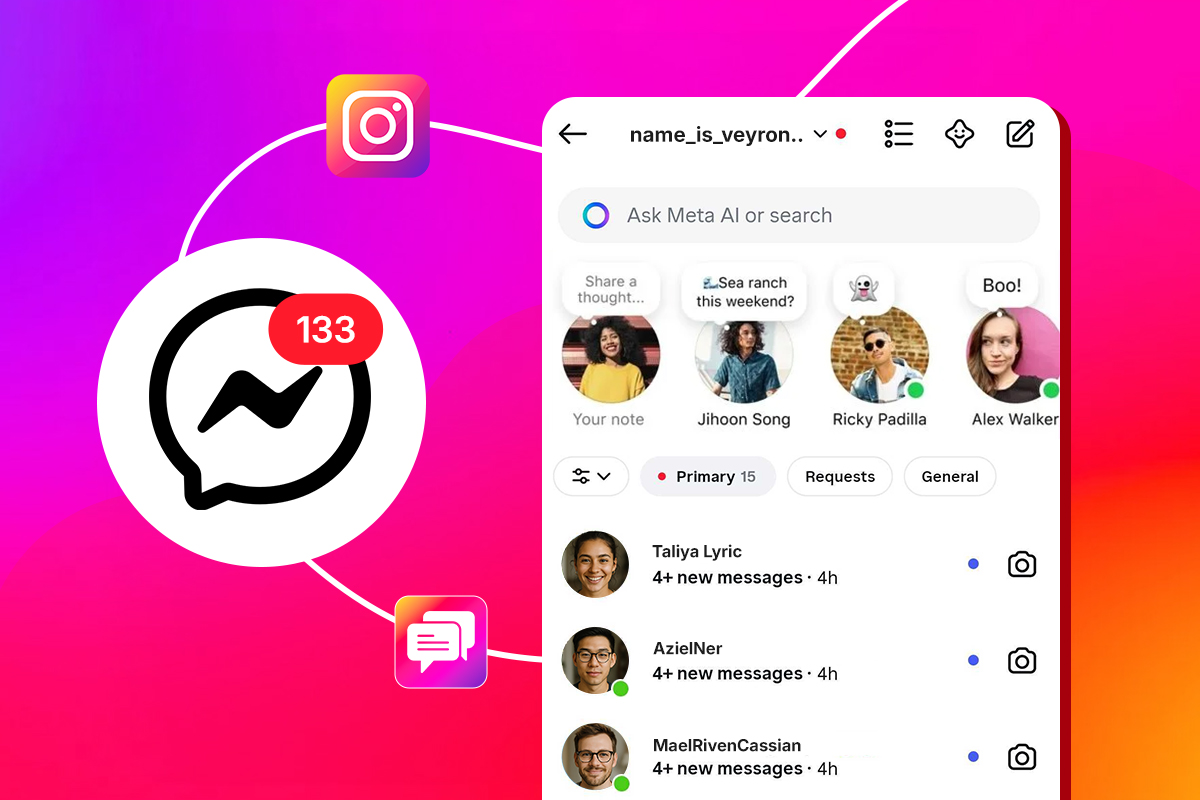
How to Send Instagram Direct Messages on a Mac

Using Instagram on a Mac has improved significantly, especially when it comes to direct messages. While Instagram was once heavily mobile-first, it now offers reliable ways to read, send, and manage DMs directly from a Mac. For creators, social media managers, and anyone who spends long hours on macOS, this makes a real difference in productivity.

  • Can you send Instagram DMs on a Mac?
  • Method 1: Send Instagram DMs using the web version
  • Method 2: Manage Instagram DMs with IM+
  • Method 3: Create a standalone Instagram app with Unite
  • How to check and manage Instagram messages on Mac
  • How to post photos and stories from a Mac
  • Understanding how Instagram DMs work
  • Choosing the best way to use Instagram DMs on Mac

At the center of this experience is Instagram, whose web interface has evolved into a capable messaging hub. Although macOS still lacks a native Instagram app, you no longer need to pick up your phone just to reply to a message. With the right setup, you can manage conversations, switch between accounts, and even streamline posting workflows directly from your Mac.

This guide walks through every practical method to send Instagram direct messages on a Mac. It covers the official web option, productivity-focused desktop tools, Dock-based app shortcuts, and browser tricks for uploading content. By the end, you will know which method fits your workflow best and how to avoid common limitations.

ADVERTISEMENT

Can you send Instagram DMs on a Mac?

Yes, you can send and receive Instagram DMs on a Mac. The most direct way is through Instagram’s web version, which supports core messaging features such as reading conversations, replying, starting new chats, and sending media.

However, some advanced mobile-only features, like voice messages or certain camera effects, may be limited or unavailable on the web. This is why many Mac users combine the web version with dedicated desktop tools for a smoother experience.

ADVERTISEMENT

Method 1: Send Instagram DMs using the web version

The simplest way to send Instagram DMs on a Mac is through the official website.

To send messages:
Open instagram.com in any modern browser.
Log in to your account.
Click the paper plane or messenger icon in the top-right corner.
Open an existing chat or click New Message to start one.

This method works well for occasional messaging and requires no setup. Messages sync instantly with your mobile app, and notifications can be enabled through browser settings.

ADVERTISEMENT

Method 2: Manage Instagram DMs with IM+

If you handle multiple Instagram accounts or want all your chats in one place, a messaging aggregator is more efficient. IM+ is a Mac app that brings Instagram DMs together with other platforms like Telegram, Slack, and Messenger.

With IM+, you can:
Access Instagram DMs from a dedicated Mac window.
Switch between multiple Instagram accounts easily.
Receive desktop notifications.
Use keyboard shortcuts for faster navigation.
Mute notifications during focus time.

This approach is especially useful for professionals managing several accounts or juggling multiple messaging services throughout the day.

Method 3: Create a standalone Instagram app with Unite

Another effective option is turning Instagram’s web version into a Dock app. Unite lets you convert websites into standalone Mac apps, making Instagram feel more native on macOS.

Once created, the Instagram app:
Lives in your Dock.
Opens instantly without a browser tab.
Keeps you signed in.
Provides quick access to DMs and notifications.

This method is ideal if you prefer a clean desktop workflow and want Instagram separated from your browser tabs.

How to check and manage Instagram messages on Mac

Instagram DMs on Mac work similarly to mobile. New messages appear as notification badges in the inbox. Clicking a conversation lets you reply, react, or send media.

For real-time alerts:
Enable notifications in Instagram’s web settings.
Allow notifications in your browser or desktop app.
Customize message alerts for requests, group chats, and calls.

Desktop tools like IM+ offer additional notification controls, including sound alerts and global mute options.

How to post photos and stories from a Mac

Although Instagram DMs work well on Mac, posting content still requires a workaround. Safari’s mobile user agent allows you to upload photos and stories by making Instagram think you are using an iPhone.

The process involves switching Safari’s user agent to iPhone or iPad, refreshing Instagram, and uploading as usual. Photo uploads and stories work, but videos and some editing tools remain limited.

Understanding how Instagram DMs work

Instagram Direct Messages allow private communication with individuals or groups. On Mac, you can:
Send and receive text messages.
Share posts, photos, and links.
Reply to stories privately.
Manage message requests.
Participate in group chats.

Some features, such as voice notes, advanced camera effects, and certain AI tools, remain mobile-focused and may not appear on Mac.

Choosing the best way to use Instagram DMs on Mac

The best method depends on how often you use Instagram on your Mac.

If you send messages occasionally, the web version is enough. If you manage multiple accounts or rely on messaging for work, a desktop aggregator offers better control. If you want a cleaner setup with quick access, a Dock-based app provides a near-native experience.

By combining these options, Instagram DMs on Mac can become just as practical as on iPhone, without disrupting your workflow.

Tags: direct messagesInstagram Macsocial media tools
Share1Tweet1SendShareScanSharePinShareShare
Google Add as a Preferred Source on Google
Previous Post

How to Download Netflix Shows on Mac, iPhone, and iPad

Next Post

How to Use WhatsApp on a Mac in 5 Ways

NyongesaSande News Desk

NyongesaSande News Desk

Nyongesa Sande offers diverse content across news, technology, entertainment, and more, aiming to provide readers with a wide range of informative and engaging articles. NYONGESA SANDE's dedicated team provides our audience not only with the highly relevant news but also with outstanding interactive experience.

Related Posts

How To Send Please Call Me On Airtel Kenya
Instructables

Can You Share Data on Airtel Kenya?

2 months ago
Recover Lost or Permanently Deleted Data from iPhone
Instructables

Recover Lost or Permanently Deleted Data from iPhone

2 months ago
How to Clean the Meshes on Your AirPods
Instructables

How to Clean the Meshes on Your AirPods

5 months ago
How to Customize Notification Summaries on iPhone or iPad – Full Guide
iPad

How to Customize Notification Summaries on iPhone or iPad – Full Guide

5 months ago
How to Use AirPlay to Stream Video or Mirror the Screen on iPhone and iPad – Easy Guide
Instructables

How to Use AirPlay to Stream Video or Mirror the Screen on iPhone and iPad – Easy Guide

5 months ago
How to Add Your Home Address in Contacts and Maps on iPhone or iPad – Easy Guide
Instructables

How to Add Your Home Address in Contacts and Maps on iPhone or iPad – Easy Guide

5 months ago
Load More
Next Post
How to Use WhatsApp on a Mac in 5 Ways

How to Use WhatsApp on a Mac in 5 Ways

How to Access Your Wi-Fi Router Settings on Mac

How to Access Your Wi-Fi Router Settings on Mac

Trending

  • Top 10 Richest People in Tripura (2026)

    Top 10 Richest People in Tripura (2026)

    171 shares
    Share 68 Tweet 43
  • Product Review: Bose Portable Smart Speaker

    187 shares
    Share 75 Tweet 47
  • Gillette Stadium World Cup 2026 Guide: Capacity, Location, Matches and Quarterfinal Venue

    1 shares
    Share 0 Tweet 0
  • Top 10 Richest People in Meru County

    88 shares
    Share 35 Tweet 22
  • Mukangala – Jacob Luseno (Lyrics)

    26 shares
    Share 10 Tweet 7
  • Colombia vs Uzbekistan: FIFA 2026 World Cup Preview

    2 shares
    Share 1 Tweet 1
  • Levi’s Stadium World Cup 2026 Guide: Capacity, Location, Matches and Round of 32 Venue

    2 shares
    Share 1 Tweet 1
  • MetLife Stadium World Cup 2026 Guide: Capacity, Location, Matches and Final Venue

    1 shares
    Share 0 Tweet 0
  • Top 10 Richest People in Manipur (2026)

    59 shares
    Share 24 Tweet 15
  • List of Elected MCAs in Narok County 2022-2027

    59 shares
    Share 24 Tweet 15
ADVERTISEMENT
ADVERTISEMENT

Who We Are

Nyongesa Sande

NyongesaSande.com is a digital news and media platform covering breaking news, business, technology, AI, politics, sports, world affairs and African innovation.

News Sections

  • News
    • World
    • Africa
  • Politics
  • Business
  • Tech
  • AI
  • Telecom
  • Sports
  • Opinion
  • Lifestyle
  • Live
  • World Cup 2026
    • World Cup 2026 Standings
    • World Cup 2026

Editorial Standards

  • Editorial Policy
  • Fact Checking Policy
  • Corrections Policy
  • Ethics Policy
  • AI Usage Policy
  • News Tips
  • Submit Press Release

Legal

  • Privacy Policy
  • Terms of Use
  • Cookie Policy
  • Disclaimer
  • Risk Disclaimer
  • DMCA
  • Ad Choices

Our Company

  • About Us
    • Nyosake Designers
      • Nyosake Webmasters
      • Nyosake Investment
  • Contact Us
    • Newsroom Contact
  • Ownership Disclosure
  • Advertise
  • Privacy Policy
  • Terms of Use
  • Cookie Policy
  • Disclaimer
  • Risk Disclaimer
  • DMCA
  • Ad Choices

NyongesaSande.com is an independent digital news and media platform covering Africa, business, technology, AI, politics and global developments.

© 2026 NyongesaSande.com. All rights reserved.

No Result
View All Result
  • News
    • World
    • Africa
  • Politics
  • Business
  • Tech
  • AI
  • Telecom
  • Sports
  • Opinion
  • Lifestyle
  • Live
  • World Cup 2026
    • World Cup 2026 Standings
    • World Cup 2026

NyongesaSande.com is an independent digital news and media platform covering Africa, business, technology, AI, politics and global developments.

© 2026 NyongesaSande.com. All rights reserved.

