


Screen recording on Mac is an indispensable tool for gamers, business people, educators, tech support professionals, and others. Anyone who needs to capture and share their on-screen activity should know how to record their screens. We’ll show you how to screen record on a Mac using three different methods. And install an all-encompassing privacy and security tool like Avast One to keep your Mac safe and running smoothly.
Use the Screenshot toolbar to screen record on a Mac
If your Mac’s running the Mojave OS, or a more recent macOS, you can use the pre-installed Screenshot toolbar to capture what’s on your screen. But first, make sure you have enough disk space to save your recording by checking the storage on your Mac.
You may also want to test your Mac’s performance to ensure your system’s running smoothly, and prevent glitches or crashes.
Here’s how to screen record on Mac using the Screenshot toolbar:
- With the aplication or window you want to record open, press and hold Shift + Command + 5 to open the Screenshot toolbar.
- Select the screen recording icon on the left to record the whole screen or the one on the right to record a portion of the screen.

- If you’re recording a portion of the screen, drag your cursor to specify what part. Then, click Record.
- To end the recording, click the Stop button on the menu bar. Or press Command + Control + Escape.
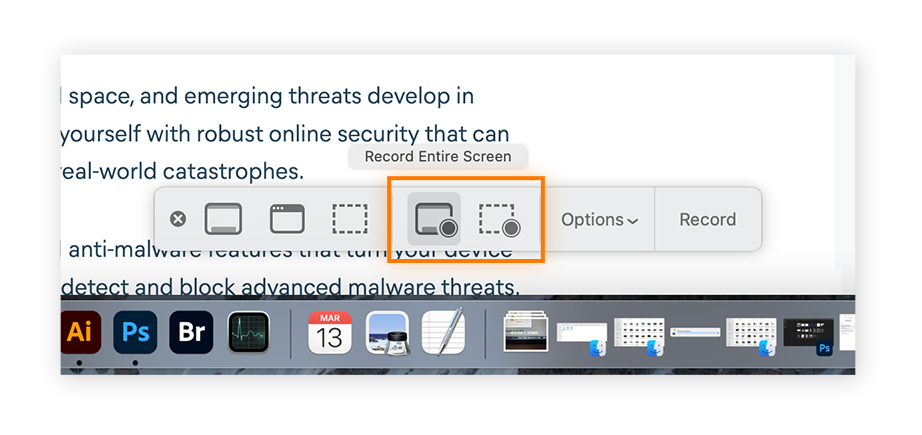
This method is simple, but it does have limitations. Let’s take a look at the pros and cons of using the Screenshot toolbar to screen record on a Mac:
 Pros
Pros
 Pros
Pros- Quick and Convenient
With the keyboard shortcut, you can easily pull up the feature on any window, without having to open additional programs. - Free
The Screenshot toolbar is already installed on your Mac, so you don’t have to download additional software. - Customizable
You can adjust the size of your frame, choose audio inputs, and show custom settings like mouse clicks. Plus, you can delay the recording time and save your preferences.
Cons
 Cons
Cons- Limited features
It’s a basic tool without options for advanced editing, audio/visual effects, or annotations. - Limited export options
You can only export your recording as a .mov file. If you need another file type, you’ll have to convert the export. - Manual recording only
You can’t schedule a screen recording in advance. You can only manually start and stop the recording.
Record your screen with audio on a Mac using QuickTime Player
For a presentation or tutorial where audio is essential, using your Mac’s QuickTime Player to record your screen with audio may be the best method. Like the Screenshot toolbar, Quicktime player is pre-installed on Macs and convenient to use.
Here’s how to screen record on Mac with audio using QuickTime Player:
- Open the QuickTime Player application. Click File in the Menu bar and select New Screen Recording.
- Click the arrow next to the red Record button to select your audio input. Then click the Record button to set up the screen recording.

- To record the whole screen, click anywhere on the screen to start recording. To record a portion of the screen, drag the cursor to select the portion you want to record, then click Start Recording.

- To stop recording, click the Stop button in the menu bar, or press and hold Command + Control + Escape.
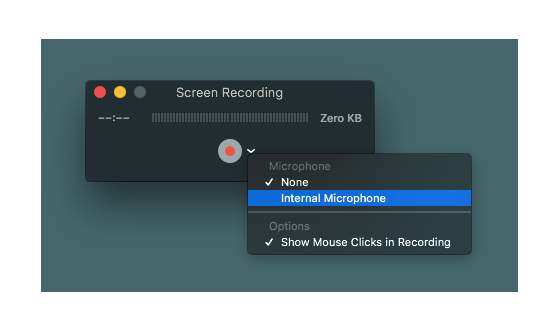
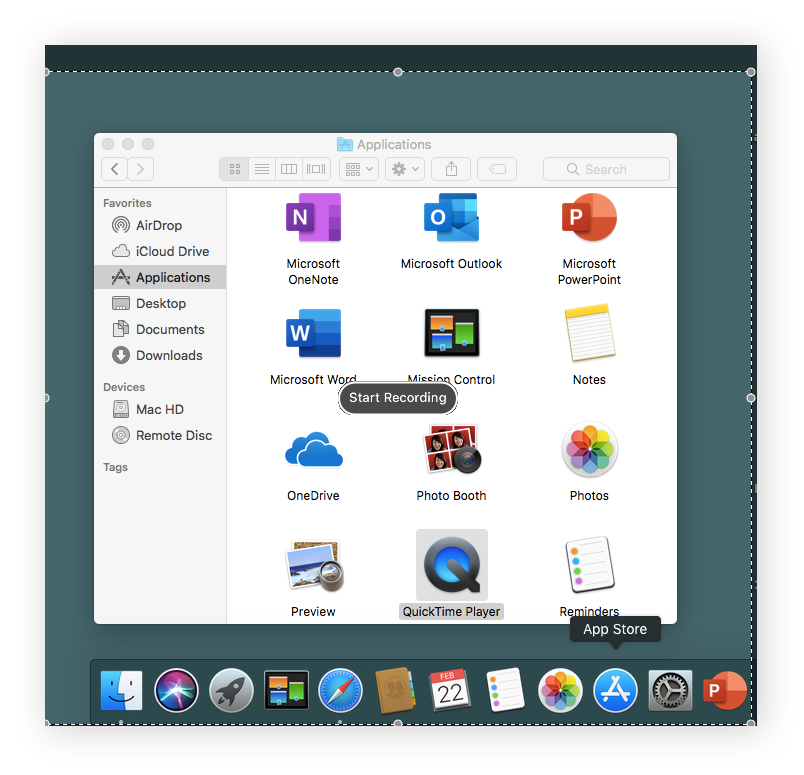
Many of the pros and cons of using QuickTime to screen record are similar to the Screenshot toolbar. But unlike the Screenshot toolbar, QuickTime also works with older versions of macOS. The flip side is that, as an older tool, it has even fewer features: there’s no timer for delayed recording, and it won’t remember your preferences.
Third-party screen recorders
Third-party screen recorders can offer more features than your Mac’s native apps, but you need to download additional software. While third-party apps can cause performance issues and pose security and privacy risks (yes, Macs can get viruses), you should be okay if you stick to tools from the App Store and check the reviews first.
Here’s a quick rundown of some of the most popular third-party screen recorder apps:
OBS Studio
OBS Studio is great for recording professional clips and live streaming.
Pros:
- Advanced video and audio features
- Free and open-source
- Multiple input recording capabilities for both audio and video
- Multiple outputs for a variety of platforms
Cons:
- Can be tricky to use
- No video editing features
- Many system requirements
Snagit
Snagit is a good tool for instructional videos.
Pros:
- User-friendly interface
- Includes templates for easy recordings
- Allows you to overlay visuals over recordings
- Multi-platform compatibility
Cons:
- No live streaming
- The trial version has restrictions
Loom
Loom is a popular cloud-based recorder that’s easy to use.
Pros:
- Simple and intuitive interface
- Cloud-based storage saves space
- Advanced editing features to customize recordings
- Supported on multiple platforms
Cons:
- Can crash during system audio recording
- You need to be online due to cloud usage
- The trial version has restrictions
Apowersoft Screen Recorder
Apowersoft’s online screen recorder offers quality recordings and good editing options.
Pros:
- Option for high-resolution recordings
- Multi-audio output recording capabilities
- Editing tools
- Free version available
Cons:
- Need to install a launcher
- Not optimized for game recording
Protect your device with Avast
Screen recorders are generally safe, as long as you use good software from a reputable developer. If you’re not careful, third-party apps can put your device and personal data at risk. That’s why it’s important to use powerful security software. Avast One is built on top of an industry-leading anti-malware engine, and it includes anti-tracking technology and a built-in VPN to help strengthen your online privacy. Install Avast One today — completely free.
FAQs
Do Macs allow screen recording?
Yes, you can screen record on a Mac. If your Mac is not allowing you to screen record while you’re using certain apps, try changing your Privacy & Security setting.
Here’s how to enable screen recording on Mac:
- Click the Apple menu and select System Settings.
- Click Privacy & Security and click Screen Recording.
- Turn screen recording on (or off) for each app in the list.
Can you screen record on a Mac with sound?
There are various ways to screen record on a Mac with audio. Mac’s native Screenshot toolbar and QuickTime Player apps can screen record with audio. Plus, there are a variety of third-party app options available that enable audio recording from multiple inputs, such as system sound or microphones.
How do I record my Mac screen with a keyboard?
Here’s how to screen record on a Mac using keyboard shortcuts:
- Press Shift + Command + 5 to open the Screenshot toolbar.
- In the toolbar, select your recording options, then click Record.
- To stop recording, press Command + Control + Escape.
How do you record on a Mac without an app?
Using Apple’s built-in QuickTime Player, you can screen record on a Mac without a third-party app. Here’s how to screen record on a Mac with QuickTime Player:
- With QuickTime Player open, click File in the Menu bar, and select New Screen Recording.
- Select your audio input, then click the Record button to set up the screen recording.
- Click anywhere on the screen to start recording your whole screen, or drag the cursor to select a portion of the screen you want to record, and then click Start Recording.
- To stop recording, click the Stop button, or use the Command + Control + Escape shortcut.
Why is there no sound when I screen record on a Mac?
If there’s no sound when you screen record on a Mac it may be because you’re using a tool that only records visual input. To screen record with audio on your Mac, use an app like QuickTime Player or the Screenshot toolbar that can record audio input. Make sure the audio input settings are correctly configured before you start recording.




