


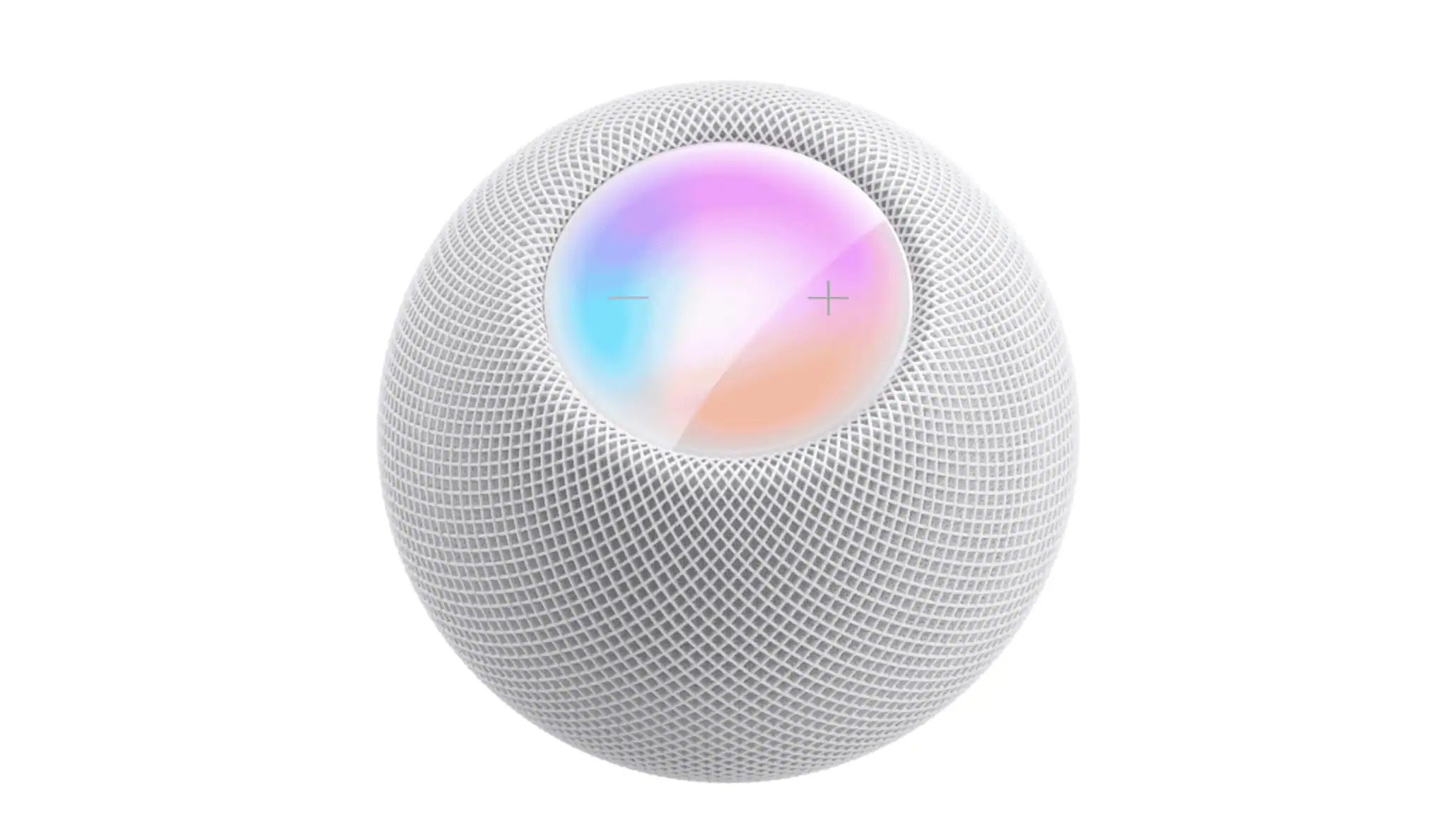
If you’re struggling to set up your HomePod mini with your iPhone, you’re not alone. This issue is often related to Bluetooth, Wi-Fi, iCloud settings, or incomplete setups. Fortunately, most of these problems can be resolved with a few straightforward steps. Here’s how to fix common pairing issues:
Check the Setup Requirements First
Before troubleshooting deeper issues, make sure the basic setup requirements are met. A HomePod mini needs the correct Apple ID, compatible software versions, and a stable local connection.
- Make sure your iPhone or iPad meets Apple’s requirements:
- Ensure your iPhone is running the latest iOS or iPadOS version.
- Bluetooth must be on and unlocked.
- Your device should be connected to a 2.4 GHz or 5 GHz Wi-Fi network that allows peer-to-peer connections.
- You must be signed in to iCloud with Keychain and Two-Factor Authentication enabled.
- Confirm the HomePod mini is ready for setup:
- Ensure the HomePod mini is plugged in.
- Wait for the white pulsing light to appear, which indicates it is in setup mode.
- If you see an orange light instead, the HomePod needs a software restore.
Fix Wi-Fi or Network Conflicts
The HomePod mini depends heavily on a strong Wi-Fi network, and network issues are often the main reason setup fails.
- Restart your router and modem:
- Unplug your router for about 15 seconds, plug it back in, and wait for it to reconnect.
- Check for network isolation features:
- Some routers have client isolation settings that prevent devices from communicating with each other. Ensure these settings allow local device discovery.
- Verify that your VPN is off:
- A VPN on your iPhone can block pairing. Turn it off temporarily while setting up the HomePod mini.
Reset the HomePod Mini if It Still Won’t Set Up
If pairing continues to fail, resetting the HomePod mini can often resolve issues.
- Reset from the HomePod itself:
- Unplug the HomePod mini.
- Wait five seconds and plug it back in.
- Once the spinning white light appears, press and hold the top of the speaker until the light turns red and you hear a confirmation tone. Release it and let the reset complete.
- Reset using the Home app:
- Open the Home app.
- Long-press the HomePod mini icon and tap Settings.
- Scroll down and choose Reset HomePod.
- Select Remove Accessory.
Restore the HomePod Mini with a Mac
If you see an orange light or experience a software glitch, restoring the HomePod mini via a Mac may fix the issue.
- Connect the HomePod mini to your Mac using a USB-C cable.
- Open Finder (macOS Catalina or later) or iTunes (for older macOS versions).
- Select your HomePod under Locations.
- Click Restore to reinstall the firmware.
- Once the process completes, attempt setup again.
Tips to Avoid Setup Issues
- Keep your iPhone close to the HomePod mini during setup.
- Ensure Personal Requests and Location Services are enabled for full functionality.
- Avoid using public or enterprise networks that limit device communication.
- Make sure both iOS and HomePod OS are updated to the latest version.
- If you use multiple Apple IDs, confirm the correct one is active during setup.
FAQ
- Why does the HomePod mini keep saying it cannot connect?
- This usually means your iPhone and HomePod mini are not on the same network, or Bluetooth is disabled.
- Why is my HomePod mini stuck on a white light?
- A pulsing white light indicates the device is waiting for setup. If it remains stuck, reset the device.
- Does the HomePod mini require an Apple ID?
- Yes, you need iCloud, Keychain, and two-factor authentication enabled for full functionality.
- Can I set up a HomePod mini without Wi-Fi?
- No, Wi-Fi is required for both activation and ongoing operation of the HomePod mini.
Summary
- Update your iPhone or iPad and enable Bluetooth.
- Confirm iCloud, Keychain, and two-factor authentication are active.
- Check the HomePod mini’s light status.
- Restart your router and disable any VPN.
- Reset the HomePod mini if it still doesn’t set up.
- Restore the firmware with a Mac if necessary.
Conclusion
Setting up a HomePod mini should be a simple process. If it doesn’t connect to your iPhone, the issue is likely related to network settings, Apple ID requirements, or a simple reset. Follow these steps to troubleshoot the issue and get your HomePod mini up and running in no time!




