


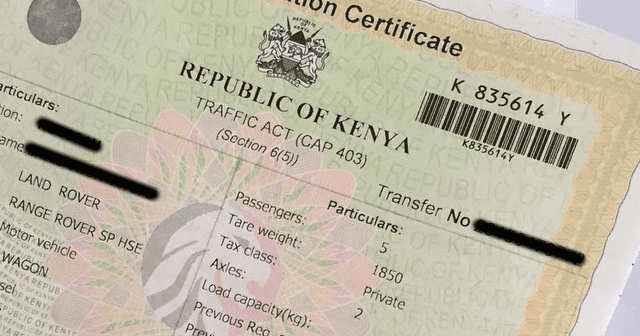
Buying or selling a car in Kenya? Get ready for a smooth ride with this comprehensive guide to logbook transfers! Whether you’re handing over the keys or taking them, understanding the process ensures everyone drives away satisfied.
Sellers:
- Two-Week Time Crunch: Once you find your perfect buyer, the clock starts ticking. You have 14 days to transfer the logbook to their name – it’s the law!
- Logbook Transfer: Head to the National Transport and Safety Authority (NTSA) or use their TIMS online platform. Follow the steps – it’s pretty straightforward!
Buyers:
- Acknowledge it Right Away: Once the logbook’s yours, let the NTSA know! Don’t wait – confirm online through TIMS or wait for their handy SMS confirmation.
- Check-up Time: Didn’t get the message? No worries! Simply head to the NTSA website and check your logbook status with a few clicks. Transparency at your fingertips!
Buying? Take Control:
As a buyer, stay in the loop. Not only do you have the NTSA SMS and online status check, but you can also request the seller to forward you a copy of the official logbook transfer confirmation from the NTSA. Double assurance never hurts!
Remember: This guide is just a roadmap. For detailed instructions and any specific questions, the NTSA website and TIMS platform are your go-to resources. So, buckle up, follow the steps, and enjoy a smooth and legal transfer of your precious Kenyan wheels!
How to Check Your Logbook Status Online After Buying a Car
The car owner should transfer the logbook to you. That will make you the new legal owner of the car. So, the seller should initiate the transfer process and notify you when they finish. Here is how the logbook transfer process works on the NTSA’S TIMS account:
Research a Vehicle By
VIN Number
Learn more about a vehicle you
plan to buy.SEARCH
- As the vehicle owner, you should sign in to your TIMS account by entering your username and password. Create an account if you have none.
- On the account dashboard, click “VEHICLE REGISTRATION” to trigger a drop-down menu. Under “Vehicle Transfer,” click “Apply for Transfer of Ownership.”
- The “Vehicle Identification” will emerge. Under the “List of Vehicles,” section, select the vehicle you plan to transfer ownership for by ticking the box in front of its name. Press “Next.”
- Under the “New Owner” button, click the drop-down arrow to view the “Type of Ownership,” and choose “Single.” Click another drop-down arrow to see “Owner Type,” and select “Individual.” Enter the buyer’s KRA “PIN” and hit “Next.”
- Under the “Enter Transfer Particulars” tab, move beneath and click the “Written Off” drop-down arrow. Choose the “No” option. Move to the “Colored Copy of Logbook” option. On the “Document Type” drop-down menu, choose “REGISTRATION CERTIFICATE (OLD).” Upload your current logbook onto the system by clicking “Choose file.” Move to the “Security Verification” tab and choose “SMS.” Then, enter the code you get on your mobile number to verify the phone number.
- Tick the box that says “I have transferred my registration certificate, rights, and all interests of the vehicle.” Hit “Next.”
- A “Fees” window will crop up,l showing different “Fee items.” Under “Category Group Item,” tick the “Vehicle Transfer” box.
- Press “Next” and “Choose Your Payment Method” among M-PESA, KCB Cash, Equity Cash, Visa or MasterCard, and E-Agent. Make the payment in the actual amount to prevent preventable delays. Once you finish, hit the “Complete” tab.
SEARCH
Note: To speed up the process, upload your logbook in a PDF format. The NTSA will send you a message to confirm the payment.
Acknowledging the Logbook Transfer and Car Ownership
As the buyer, your responsibility is to accept the new logbook. Here is how to do it:
- Sign in to your “TIMS account” dashboard.
- Click “VEHICLE REGISTRATION” to view a drop-down menu.
- Select “Vehicle Transfer” and press “Accept Ownership.”
- On the “Vehicle Identification” page, scroll down to the “List of Vehicles” and choose the one transferred to you. You will see the model that is “Waiting for Ownership Acceptance.”
- Press “Next” to view the “Transaction History” page. Under “Transactions” tick the box next to “TRANSFER” under “Application Type.”
- Hit “Next” to view the “Security Verification” page. Select “SMS” on the “Verification Mode” tab. The system will notify you that it has sent a code to your mobile. Enter this code to confirm your number.
- Check the “I have transferred my registration certificate, rights, and all interests of the vehicle” tab and hit “Next.”
- Under the “Approval Outcome” window, you will see “Approve Result.” Click inside the circle in front of “PASSED.” Then, click inside the “I declare the foregoing particulars are true and complete” box.
- Click “Approve” to view the “Registration Cert Collection Arrangement” page. Select “SMS” as your notification method and “Nairobi” as your logbook collection station if you live in the city.
- Under the “Registration Certificate Authorization” tab, choose “Authorized Person” and enter their phone number, ID number, and address. Add a “Remark” by writing 1000 characters. Press the “Submit” button to finish.
Checking Logbook Status
Now you need to know how to check your logbook status online, in case the NTSA does not send you an SMS. It will take around two weeks to finish the logbook transfer procedure and notify you. If it does not, check the status like this:
- Log in to your TIMS account again.
- Click the “Vehicle Transfer” option on the “VEHICLE REGISTRATION” menu.
- Click “View Completed Acceptance of Ownership.”
- Move the sliding bar to the right to view the “Status” tab.
- If you see “Dispatched” or “Awaiting Collection,” visit the collection branch you chose above.
Note: Bring the old Registration Certificate (logbook) and the authorized person’s ID card to the logbook collection station.
Mwafrikah Blogs, “How to Check Your Logbook Status Online,” Mwafrikah, January 31, 2024, https://www.mwafrikah.com/how-to-check-your-logbook-status-online/.




