
Nyongesa Sande
No Result
View All Result
  • News
    • World
    • Africa
  • Politics
  • Business
  • Tech
  • AI
  • Telecom
  • Sports
  • Opinion
  • Lifestyle
  • Live
  • World Cup 2026
    • World Cup 2026 Standings
    • World Cup 2026
Nyongesa Sande
  • About Us
    • Nyosake Designers
      • Nyosake Webmasters
      • Nyosake Investment
  • Contact Us
    • Newsroom Contact
  • Ownership Disclosure
  • Advertise
No Result
View All Result
Nyongesa Sande
No Result
View All Result
  • News
  • Politics
  • Business
  • Tech
  • AI
  • Telecom
  • Sports
  • Opinion
  • Lifestyle
  • Live
  • World Cup 2026
ADVERTISEMENT

Home » HomePod Not Playing? Here’s What’s Actually Going On and How to Fix It

HomePod Not Playing? Here’s What’s Actually Going On and How to Fix It

NyongesaSande News Desk by NyongesaSande News Desk
6 months ago
in Gadget Reviews
Reading Time: 4 mins read
A A
HomePod Not Playing? Here’s What’s Actually Going On and How to Fix It

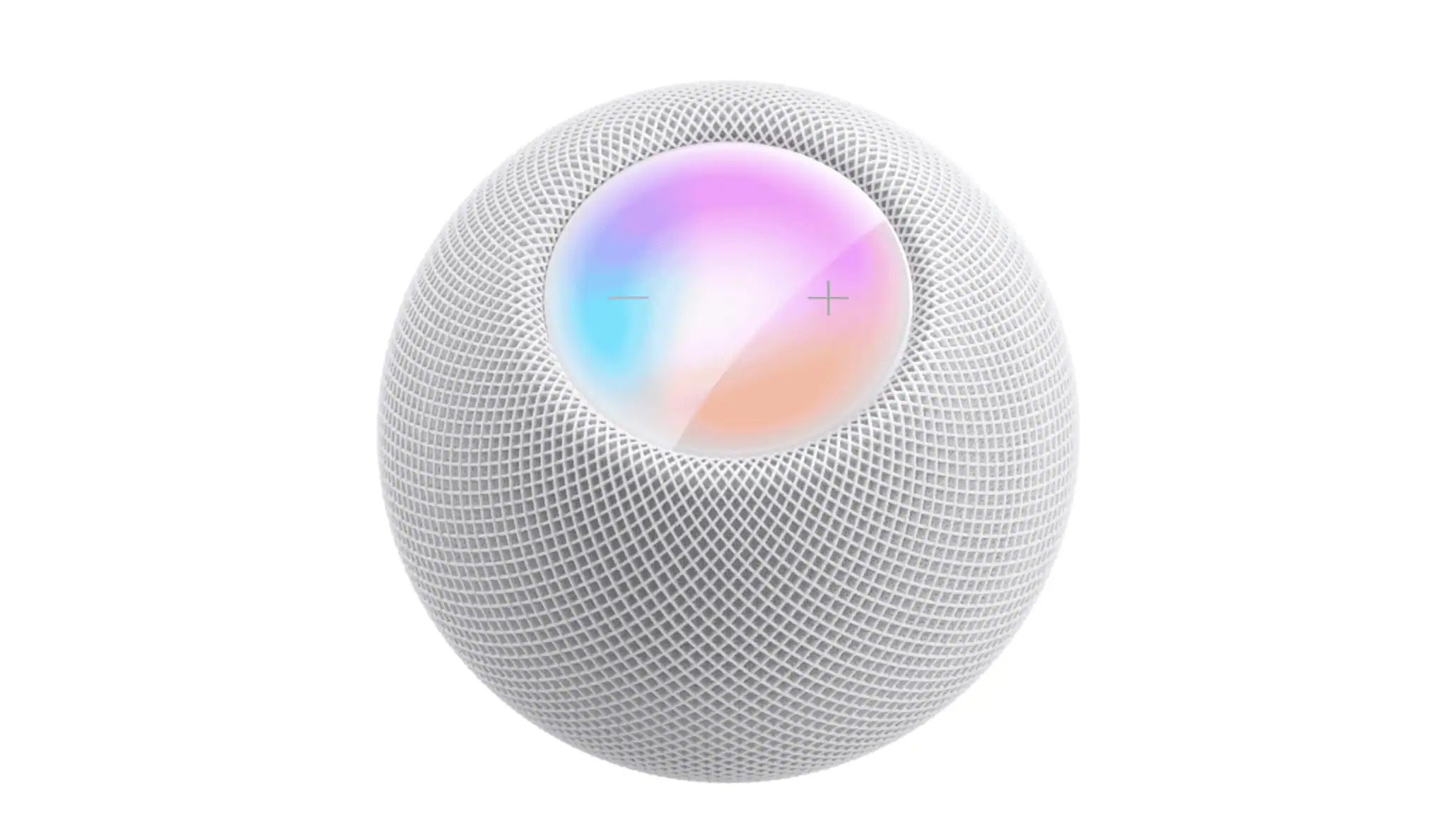
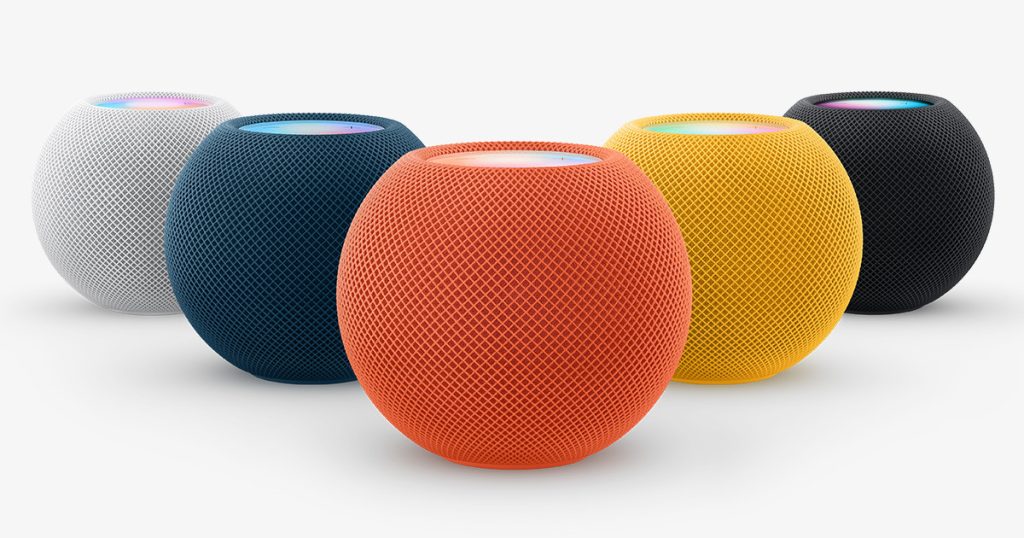
When your HomePod stops playing music, podcasts, or anything at all, it can feel like a big issue. It’s meant to be simple—tap or say, “Hey Siri,” and music starts playing. When this chain breaks, it can quickly make your HomePod seem useless. The good news is that most playback issues have common causes and simple solutions.
  • Start With the Home App Alerts
  • Check the Wi-Fi Connection First
  • Restart the HomePod the Right Way
  • When Siri Responds but Nothing Plays
  • HomePod Keeps Disconnecting or Cutting Out
  • When Nothing Works, Reset It
  • Final Take

Start With the Home App Alerts

If your HomePod isn’t playing, the Home app usually has a clue.

  1. Open the Home app.
  2. Tap on your HomePod and check for any alerts.
  3. If you see No Response, a Wi-Fi warning, or an Apple ID issue, these could be the cause.

If you see an alert, tap on it to read the details. It could be something simple like losing network access or an Apple ID authentication issue.

ADVERTISEMENT

Check the Wi-Fi Connection First

Your HomePod depends on a stable Wi-Fi connection. If it’s disconnected, it won’t be able to stream music, process Siri requests, or sync with your devices.

  • In the Home app, check the Wi-Fi signal indicator for your HomePod. If it’s low (two bars or fewer), move your HomePod closer to your router, and keep it away from interference (like microwaves or cordless phones).
  • Ensure that your iPhone or iPad is connected to the same network as your HomePod. The HomePod mirrors the network your iPhone uses during setup, so if your iPhone switches networks, the HomePod could get disconnected.

Restart the HomePod the Right Way

If HomePod playback suddenly stops and everything looks fine, a restart can often solve the issue.

ADVERTISEMENT
  1. Open the Home app.
  2. Tap on your HomePod and go to Settings.
  3. Choose Reset HomePod and select Restart HomePod.

If this option isn’t available, unplug the HomePod, wait 10 seconds, and plug it back in. Restarting clears temporary software glitches and might fix playback or Siri issues.

When Siri Responds but Nothing Plays

If Siri responds but no music plays, the issue is usually linked to your Apple ID or service.

  • Make sure you’re signed into the correct Apple ID in the Home app.
  • If you’re using Apple Music, confirm that your subscription is active.
  • If using AirPlay, ensure that both your iPhone and HomePod are on the same network and that AirPlay is enabled.

If Siri says it can’t connect to the internet, that’s likely a Wi-Fi issue, even if other devices seem fine.

ADVERTISEMENT

HomePod Keeps Disconnecting or Cutting Out

If audio starts and stops, the issue is usually related to network stability.

  • Restart your router and modem. This may sound basic, but it works more often than expected.
  • If your network is overloaded with devices, the HomePod might lose connection.
  • Update your router firmware—old firmware can cause issues with HomeKit devices.

When Nothing Works, Reset It

If the HomePod still isn’t playing anything, a full reset might be needed.

  1. In the Home app, select Reset HomePod and choose Remove Accessory.
  2. Set it up again from scratch using your iPhone.

While this is a hassle, it can fix persistent issues that don’t respond to restarts.

Final Take

A HomePod that won’t play audio is almost never caused by broken hardware. It’s typically a Wi-Fi, account sync, or software glitch. Start with alerts, confirm the network, restart properly, and only reset if needed. Once the basics are solid, your HomePod will go back to doing what it was made for: filling your room with sound effortlessly.

Tags: Apple HomePod fixHomePod issuesHomePod not playingHomePod troubleshooting
Share2Tweet1SendShareScanSharePinShareShare
Google Add as a Preferred Source on Google
Previous Post

Can’t Update to iOS 26.2? Here’s How to Fix It

Next Post

The Ultimate Guide to Family Sharing Without the Headaches

NyongesaSande News Desk

NyongesaSande News Desk

Nyongesa Sande offers diverse content across news, technology, entertainment, and more, aiming to provide readers with a wide range of informative and engaging articles. NYONGESA SANDE's dedicated team provides our audience not only with the highly relevant news but also with outstanding interactive experience.

Related Posts

Samsung Galaxy A57 Review and Full Specs
Gadget Reviews

Samsung Galaxy A57 Review and Full Specs

2 weeks ago
Samsung Galaxy A37 Review and Full Specs
Gadget Reviews

Samsung Galaxy A37 Review and Full Specs

2 weeks ago
Honor MagicBook Pro 14 (2026) Review
Gadget Reviews

Honor MagicBook Pro 14 (2026) Review

Sony Xperia 1 VIII Review: Sony’s Flagship Stays Uniquely Different
Gadget Reviews

Sony Xperia 1 VIII Review: Sony’s Flagship Stays Uniquely Different

Shell Stations in Eastern Kenya: Fuel, EV Charging & Café
Gadget Reviews

Shell Stations in Lower Mt. Kenya: Fuel & EV Charging

1 month ago
Xbox Mode Windows 11 rollout begins globally
Gadget Reviews

Xbox Mode Windows 11 rollout begins globally

1 month ago
Load More
Next Post
The Ultimate Guide to Family Sharing Without the Headaches

The Ultimate Guide to Family Sharing Without the Headaches

GM Adds Built-In Apple Music to New Cadillac and Chevrolet Vehicles

How to Fix CarPlay Not Working on iOS 26.2: 7 Solutions

Trending

  • FIFA 2026 World Cup Stadiums: Everything to Know

    FIFA 2026 World Cup Stadiums: Everything to Know

    3 shares
    Share 1 Tweet 1
  • List of Elected MCAs in Nakuru County for the 2017 General Elections

    23 shares
    Share 9 Tweet 6
  • World Cup 2026 Venues, Tickets and Fan Festivals

    2 shares
    Share 1 Tweet 1
  • World Cup 2026 Tickets and Hospitality

    1 shares
    Share 0 Tweet 0
  • List of 2022 – 2027 mps contacts in Kenya

    586 shares
    Share 234 Tweet 147
  • List of Elected MCAs in Meru County for the 2017 General Elections

    11 shares
    Share 4 Tweet 3
  • Levi’s Stadium World Cup 2026 Guide: Capacity, Location, Matches and Round of 32 Venue

    1 shares
    Share 0 Tweet 0
  • Germany vs Curaçao: 2026 World Cup Match Preview

    1 shares
    Share 0 Tweet 0
  • MTN Router Login

    14 shares
    Share 6 Tweet 4
  • QVSELP Scam Warning: Why Kenyans Should Be Careful

    2 shares
    Share 1 Tweet 1
ADVERTISEMENT
ADVERTISEMENT

Who We Are

Nyongesa Sande

NyongesaSande.com is a digital news and media platform covering breaking news, business, technology, AI, politics, sports, world affairs and African innovation.

News Sections

  • News
    • World
    • Africa
  • Politics
  • Business
  • Tech
  • AI
  • Telecom
  • Sports
  • Opinion
  • Lifestyle
  • Live
  • World Cup 2026
    • World Cup 2026 Standings
    • World Cup 2026

Editorial Standards

  • Editorial Policy
  • Fact Checking Policy
  • Corrections Policy
  • Ethics Policy
  • AI Usage Policy
  • News Tips
  • Submit Press Release

Legal

  • Privacy Policy
  • Terms of Use
  • Cookie Policy
  • Disclaimer
  • Risk Disclaimer
  • DMCA
  • Ad Choices

Our Company

  • About Us
    • Nyosake Designers
      • Nyosake Webmasters
      • Nyosake Investment
  • Contact Us
    • Newsroom Contact
  • Ownership Disclosure
  • Advertise
  • Privacy Policy
  • Terms of Use
  • Cookie Policy
  • Disclaimer
  • Risk Disclaimer
  • DMCA
  • Ad Choices

NyongesaSande.com is an independent digital news and media platform covering Africa, business, technology, AI, politics and global developments.

© 2026 NyongesaSande.com. All rights reserved.

No Result
View All Result
  • News
    • World
    • Africa
  • Politics
  • Business
  • Tech
  • AI
  • Telecom
  • Sports
  • Opinion
  • Lifestyle
  • Live
  • World Cup 2026
    • World Cup 2026 Standings
    • World Cup 2026

NyongesaSande.com is an independent digital news and media platform covering Africa, business, technology, AI, politics and global developments.

© 2026 NyongesaSande.com. All rights reserved.
