


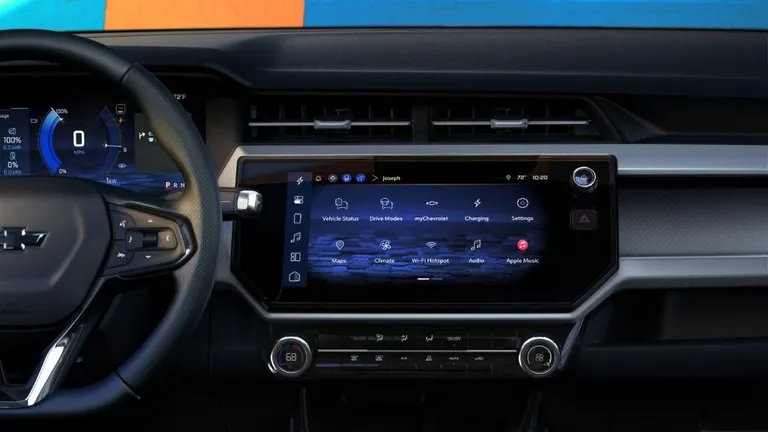
CarPlay is essential for many iPhone users, making tasks like navigation, music, and hands-free calling much easier while driving. However, some drivers have reported issues with CarPlay after updating to iOS 26.2. These include connection failures, distorted audio, or a shrunken interface. If you’re facing similar problems, follow these steps to troubleshoot CarPlay.
1. Check Compatibility and Cables First
Before diving into complex solutions, start with the basics:
- For wired CarPlay: Test with a different Lightning or USB-C cable. Ensure you’re using a certified Apple cable and try a different USB port in your car.
- For wireless CarPlay: Forget the existing connection and re-pair your iPhone with the car.
CarPlay is sensitive to cables and ports, so make sure this basic step is ruled out first.
2. Forget and Re-pair CarPlay
If the update to iOS 26.2 has left your car’s infotainment system confused, a clean re-pair might resolve the issue:
- Go to Settings > General > CarPlay on your iPhone.
- Tap your car’s name and select Forget This Car.
- Restart both your iPhone and your car’s infotainment system.
- Reconnect using cable or wireless setup as if it’s the first time.
This often resolves many common CarPlay issues after an iOS update.
3. Turn Off Blocking Mode
Blocking Mode, which some users find activated after the update, can interfere with CarPlay and cellular connectivity. To disable it:
- Go to Settings > Privacy & Security > Blocking Mode.
- If it’s on, disable it and restart your iPhone.
This has resolved connectivity issues for many users experiencing CarPlay drops and signal loss after the iOS 26.2 update.
4. Update Your Car’s Firmware
Since CarPlay relies on your car’s infotainment system, ensure that your car’s firmware is up to date:
- Car manufacturers often release updates for infotainment systems via dealer service visits or over-the-air updates.
- If you’re facing glitches like zooming or scaling bugs, check with your automaker to see if a firmware update is available.
5. Fix Distorted or Missing Audio
iOS 26.1 introduced a CarPlay audio bug that’s carried over into iOS 26.2, causing distorted audio for podcasts or spoken word content while music plays fine. Here’s what you can try:
- Force-quit any audio apps before connecting CarPlay.
- Test by switching between Apple Podcasts and Spotify.
- Some users have found a temporary fix by opening the Camera app, which seems to help with audio routing bugs.
This appears to be a software-level bug Apple will likely address in a future update.
6. Reset Network Settings
If wireless CarPlay keeps disconnecting:
- Go to Settings > General > Transfer or Reset > Reset > Reset Network Settings.
- Reconnect your Wi-Fi and Bluetooth after resetting.
This can clear out problematic network profiles that may interfere with wireless CarPlay.
Related iOS 26.2 Fixes
- Why is iOS 26.2 so laggy? Learn the causes and fixes.
- Fix Bluetooth issues in iOS 26.2
- Fix cellular data not working in iOS 26.2
- How to downgrade from iOS 26.2 to iOS 18 safely
The Takeaway
If CarPlay isn’t working after updating to iOS 26.2, start by checking cables and re-pairing. Then, troubleshoot by disabling Blocking Mode, resetting network settings, and addressing audio issues. For now, workarounds should keep CarPlay functional until Apple releases a more permanent fix.




