
Nyongesa Sande
No Result
View All Result
  • News
    • World
    • Africa
  • Politics
  • Business
  • Tech
  • AI
  • Telecom
  • Sports
  • Opinion
  • Lifestyle
  • Live
  • World Cup 2026
    • World Cup 2026 Standings
    • World Cup 2026
Nyongesa Sande
No Result
View All Result
Nyongesa Sande
No Result
View All Result
  • News
  • Politics
  • Business
  • Tech
  • AI
  • Telecom
  • Sports
  • Opinion
  • Lifestyle
  • Live
  • World Cup 2026
ADVERTISEMENT

Home » How to Fix Apple TV’s Annoying Default Keyboard Layout

How to Fix Apple TV’s Annoying Default Keyboard Layout

NyongesaSande News Desk by NyongesaSande News Desk
12 months ago
in How To
Reading Time: 3 mins read
A A
How to Fix Apple TV’s Annoying Default Keyboard Layout

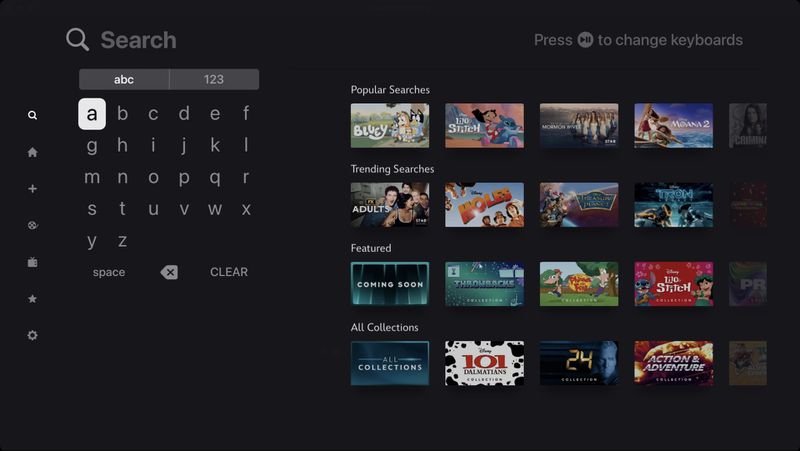
Entering text on Apple TV can be a frustrating experience, especially when you’re forced to use the default Linear keyboard layout. This layout stretches every character into a long horizontal row, requiring excessive swiping to reach letters, numbers, and symbols. If you’ve ever tried entering a Wi-Fi password or signing into streaming apps, you know exactly how painful this can be.

  • Switch to Grid Keyboard Layout on Apple TV
  • Why the Grid Layout is Better
  • Other Typing Options on Apple TV
  • Final Thoughts

Fortunately, there’s a better way. Apple offers an alternative Grid keyboard layout that significantly improves typing efficiency. Once enabled, your Apple TV keyboard becomes much easier to navigate using the Siri Remote.


Switch to Grid Keyboard Layout on Apple TV

Follow these simple steps to change your Apple TV keyboard layout from Linear to Grid:

ADVERTISEMENT
  1. Open the Settings app on your Apple TV.
  2. Go to General ➝ Keyboard Layout.
  3. Select Grid instead of Linear.

That’s it! Your Apple TV keyboard will now display a square grid that resembles modern device layouts, allowing quicker navigation in all directions. There’s no need to restart your Apple TV—the change is immediate.


Why the Grid Layout is Better

The Grid layout arranges keys in a square format, making it faster to reach letters and symbols using vertical and horizontal movements. Here’s why it’s better:

ADVERTISEMENT
  • Reduces swiping: Fewer gestures are needed to reach each key.
  • Feels natural: Matches the layout you’re used to on phones, tablets, and computers.
  • Works better with Siri Remote: Shortens the time needed to type passwords or search queries.

Other Typing Options on Apple TV

While switching to the Grid layout is a game-changer, Apple also offers other text-entry alternatives:

  • Siri voice dictation: Just press and hold the Siri button on the remote and say what you want to type.
  • iPhone or iPad keyboard: If your iOS device is signed in with the same Apple ID, it will automatically prompt you to enter text using your phone’s keyboard when the Apple TV text field is active.

These features can make entering long or complex text strings—like streaming app logins or strong passwords—much more bearable.


Final Thoughts

If you’re still using the default Apple TV keyboard, now’s the time to make the switch. By choosing the Grid layout, you’ll cut down on frustration and type faster with your remote. Whether you’re logging into apps or searching for movies, this small change makes a big difference.

Tags: Apple TV grid keyboardApple TV remoteApple TV settingsApple TV tipsFix Apple TV keyboard layout
Share1Tweet1SendShareSharePinShareShare
Google Add as a Preferred Source on Google
Previous Post

How to Split a Bill and Tip on Apple Watch

Next Post

How to Screenshot Straight to Clipboard on macOS

NyongesaSande News Desk

NyongesaSande News Desk

Nyongesa Sande offers diverse content across news, technology, entertainment, and more, aiming to provide readers with a wide range of informative and engaging articles. NYONGESA SANDE's dedicated team provides our audience not only with the highly relevant news but also with outstanding interactive experience.

Related Posts

How to Weld a 2-Block Rectangular Hollow Block Mold: Measurements, Materials and Step-by-Step Guide
How To

How to Weld a 2-Block Rectangular Hollow Block Mold: Measurements, Materials and Step-by-Step Guide

2 months ago
How to Create a Facebook Account on iPhone App
How To

How to Fix Facebook Confirmation Email Not Received

2 months ago
How to Create a Facebook Account on iPhone App
How To

How to Fix Facebook Confirmation Code Not Received

2 months ago
How to Create a Facebook Account on iPhone App
How To

How to Confirm Your Facebook Email or Phone Number

2 months ago
How to Create a Facebook Account on iPhone App
How To

How to Understand Your Facebook Account and Profiles

2 months ago
How to Create a Facebook Account on iPhone App
How To

How to Fix Facebook Name Not Accepted

2 months ago
Load More
Next Post
How to Screenshot Straight to Clipboard on macOS

How to Screenshot Straight to Clipboard on macOS

How to Automate iPhone Low Power Mode by Battery Level

How to Automate iPhone Low Power Mode by Battery Level

ADVERTISEMENT

Who We Are

Nyongesa Sande

NyongesaSande.com is a digital news and media platform covering breaking news, business, technology, AI, politics, sports, world affairs and African innovation.

Our Brands

  • YouTube
  • Forums
  • Law Archive
  • Sandes Kitchen

News Sections

  • News
    • World
    • Africa
  • Politics
  • Business
  • Tech
  • AI
  • Telecom
  • Sports
  • Opinion
  • Lifestyle
  • Live
  • World Cup 2026
    • World Cup 2026 Standings
    • World Cup 2026

Editorial Standards

  • Editorial Policy
  • Fact Checking Policy
  • Corrections Policy
  • Ethics Policy
  • AI Usage Policy
  • News Tips
  • Submit Press Release

Legal

  • Privacy Policy
  • Terms of Use
  • Cookie Policy
  • Disclaimer
  • Risk Disclaimer
  • DMCA
  • Ad Choices
  • YouTube

Our Company

  • About Us
    • Nyosake Designers
      • Nyosake Webmasters
      • Nyosake Investment
  • Contact Us
    • Newsroom Contact
  • Ownership Disclosure
  • Advertise
  • Privacy Policy
  • Terms of Use
  • Cookie Policy
  • Disclaimer
  • Risk Disclaimer
  • DMCA
  • Ad Choices
  • YouTube

NyongesaSande.com is an independent digital news and media platform covering Africa, business, technology, AI, politics and global developments.

© 2026 NyongesaSande.com. All rights reserved.

No Result
View All Result
  • News
    • World
    • Africa
  • Politics
  • Business
  • Tech
  • AI
  • Telecom
  • Sports
  • Opinion
  • Lifestyle
  • Live
  • World Cup 2026
    • World Cup 2026 Standings
    • World Cup 2026

NyongesaSande.com is an independent digital news and media platform covering Africa, business, technology, AI, politics and global developments.

© 2026 NyongesaSande.com. All rights reserved.