
Nyongesa Sande
No Result
View All Result
  • News
    • World
    • Africa
  • Politics
  • Business
  • Tech
  • AI
  • Telecom
  • Sports
  • Opinion
  • Lifestyle
  • Live
  • World Cup 2026
    • World Cup 2026 Standings
    • World Cup 2026
Nyongesa Sande
No Result
View All Result
Nyongesa Sande
No Result
View All Result
  • News
  • Politics
  • Business
  • Tech
  • AI
  • Telecom
  • Sports
  • Opinion
  • Lifestyle
  • Live
  • World Cup 2026
ADVERTISEMENT

Home » How to Automate iPhone Low Power Mode by Battery Level

How to Automate iPhone Low Power Mode by Battery Level

NyongesaSande News Desk by NyongesaSande News Desk
12 months ago
in How To
Reading Time: 3 mins read
A A
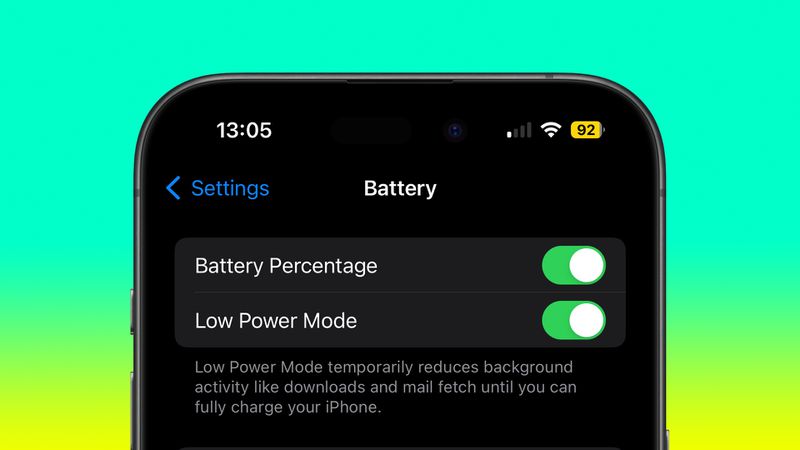
How to Automate iPhone Low Power Mode by Battery Level

If you often find yourself scrambling to save battery before the day ends, it’s time to automate iPhone Low Power Mode. Instead of waiting for the 20% prompt or manually toggling it, you can set a custom automation that enables Low Power Mode when your battery drops to a specific level.

  • What Is Low Power Mode?
  • Set Up Low Power Mode Automation Using Shortcuts
  • Use Focus Mode Instead (Optional Alternative)
  • Conclusion

What Is Low Power Mode?

Low Power Mode conserves battery by reducing iPhone performance and disabling certain background activities. It temporarily:

  • Disables background app refresh
  • Reduces motion and screen brightness
  • Stops automatic mail fetch
  • Pauses iCloud Photos syncing

Although it limits some functionality, it’s ideal when your battery is running low and no charger is in sight.

ADVERTISEMENT

Set Up Low Power Mode Automation Using Shortcuts

Follow these steps to create a personal automation that turns on Low Power Mode when your battery reaches your chosen level:

  1. Open the Shortcuts app and tap the Automation tab at the bottom.
  2. Tap the + (plus) icon in the top-right corner to create a new automation.
  3. Scroll and select Battery Level from the list.
  4. Choose “Falls Below X%” and drag the slider to set your desired battery threshold (e.g., 50%).
  5. Tap Next, then tap Add Action.
  6. Search for “Set Low Power Mode”, select it, and make sure it’s set to Turn On.
  7. Tap Next, disable “Ask Before Running”, and confirm by tapping Don’t Ask.
  8. Enable Run Immediately, then tap Done.

Your automation is now active. When your iPhone battery dips below the chosen percentage, Low Power Mode will activate automatically in the background.

ADVERTISEMENT

Use Focus Mode Instead (Optional Alternative)

Don’t want to use Shortcuts? You can configure a Focus mode to activate at specific times, and within its system filters, enable Low Power Mode. It’s a less dynamic but still useful method to manage power usage based on your daily routine.


Conclusion

Automating Low Power Mode can be a smart battery-saving strategy, especially if your usage drains power quickly. With just a few taps in the Shortcuts app, you can ensure your iPhone saves power right when you need it—without constant reminders or manual toggles.

Tags: automate iPhone Low Power ModeiPhone battery tipsLow Power Mode automationShortcuts app automation
Share2Tweet1SendShareSharePinShareShare
Google Add as a Preferred Source on Google
Previous Post

How to Screenshot Straight to Clipboard on macOS

Next Post

Activate Low Power Mode With a Focus on iPhone

NyongesaSande News Desk

NyongesaSande News Desk

Nyongesa Sande offers diverse content across news, technology, entertainment, and more, aiming to provide readers with a wide range of informative and engaging articles. NYONGESA SANDE's dedicated team provides our audience not only with the highly relevant news but also with outstanding interactive experience.

Related Posts

How to Weld a 2-Block Rectangular Hollow Block Mold: Measurements, Materials and Step-by-Step Guide
How To

How to Weld a 2-Block Rectangular Hollow Block Mold: Measurements, Materials and Step-by-Step Guide

2 months ago
How to Create a Facebook Account on iPhone App
How To

How to Fix Facebook Confirmation Email Not Received

2 months ago
How to Create a Facebook Account on iPhone App
How To

How to Fix Facebook Confirmation Code Not Received

2 months ago
How to Create a Facebook Account on iPhone App
How To

How to Confirm Your Facebook Email or Phone Number

2 months ago
How to Create a Facebook Account on iPhone App
How To

How to Understand Your Facebook Account and Profiles

2 months ago
How to Create a Facebook Account on iPhone App
How To

How to Fix Facebook Name Not Accepted

2 months ago
Load More
Next Post
Activate Low Power Mode With a Focus on iPhone

Activate Low Power Mode With a Focus on iPhone

Set Up a Recovery Contact for Your Apple Account

Set Up a Recovery Contact for Your Apple Account

ADVERTISEMENT

Who We Are

Nyongesa Sande

NyongesaSande.com is a digital news and media platform covering breaking news, business, technology, AI, politics, sports, world affairs and African innovation.

Our Brands

  • YouTube
  • Forums
  • Law Archive
  • Sandes Kitchen

News Sections

  • News
    • World
    • Africa
  • Politics
  • Business
  • Tech
  • AI
  • Telecom
  • Sports
  • Opinion
  • Lifestyle
  • Live
  • World Cup 2026
    • World Cup 2026 Standings
    • World Cup 2026

Editorial Standards

  • Editorial Policy
  • Fact Checking Policy
  • Corrections Policy
  • Ethics Policy
  • AI Usage Policy
  • News Tips
  • Submit Press Release

Legal

  • Privacy Policy
  • Terms of Use
  • Cookie Policy
  • Disclaimer
  • Risk Disclaimer
  • DMCA
  • Ad Choices
  • YouTube

Our Company

  • About Us
    • Nyosake Designers
      • Nyosake Webmasters
      • Nyosake Investment
  • Contact Us
    • Newsroom Contact
  • Ownership Disclosure
  • Advertise
  • Privacy Policy
  • Terms of Use
  • Cookie Policy
  • Disclaimer
  • Risk Disclaimer
  • DMCA
  • Ad Choices
  • YouTube

NyongesaSande.com is an independent digital news and media platform covering Africa, business, technology, AI, politics and global developments.

© 2026 NyongesaSande.com. All rights reserved.

No Result
View All Result
  • News
    • World
    • Africa
  • Politics
  • Business
  • Tech
  • AI
  • Telecom
  • Sports
  • Opinion
  • Lifestyle
  • Live
  • World Cup 2026
    • World Cup 2026 Standings
    • World Cup 2026

NyongesaSande.com is an independent digital news and media platform covering Africa, business, technology, AI, politics and global developments.

© 2026 NyongesaSande.com. All rights reserved.