


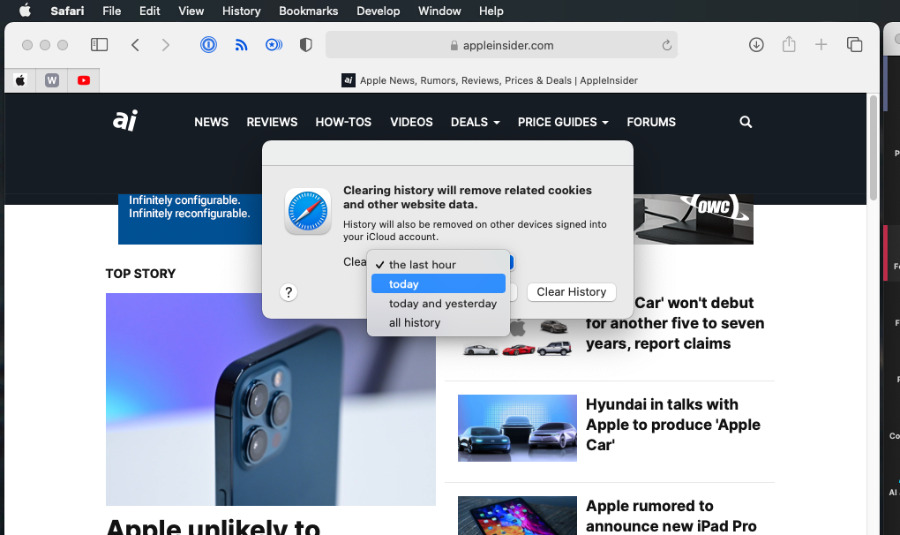
How to clear browsing history on Mac is not just about tidying up your browser. Every website you visit leaves behind data such as search queries, cookies, cached files, and local storage. Over time, this information builds a detailed profile of your online activity. If your Mac is shared, lost, or compromised, that stored history can quickly become a privacy risk.
Modern browsers are powerful, but they also collect a surprising amount of information. Even when you delete visible history, hidden website data may remain stored locally. This leftover data can affect browser performance and expose sensitive activity. For this reason, knowing how to fully remove browsing traces on macOS is essential.
This guide explains how to clear browsing history on Mac using both manual and automated methods. It covers all major browsers, including Safari, Chrome, Firefox, and Opera. It also explains when built-in tools are not enough and how privacy tools can help remove deeper traces while improving online security.
By following these steps, you can keep your Mac faster, more private, and better protected from tracking.
Clearing Browsing History Automatically on Mac
If you use more than one browser, clearing history manually can take time and still leave traces behind. Automated tools simplify the process and reduce the chance of missing hidden data.
CleanMyMac provides a centralized way to remove browsing history, cookies, caches, and recent server connections across multiple browsers at once.
To clear browsing history automatically:
Install and open CleanMyMac.
Select the Protection section and run a scan.
Open Manage Privacy Items.
Choose the browsers and data types to remove, then confirm.
This process clears visible history and hidden files, including leftover caches and recent connections. It is especially useful on shared Macs or systems used for work.
CleanMyMac can also remove records of recently accessed servers, which browsers do not always clear by default.
Improving Privacy Beyond History Clearing
Clearing history removes local traces, but it does not stop websites from tracking you in the future. Many sites use trackers, ads, and IP-based identification.
AdLock helps block trackers, pop-ups, and malicious ads that collect browsing data. Blocking these elements improves page load speed and reduces exposure to phishing attempts.
For additional privacy, a VPN hides your IP address and encrypts traffic.
ClearVPN focuses on simple, task-based privacy. Instead of complex settings, users enable features like blocking ads, trackers, or location-based restrictions. This approach reduces data collection while browsing.
Manually Clearing Browsing History in Safari
Safari is the default macOS browser and integrates deeply with system settings. Clearing visible history is straightforward, but deeper data removal requires extra steps.
To clear Safari history:
Open Safari.
Click the Safari menu.
Select Clear History.
Choose a time range and confirm.
This removes visited pages from the History menu. However, website data such as cookies and storage may still remain.
To remove website data:
Open Safari > Settings.
Go to the Privacy tab.
Click Manage Website Data.
Select Remove All or delete specific sites.
For targeted removal, open History > Show All History, select specific entries, and delete them. This approach works well if you want to keep most history intact.
Clearing Browsing History in Google Chrome
Chrome stores browsing data locally and in your Google account, which means clearing history on your Mac does not always remove cloud-synced activity.
To clear Chrome history locally:
Open Chrome.
Click History > Show Full History.
Select Clear Browsing Data.
Choose a time range and data types.
Click Clear Data.
For complete privacy, also clear your Google account activity by visiting your account activity dashboard and deleting all stored history. This removes synced searches across devices.
Clearing Browsing History in Firefox
Firefox offers granular privacy controls and makes it easy to delete both general and site-specific history.
To clear Firefox history:
Open Firefox.
Click History > Clear Recent History.
Select data types and time range.
Confirm deletion.
To remove a single site entirely:
Open History > Show All History.
Find the site.
Right-click and select Forget About This Site.
Firefox also allows users to disable history storage entirely through its privacy settings.
Clearing Browsing History in Opera
Opera includes built-in tools similar to Chrome but with a slightly different interface.
To remove specific pages:
Open Opera.
Click History.
Open Full History View.
Click the X next to selected entries.
To clear all history:
Open History.
Select Clear Browsing Data.
Set the time range to All time.
Confirm removal.
This clears browsing data stored locally by Opera.
Why Clearing History Regularly Matters
Knowing how to clear browsing history on Mac helps protect against data leaks, profiling, and unwanted access. Browsers store more than just visited URLs. Cookies, cached scripts, and local databases can reveal habits, logins, and preferences.
Regular cleanup improves browser speed and reduces storage usage. It also lowers the risk of exposing sensitive information when sharing or selling a Mac.
Clearing Recent Activity Beyond Browsers
Browsing history is only one part of recent activity on macOS. Recently accessed servers, files, and network locations can also reveal usage patterns. Automated tools can remove these traces in one step, saving time and ensuring completeness.
Privacy-Focused Browsing Habits
Clearing history works best when combined with smarter browsing habits. Blocking trackers, limiting cookies, and using private browsing modes reduce the amount of data stored in the first place. VPN usage adds another layer by masking network identity.
Frequently Asked Questions Integrated Naturally
Many users ask whether history clearing removes everything. The answer depends on the browser and method used. Manual deletion often leaves behind website data, while automated tools provide deeper cleanup.
Others wonder who can see browsing history. Internet service providers, shared-account users, and websites with trackers may still collect data unless privacy tools are used.
Recovering deleted history is sometimes possible through backups, which is why consistent cleanup matters for privacy-conscious users.





