
Nyongesa Sande
No Result
View All Result
  • News
    • World
    • Africa
  • Politics
  • Business
  • Tech
  • AI
  • Telecom
  • Sports
  • Opinion
  • Lifestyle
  • Live
  • World Cup 2026
    • World Cup 2026 Standings
    • World Cup 2026
Nyongesa Sande
No Result
View All Result
Nyongesa Sande
No Result
View All Result
  • News
  • Politics
  • Business
  • Tech
  • AI
  • Telecom
  • Sports
  • Opinion
  • Lifestyle
  • Live
  • World Cup 2026
ADVERTISEMENT

Home » Set Up a Recovery Contact for Your Apple Account

Set Up a Recovery Contact for Your Apple Account

NyongesaSande News Desk by NyongesaSande News Desk
12 months ago
in How To
Reading Time: 5 mins read
A A
Set Up a Recovery Contact for Your Apple Account

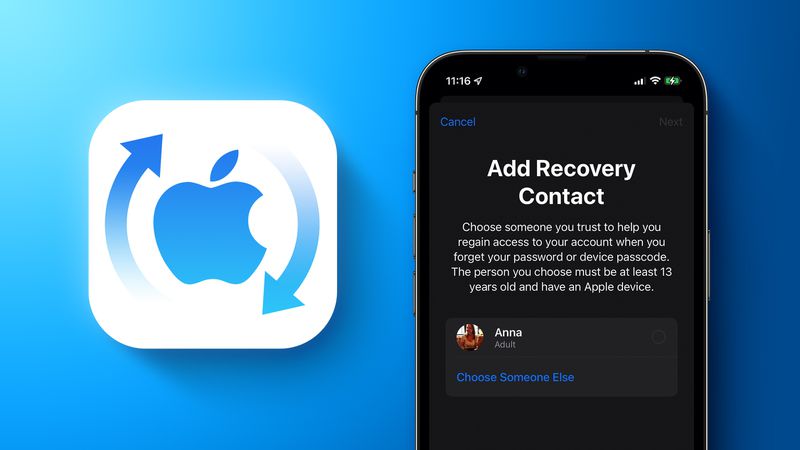
If you lose access to your Apple Account due to a forgotten password or device passcode, getting back in can be difficult—especially with two-factor authentication. Fortunately, Apple allows you to set up a recovery contact to simplify the account recovery process.

  • Why Use a Recovery Contact?
  • Who Should Be Your Recovery Contact?
  • How to Set Up a Recovery Contact
  • How to Help Someone Regain Access
  • How to Remove Yourself as a Recovery Contact
  • Final Tip
  • Conclusion

A recovery contact is someone you trust who can verify your identity and help you regain access to your account and iCloud data. This guide explains how to add one, how to help others as a recovery contact, and how to remove yourself if needed.


Why Use a Recovery Contact?

Apple cannot reset your password for you if you lose access—especially when two-factor authentication is enabled. A recovery contact offers a backup method for secure account access without needing a recovery key or secondary device.

ADVERTISEMENT

This feature works only if all your Apple devices are updated to:

  • iOS 15 or later
  • iPadOS 15 or later
  • macOS Monterey or later
  • watchOS 8 or later (for Apple Watch)

Who Should Be Your Recovery Contact?

Choose someone you:

ADVERTISEMENT
  • Know and trust (like family or close friends)
  • Who has:
    • An iPhone/iPad with iOS 15+ or Mac with macOS Monterey+
    • Two-factor authentication enabled
    • A passcode set on their device
    • Apple ID age requirement: 13+

How to Set Up a Recovery Contact

  1. Open Settings on your iPhone or iPad.
  2. Tap your Apple ID banner at the top.
  3. Select Sign In & Security.
  4. Tap Recovery Contacts under “Recovery Methods.”
  5. Tap Add Recovery Contact… and authenticate with Face ID, Touch ID, or passcode.
  6. If you’re in a Family Sharing group, choose a suggested contact. Otherwise, tap Choose Someone Else.
  7. Tap Next, customize the invitation message (optional), then tap Send.
  8. Tap Done to finish setup.

✅ Tip: Save their phone number in case you need to contact them for help later.


How to Help Someone Regain Access

If someone has added you as their recovery contact, you can help them restore their Apple Account using these steps:

  1. Open the Settings app.
  2. Tap your Apple ID banner ➝ Sign In & Security ➝ Account Recovery.
  3. Tap your friend’s name.
  4. Tap Get Recovery Code and read it aloud or send it to them.
  5. They can enter this code to reset their password and unlock their account.

How to Remove Yourself as a Recovery Contact

If you no longer want to serve as someone’s recovery contact:

ADVERTISEMENT
  1. Open the Settings app.
  2. Tap your Apple ID banner ➝ Sign In & Security ➝ Account Recovery.
  3. Under “Account Recovery For,” select the person’s name.
  4. Tap Remove Contact.

Apple will notify the person that you’re no longer available for account recovery assistance.


Final Tip

To use the recovery contact feature, make sure all of your devices are updated. Outdated devices on your Apple ID may block the ability to add or use recovery contacts. Remove unsupported devices or update them to the latest software.


Conclusion

Setting up a recovery contact ensures peace of mind and security. It provides a reliable, privacy-focused solution to regain access to your Apple Account if you’re ever locked out. Don’t wait until it’s too late—set up a recovery contact today and safeguard your digital life.

Tags: Apple Account recoveryiCloud securitypassword recovery Apple IDSet up a recovery contacttrusted contact iOS
Share1Tweet1SendShareSharePinShareShare
Google Add as a Preferred Source on Google
Previous Post

Activate Low Power Mode With a Focus on iPhone

Next Post

Send Web Links That Jump to the Exact Text You Mean

NyongesaSande News Desk

NyongesaSande News Desk

Nyongesa Sande offers diverse content across news, technology, entertainment, and more, aiming to provide readers with a wide range of informative and engaging articles. NYONGESA SANDE's dedicated team provides our audience not only with the highly relevant news but also with outstanding interactive experience.

Related Posts

How to Weld a 2-Block Rectangular Hollow Block Mold: Measurements, Materials and Step-by-Step Guide
How To

How to Weld a 2-Block Rectangular Hollow Block Mold: Measurements, Materials and Step-by-Step Guide

2 months ago
How to Create a Facebook Account on iPhone App
How To

How to Fix Facebook Confirmation Email Not Received

2 months ago
How to Create a Facebook Account on iPhone App
How To

How to Fix Facebook Confirmation Code Not Received

2 months ago
How to Create a Facebook Account on iPhone App
How To

How to Confirm Your Facebook Email or Phone Number

2 months ago
How to Create a Facebook Account on iPhone App
How To

How to Understand Your Facebook Account and Profiles

2 months ago
How to Create a Facebook Account on iPhone App
How To

How to Fix Facebook Name Not Accepted

2 months ago
Load More
Next Post
How to Control Favicons in Safari’s Favorites Bar

Send Web Links That Jump to the Exact Text You Mean

Copy and Paste Text Without Formatting on Mac

Copy and Paste Text Without Formatting on Mac

ADVERTISEMENT

Who We Are

Nyongesa Sande

NyongesaSande.com is a digital news and media platform covering breaking news, business, technology, AI, politics, sports, world affairs and African innovation.

Our Brands

  • YouTube
  • Forums
  • Law Archive
  • Sandes Kitchen

News Sections

  • News
    • World
    • Africa
  • Politics
  • Business
  • Tech
  • AI
  • Telecom
  • Sports
  • Opinion
  • Lifestyle
  • Live
  • World Cup 2026
    • World Cup 2026 Standings
    • World Cup 2026

Editorial Standards

  • Editorial Policy
  • Fact Checking Policy
  • Corrections Policy
  • Ethics Policy
  • AI Usage Policy
  • News Tips
  • Submit Press Release

Legal

  • Privacy Policy
  • Terms of Use
  • Cookie Policy
  • Risk Disclaimer
  • Disclaimer
  • DMCA
  • Ad Choices
  • YouTube

Our Company

  • About Us
    • Nyosake Designers
      • Nyosake Webmasters
      • Nyosake Investment
  • Contact Us
    • Newsroom Contact
  • Ownership Disclosure
  • Advertise
  • Privacy Policy
  • Terms of Use
  • Cookie Policy
  • Risk Disclaimer
  • Disclaimer
  • DMCA
  • Ad Choices
  • YouTube

NyongesaSande.com is an independent digital news and media platform covering Africa, business, technology, AI, politics and global developments.

© 2026 NyongesaSande.com. All rights reserved.

No Result
View All Result
  • News
    • World
    • Africa
  • Politics
  • Business
  • Tech
  • AI
  • Telecom
  • Sports
  • Opinion
  • Lifestyle
  • Live
  • World Cup 2026
    • World Cup 2026 Standings
    • World Cup 2026

NyongesaSande.com is an independent digital news and media platform covering Africa, business, technology, AI, politics and global developments.

© 2026 NyongesaSande.com. All rights reserved.