
Nyongesa Sande
No Result
View All Result
  • News
    • World
    • Africa
  • Politics
  • Business
  • Tech
  • AI
  • Telecom
  • Sports
  • Opinion
  • Lifestyle
  • Live
  • World Cup 2026
    • World Cup 2026 Standings
    • World Cup 2026
Nyongesa Sande
  • About Us
    • Nyosake Designers
      • Nyosake Webmasters
      • Nyosake Investment
  • Contact Us
    • Newsroom Contact
  • Ownership Disclosure
  • Advertise
No Result
View All Result
Nyongesa Sande
No Result
View All Result
  • News
  • Politics
  • Business
  • Tech
  • AI
  • Telecom
  • Sports
  • Opinion
  • Lifestyle
  • Live
  • World Cup 2026
ADVERTISEMENT

Home » How to Adjust Mac Volume and Brightness More Precisely

How to Adjust Mac Volume and Brightness More Precisely

NyongesaSande News Desk by NyongesaSande News Desk
11 months ago
in How To
Reading Time: 3 mins read
A A
How to Adjust Mac Volume and Brightness More Precisely

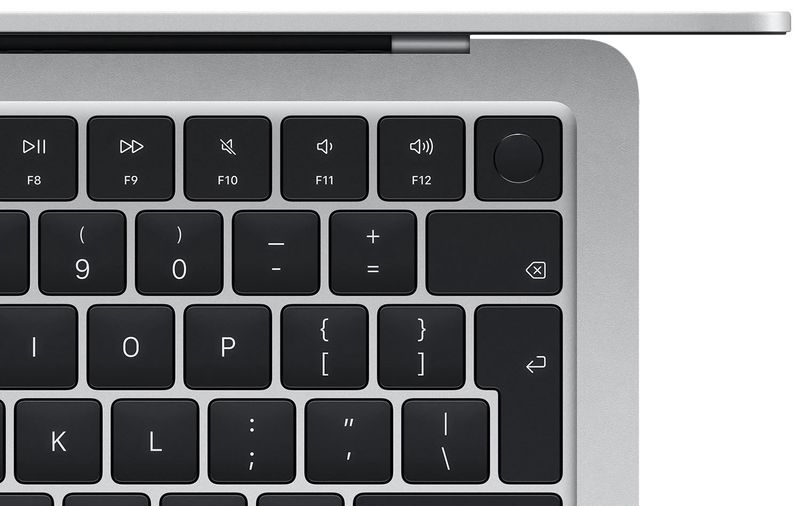
If you’ve ever wished for more precise control over volume and brightness on your Mac, Apple has a built-in shortcut that lets you do just that. By default, adjusting brightness or volume using the function keys on the top row of your Mac keyboard moves the slider in noticeable steps—but there’s a way to make smaller, more refined adjustments.

  • The Problem With Default Increments
  • The Secret: Option + Shift for Quarter Steps
  • When to Use Fine-Tune Adjustments
  • Works on These Macs
  • Pro Tip: Use System Preferences for More Granular Control
  • Conclusion

Here’s how to adjust Mac volume and brightness more precisely using a simple keyboard trick.


The Problem With Default Increments

When you press the volume or brightness keys, macOS shows a 16-step indicator on your screen. This means every press moves the setting by 1/16 of the total range, which can feel too large—especially when trying to lower brightness just slightly or fine-tune headphone audio.

ADVERTISEMENT

The Secret: Option + Shift for Quarter Steps

To unlock quarter-step increments (giving you 64 levels instead of 16), use this shortcut:

  1. Hold down the Option (⌥) and Shift (⇧) keys on your keyboard.
  2. While holding both keys, press the volume or brightness keys as needed.

You’ll notice the indicator still appears on-screen—but now it moves in smaller jumps, giving you much finer control.

ADVERTISEMENT

When to Use Fine-Tune Adjustments

This trick is useful in many everyday situations, including:

  • Lowering brightness just enough in dark environments
  • Avoiding sudden loud audio while wearing headphones
  • Calibrating audio levels during media editing
  • Gently increasing brightness to preserve battery life

Works on These Macs

This feature works on most Macs with physical function keys, including:

  • MacBook Pro with function row
  • MacBook Air
  • Magic Keyboard with function keys
  • Older Intel Macs and M1/M2/M3 Macs with macOS Big Sur or later

Note: If you use a Touch Bar MacBook Pro, this trick does not apply directly but can be replicated with slider control via the Control Strip.

ADVERTISEMENT

Pro Tip: Use System Preferences for More Granular Control

You can also visit:

System Settings → Displays or Sound

…and use sliders for even more precise adjustments. But for speed and convenience, the Option + Shift shortcut is the fastest way to tweak brightness and volume without leaving your desktop.


Conclusion

Whether you’re watching a movie late at night or working in a bright room, learning how to adjust Mac volume and brightness more precisely gives you better control over your environment. With this simple keyboard trick, you can fine-tune your Mac settings exactly the way you like—without big jumps or distractions.

Try it now—Option + Shift + Function Key, and feel the difference!

Tags: Adjust Mac volume and brightnessfine-tune Mac settingsMac brightness controlMac keyboard tipsmacOS volume shortcut
Share2Tweet1SendShareScanSharePinShareShare
Google Add as a Preferred Source on Google
Previous Post

How to Add Custom Backgrounds to Messages in iOS 26

Next Post

How to Charge AirPods or iPhone Using Your iPhone

NyongesaSande News Desk

NyongesaSande News Desk

Nyongesa Sande offers diverse content across news, technology, entertainment, and more, aiming to provide readers with a wide range of informative and engaging articles. NYONGESA SANDE's dedicated team provides our audience not only with the highly relevant news but also with outstanding interactive experience.

Related Posts

How to Weld a 2-Block Rectangular Hollow Block Mold: Measurements, Materials and Step-by-Step Guide
How To

How to Weld a 2-Block Rectangular Hollow Block Mold: Measurements, Materials and Step-by-Step Guide

2 months ago
How to Create a Facebook Account on iPhone App
How To

How to Fix Facebook Confirmation Email Not Received

2 months ago
How to Create a Facebook Account on iPhone App
How To

How to Fix Facebook Confirmation Code Not Received

2 months ago
How to Create a Facebook Account on iPhone App
How To

How to Confirm Your Facebook Email or Phone Number

2 months ago
How to Create a Facebook Account on iPhone App
How To

How to Understand Your Facebook Account and Profiles

2 months ago
How to Create a Facebook Account on iPhone App
How To

How to Fix Facebook Name Not Accepted

2 months ago
Load More
Next Post
How to Charge AirPods or iPhone Using Your iPhone

How to Charge AirPods or iPhone Using Your iPhone

How to Layer Tracks in Voice Memos on iPhone 16 Pro

How to Layer Tracks in Voice Memos on iPhone 16 Pro

ADVERTISEMENT

Who We Are

Nyongesa Sande

NyongesaSande.com is a digital news and media platform covering breaking news, business, technology, AI, politics, sports, world affairs and African innovation.

News Sections

  • News
    • World
    • Africa
  • Politics
  • Business
  • Tech
  • AI
  • Telecom
  • Sports
  • Opinion
  • Lifestyle
  • Live
  • World Cup 2026
    • World Cup 2026 Standings
    • World Cup 2026

Editorial Standards

  • Editorial Policy
  • Fact Checking Policy
  • Corrections Policy
  • Ethics Policy
  • AI Usage Policy
  • News Tips
  • Submit Press Release

Legal

  • Privacy Policy
  • Terms of Use
  • Cookie Policy
  • Disclaimer
  • Risk Disclaimer
  • DMCA
  • Ad Choices

Our Company

  • About Us
    • Nyosake Designers
      • Nyosake Webmasters
      • Nyosake Investment
  • Contact Us
    • Newsroom Contact
  • Ownership Disclosure
  • Advertise
  • Privacy Policy
  • Terms of Use
  • Cookie Policy
  • Disclaimer
  • Risk Disclaimer
  • DMCA
  • Ad Choices

NyongesaSande.com is an independent digital news and media platform covering Africa, business, technology, AI, politics and global developments.

© 2026 NyongesaSande.com. All rights reserved.

No Result
View All Result
  • News
    • World
    • Africa
  • Politics
  • Business
  • Tech
  • AI
  • Telecom
  • Sports
  • Opinion
  • Lifestyle
  • Live
  • World Cup 2026
    • World Cup 2026 Standings
    • World Cup 2026

NyongesaSande.com is an independent digital news and media platform covering Africa, business, technology, AI, politics and global developments.

© 2026 NyongesaSande.com. All rights reserved.