


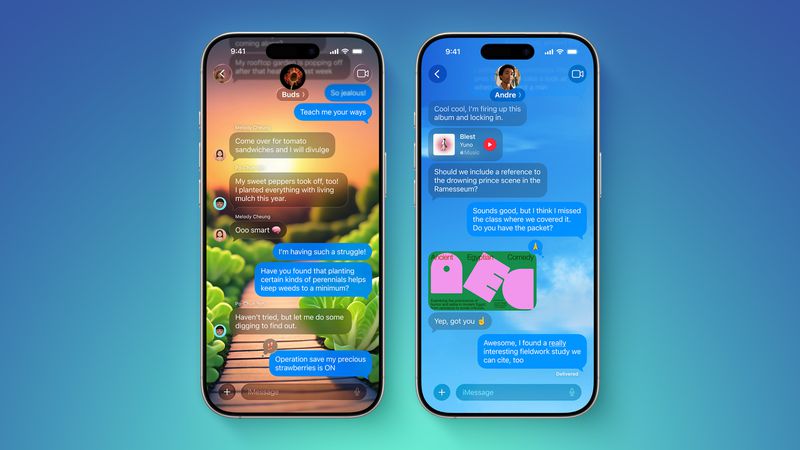
With the release of iOS 26, Apple has finally introduced a long-awaited personalization feature: custom conversation backgrounds in the Messages app. You can now spice up your chat experience with your favorite photos, bold color schemes, or even AI-generated images from Image Playground.
Here’s how to add custom backgrounds to your iMessage threads and make your chats truly your own.
Why Customize Your Messages Background?
- Personalize conversations with friends, family, or work contacts
- Visually distinguish different chat threads
- Add creativity and emotional touch to your messages
- Sync custom designs across all your Apple devices
Whether it’s a scenic photo for your travel group or a solid color for professional threads, you can design it your way.
Step-by-Step: How to Change a Messages Background
To customize a chat background in iOS 26:
- Open the Messages app and tap the conversation you want to personalize.
- Tap the contact name or group name at the top of the screen.
- Tap Backgrounds in the options menu.
- Choose from the available customization options:
- Photo – Select any image from your library
- Color – Pick from Apple’s solid color palette
- Playground – Use Image Playground to generate an image by typing a prompt (e.g., “sunset over mountains”)
- Or select from Apple’s suggested themes like Sky, Water, or Aurora
- Swipe left or right to preview styles and effects.
- Tap the checkmark in the top-right corner to apply your background.
That’s it! The background will instantly appear for everyone in the conversation.
How to Reset to the Default Background
If you want to remove a custom background:
- Open the conversation with the custom background.
- Tap the contact name or group name at the top.
- Tap Backgrounds, then select None from the top of the list.
- Tap the back arrow to confirm and return to the default look.
Tips for Choosing Better Backgrounds
- Dark backgrounds pair well with light text bubbles
- Light backgrounds work best with dark bubbles
- iOS 26 automatically adjusts text contrast, but you can preview before applying
- Avoid overly busy images that distract from your message content
Do Backgrounds Sync Across Devices?
Yes. If your iPhone, iPad, and Mac are signed in with the same Apple ID and running iOS 26, iPadOS 26, or macOS Tahoe, your custom background changes will sync automatically across devices.
Conclusion
With iOS 26, Apple is finally catching up to third-party messaging apps by allowing users to add custom backgrounds to their Messages conversations. Whether for fun, function, or aesthetic appeal, you can now fully personalize your chat threads with just a few taps—and enjoy a more expressive, organized messaging experience across all your Apple devices.


