
Nyongesa Sande
No Result
View All Result
  • News
    • World
    • Africa
  • Politics
  • Business
  • Tech
  • AI
  • Telecom
  • Sports
  • Opinion
  • Lifestyle
  • Live
  • World Cup 2026
    • World Cup 2026 Standings
    • World Cup 2026
Nyongesa Sande
No Result
View All Result
Nyongesa Sande
No Result
View All Result
  • News
  • Politics
  • Business
  • Tech
  • AI
  • Telecom
  • Sports
  • Opinion
  • Lifestyle
  • Live
  • World Cup 2026
ADVERTISEMENT

Home » How to Layer Tracks in Voice Memos on iPhone 16 Pro

How to Layer Tracks in Voice Memos on iPhone 16 Pro

NyongesaSande News Desk by NyongesaSande News Desk
12 months ago
in How To
Reading Time: 5 mins read
A A
How to Layer Tracks in Voice Memos on iPhone 16 Pro

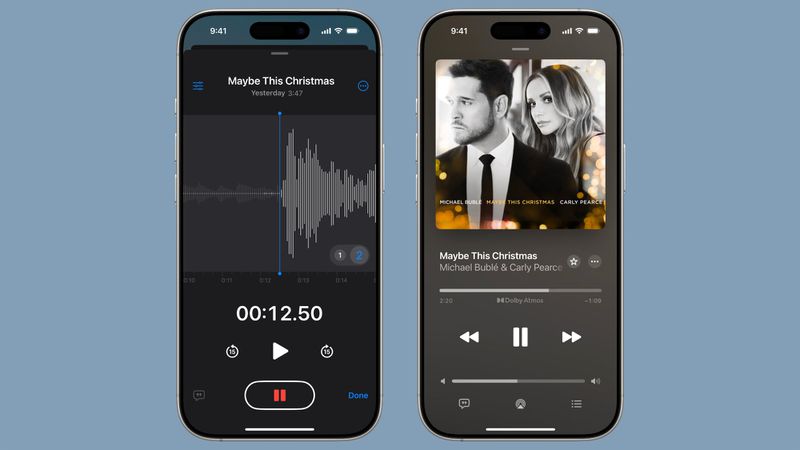
With iOS 18.2, Apple has upgraded the Voice Memos app on iPhone 16 Pro and iPhone 16 Pro Max to include multitrack recording capabilities. This feature allows users to layer tracks in Voice Memos, enabling the recording of vocals, narrations, or instruments over existing audio—all without needing headphones or external equipment.

  • What You Need
  • How to Add a Second Layer in Voice Memos
  • How to Mix Audio Layers
  • How to Separate Layers for Individual Editing
  • Important Details About Layered Recordings
  • Why Use Layering in Voice Memos?
  • Conclusion

Whether you’re a musician adding harmony, a podcaster updating commentary, or a student annotating voice notes, this feature transforms your iPhone into a mini recording studio.


What You Need

  • iPhone 16 Pro or iPhone 16 Pro Max
  • iOS 18.2 or later
  • The Voice Memos app (found in the Utilities folder)

🎵 Note: Layered recording is exclusive to iPhone 16 Pro models, but playback is supported on any device running iOS 18.2, iPadOS 18.2, or macOS Sequoia 15.2 and above.


How to Add a Second Layer in Voice Memos

To begin layering:

ADVERTISEMENT
  1. Open the Voice Memos app on your iPhone.
  2. Select the recording you want to build on.
  3. Tap the waveform icon to view the audio track.
  4. Tap the plus (+) icon to start layering.
  5. When ready, tap the red record button to capture your second audio track.

Your new multitrack memo will now appear in the list with a layered symbol (two overlapping tiles) next to it.


How to Mix Audio Layers

Once both layers are recorded, you can adjust their blend:

ADVERTISEMENT
  1. While viewing the waveform, tap the Settings icon in the top-left.
  2. Use the Layer Mix slider to balance the volume between the original and the added track.

This allows you to dial in the perfect mix, whether it’s a background harmony or a subtle narration.


How to Separate Layers for Individual Editing

Want more control over each layer? You can split them:

  1. Tap the More button (three encircled dots) in the top-right.
  2. Select Separate Layers.
  3. Tap Done to confirm.

The original and added recordings will now appear as two separate files in your Voice Memos list. You can play, trim, or export each one independently.

ADVERTISEMENT

Important Details About Layered Recordings

  • Saved Format: Layered recordings are stored in QuickTime Audio (QTA) format.
  • Compatibility: Devices running iOS 18.1 or earlier can’t display layered recordings.
  • Audio Quality:
    • The first layer supports stereo and transcription.
    • Additional layers are recorded in mono only.
  • Editing: You can transfer your layered files to Logic Pro or GarageBand for more advanced audio editing.

Why Use Layering in Voice Memos?

This feature is perfect for:

  • Musicians laying down harmony or instruments on the fly
  • Podcasters adding intros, ads, or extra commentary
  • Teachers and students updating study notes or lesson ideas
  • Anyone capturing layered sound with minimal gear

Conclusion

The ability to layer tracks in Voice Memos with iPhone 16 Pro turns your pocket device into a mobile audio studio. Thanks to the A18 Pro chip and iOS 18.2’s advanced audio engine, multitrack recording is now seamless, simple, and stunningly powerful—no external mic required.

Start recording, layering, and mixing today—and let your creativity speak in stereo.

Tags: iOS 18.2 audioiPhone 16 ProLayer tracks in Voice Memosmobile podcast recordingmultitrack recording iPhoneVoice Memos layering
ShareTweetSendShareSharePinShareShare
Google Add as a Preferred Source on Google
Previous Post

How to Charge AirPods or iPhone Using Your iPhone

Next Post

How to Share Audio on iPhone Using Two Pairs of AirPods

NyongesaSande News Desk

NyongesaSande News Desk

Nyongesa Sande offers diverse content across news, technology, entertainment, and more, aiming to provide readers with a wide range of informative and engaging articles. NYONGESA SANDE's dedicated team provides our audience not only with the highly relevant news but also with outstanding interactive experience.

Related Posts

How to Weld a 2-Block Rectangular Hollow Block Mold: Measurements, Materials and Step-by-Step Guide
How To

How to Weld a 2-Block Rectangular Hollow Block Mold: Measurements, Materials and Step-by-Step Guide

2 months ago
How to Create a Facebook Account on iPhone App
How To

How to Fix Facebook Confirmation Email Not Received

2 months ago
How to Create a Facebook Account on iPhone App
How To

How to Fix Facebook Confirmation Code Not Received

2 months ago
How to Create a Facebook Account on iPhone App
How To

How to Confirm Your Facebook Email or Phone Number

2 months ago
How to Create a Facebook Account on iPhone App
How To

How to Understand Your Facebook Account and Profiles

2 months ago
How to Create a Facebook Account on iPhone App
How To

How to Fix Facebook Name Not Accepted

2 months ago
Load More
Next Post
How to Share Audio on iPhone Using Two Pairs of AirPods

How to Share Audio on iPhone Using Two Pairs of AirPods

iPhone Long Press Too Slow? Speed Up Haptic Touch in Seconds

ADVERTISEMENT

Who We Are

Nyongesa Sande

NyongesaSande.com is a digital news and media platform covering breaking news, business, technology, AI, politics, sports, world affairs and African innovation.

Our Brands

  • YouTube
  • Forums
  • Law Archive
  • Sandes Kitchen

News Sections

  • News
    • World
    • Africa
  • Politics
  • Business
  • Tech
  • AI
  • Telecom
  • Sports
  • Opinion
  • Lifestyle
  • Live
  • World Cup 2026
    • World Cup 2026 Standings
    • World Cup 2026

Editorial Standards

  • Editorial Policy
  • Fact Checking Policy
  • Corrections Policy
  • Ethics Policy
  • AI Usage Policy
  • News Tips
  • Submit Press Release

Legal

  • Privacy Policy
  • Terms of Use
  • Cookie Policy
  • Disclaimer
  • Risk Disclaimer
  • DMCA
  • Ad Choices
  • YouTube

Our Company

  • About Us
    • Nyosake Designers
      • Nyosake Webmasters
      • Nyosake Investment
  • Contact Us
    • Newsroom Contact
  • Ownership Disclosure
  • Advertise
  • Privacy Policy
  • Terms of Use
  • Cookie Policy
  • Disclaimer
  • Risk Disclaimer
  • DMCA
  • Ad Choices
  • YouTube

NyongesaSande.com is an independent digital news and media platform covering Africa, business, technology, AI, politics and global developments.

© 2026 NyongesaSande.com. All rights reserved.

No Result
View All Result
  • News
    • World
    • Africa
  • Politics
  • Business
  • Tech
  • AI
  • Telecom
  • Sports
  • Opinion
  • Lifestyle
  • Live
  • World Cup 2026
    • World Cup 2026 Standings
    • World Cup 2026

NyongesaSande.com is an independent digital news and media platform covering Africa, business, technology, AI, politics and global developments.

© 2026 NyongesaSande.com. All rights reserved.