
Nyongesa Sande
No Result
View All Result
  • News
    • World
    • Africa
  • Politics
  • Business
  • Tech
  • AI
  • Telecom
  • Sports
  • Opinion
  • Lifestyle
  • Live
  • World Cup 2026
    • World Cup 2026 Standings
    • World Cup 2026
Nyongesa Sande
No Result
View All Result
Nyongesa Sande
No Result
View All Result
  • News
  • Politics
  • Business
  • Tech
  • AI
  • Telecom
  • Sports
  • Opinion
  • Lifestyle
  • Live
  • World Cup 2026
ADVERTISEMENT

Home » How to Stop Recent Browser Searches Showing on iPhone

How to Stop Recent Browser Searches Showing on iPhone

NyongesaSande News Desk by NyongesaSande News Desk
12 months ago
in How To
Reading Time: 3 mins read
A A
How to Stop Recent Browser Searches Showing on iPhone

With the release of iOS 18.4, Apple made a subtle but significant change to Safari that affects user privacy. Now, when you open a new tab and tap into the search field, your recent browser searches appear automatically. While this might be convenient for quick repeat searches, it can feel invasive—especially if you ever hand your phone to someone else.

  • Why Turn Off Recent Searches in Safari?
  • How to Disable Safari Recent Searches on iPhone
  • Who Might Want to Leave It On?
  • Bonus Privacy Tips for Safari Users
  • Conclusion

Luckily, Apple included a simple setting to turn this off. Here’s how to stop recent browser searches from appearing in Safari on your iPhone.


Why Turn Off Recent Searches in Safari?

If you’re concerned about:

ADVERTISEMENT
  • Privacy when others use or look at your phone
  • Sensitive search terms appearing in view
  • Avoiding accidental exposure of past browsing activity

…then disabling this feature is a smart move. Even a brief glance at your phone could reveal more than you intended.


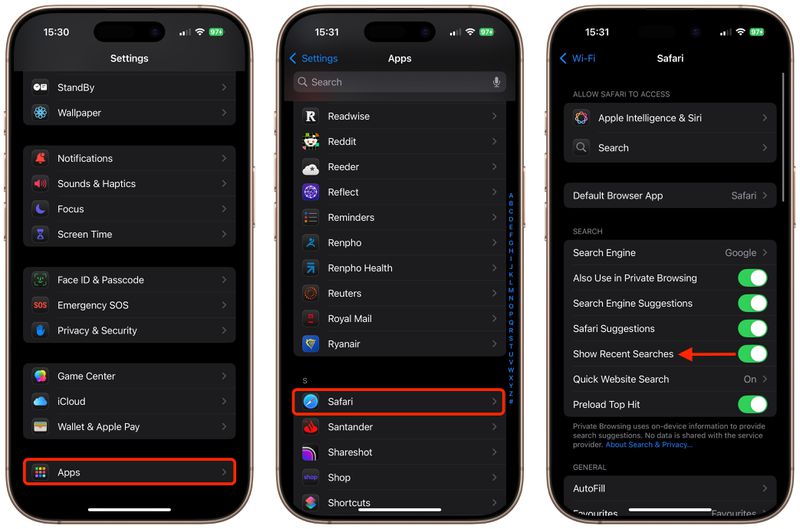
How to Disable Safari Recent Searches on iPhone

Follow these steps to hide your recent searches from the Safari browser search bar:

ADVERTISEMENT
  1. Open the Settings app on your iPhone.
  2. Scroll down and tap Apps at the bottom.
  3. Find and tap Safari from the list of installed apps.
  4. Locate the toggle labeled Show Recent Searches.
  5. Switch it off to disable the display of recent search history in new Safari tabs.

Once disabled, opening a new tab and tapping the search field will no longer reveal your most recent searches—just the Safari homepage and search bar.


Who Might Want to Leave It On?

Some users may appreciate the feature for its convenience. It allows you to:

  • Quickly revisit frequent or recent queries
  • Save time when researching or multitasking
  • Access recurring search topics faster

However, that convenience comes at the cost of privacy, so it depends on your personal preferences.

ADVERTISEMENT

Bonus Privacy Tips for Safari Users

For added privacy while browsing:

  • Use Private Browsing Mode (tap the tab switcher ➝ Private)
  • Regularly clear browsing history in Safari Settings ➝ Clear History and Website Data
  • Disable Safari Suggestions and Preload Top Hits if you want full control over what’s shown

Conclusion

Apple’s iOS 18.4 update adds helpful tools—but not everyone wants their recent browser searches popping up for all to see. Thankfully, with just a few taps, you can stop recent browser searches from displaying in Safari and take back control of your iPhone’s privacy.

Tags: disable recent searches iPhoneiOS 18.4 SafariiPhone browser historySafari privacy settingsStop recent browser searches
Share1Tweet1SendShareSharePinShareShare
Google Add as a Preferred Source on Google
Previous Post

How to Open Favorite Messages Chat From iPhone Lock Screen

Next Post

How to Add Custom Backgrounds to Messages in iOS 26

NyongesaSande News Desk

NyongesaSande News Desk

Nyongesa Sande offers diverse content across news, technology, entertainment, and more, aiming to provide readers with a wide range of informative and engaging articles. NYONGESA SANDE's dedicated team provides our audience not only with the highly relevant news but also with outstanding interactive experience.

Related Posts

How to Weld a 2-Block Rectangular Hollow Block Mold: Measurements, Materials and Step-by-Step Guide
How To

How to Weld a 2-Block Rectangular Hollow Block Mold: Measurements, Materials and Step-by-Step Guide

2 months ago
How to Create a Facebook Account on iPhone App
How To

How to Fix Facebook Confirmation Email Not Received

2 months ago
How to Create a Facebook Account on iPhone App
How To

How to Fix Facebook Confirmation Code Not Received

2 months ago
How to Create a Facebook Account on iPhone App
How To

How to Confirm Your Facebook Email or Phone Number

2 months ago
How to Create a Facebook Account on iPhone App
How To

How to Understand Your Facebook Account and Profiles

2 months ago
How to Create a Facebook Account on iPhone App
How To

How to Fix Facebook Name Not Accepted

2 months ago
Load More
Next Post
How to Add Custom Backgrounds to Messages in iOS 26

How to Add Custom Backgrounds to Messages in iOS 26

How to Adjust Mac Volume and Brightness More Precisely

How to Adjust Mac Volume and Brightness More Precisely

ADVERTISEMENT

Who We Are

Nyongesa Sande

NyongesaSande.com is a digital news and media platform covering breaking news, business, technology, AI, politics, sports, world affairs and African innovation.

Our Brands

  • YouTube
  • Forums
  • Law Archive
  • Sandes Kitchen

News Sections

  • News
    • World
    • Africa
  • Politics
  • Business
  • Tech
  • AI
  • Telecom
  • Sports
  • Opinion
  • Lifestyle
  • Live
  • World Cup 2026
    • World Cup 2026 Standings
    • World Cup 2026

Editorial Standards

  • Editorial Policy
  • Fact Checking Policy
  • Corrections Policy
  • Ethics Policy
  • AI Usage Policy
  • News Tips
  • Submit Press Release

Legal

  • Privacy Policy
  • Terms of Use
  • Cookie Policy
  • Disclaimer
  • Risk Disclaimer
  • DMCA
  • Ad Choices
  • YouTube

Our Company

  • About Us
    • Nyosake Designers
      • Nyosake Webmasters
      • Nyosake Investment
  • Contact Us
    • Newsroom Contact
  • Ownership Disclosure
  • Advertise
  • Privacy Policy
  • Terms of Use
  • Cookie Policy
  • Disclaimer
  • Risk Disclaimer
  • DMCA
  • Ad Choices
  • YouTube

NyongesaSande.com is an independent digital news and media platform covering Africa, business, technology, AI, politics and global developments.

© 2026 NyongesaSande.com. All rights reserved.

No Result
View All Result
  • News
    • World
    • Africa
  • Politics
  • Business
  • Tech
  • AI
  • Telecom
  • Sports
  • Opinion
  • Lifestyle
  • Live
  • World Cup 2026
    • World Cup 2026 Standings
    • World Cup 2026

NyongesaSande.com is an independent digital news and media platform covering Africa, business, technology, AI, politics and global developments.

© 2026 NyongesaSande.com. All rights reserved.