Nyongesa Sande
No Result
View All Result
  • News
    • World
    • Africa
  • Politics
  • Business
  • Tech
  • AI
  • Telecom
  • Sports
  • Opinion
  • Lifestyle
  • Live
  • World Cup 2026
    • World Cup 2026 Standings
    • World Cup 2026
Nyongesa Sande
  • About Us
    • Nyosake Designers
      • Nyosake Webmasters
      • Nyosake Investment
  • Contact Us
    • Newsroom Contact
  • Ownership Disclosure
  • Advertise
No Result
View All Result
Nyongesa Sande
No Result
View All Result
  • News
  • Politics
  • Business
  • Tech
  • AI
  • Telecom
  • Sports
  • Opinion
  • Lifestyle
  • Live
  • World Cup 2026
ADVERTISEMENT

Home » 192.168.0.254

192.168.0.254

NyongesaSande News Desk by NyongesaSande News Desk
2 years ago
in Technology
Reading Time: 4 mins read
A A
TP-Link Deco Router

TP-Link Deco Router

192.168.0.254 is an IP address that is used as a default gateway address of routers such as TP-Link, Tenda, to access the admin settings at http://192.168.0.254/. Through the admin console you can set up your router and wireless network such as changing WiFi password, SSID (network name), create guest networks, device blocking, and more advance settings.

  • How to login to 192.168.0.254?
    • How to change the Wi-Fi Network SSID and Password?
    • Change the Wi-Fi Network SSID:
    • Change the Wi-Fi Network Password:

192.168.0.254 Login

How to login to 192.168.0.254?

To be able to access the Admin Console through 192.168.0.254, first, you need to make sure that the default gateway address for your router/repeater is 192.168.0.254. You can find the default IP address printed on the label at the back of the router.

ADVERTISEMENT

Follow the steps below to login into the admin console through 192.168.0.254:

  1. Open a web browser on your PC, Google Chrome, Mozilla Firefox, or any other.
  2. Type the following address: http://192.168.0.254 or 192.168.0.254 and press Enter.
  3. You will be taken to the login page of your wireless router/repeater. Here you will be asked to enter the login username and password. You can find the default login username and password printed on a label at the back of the router.
  4. Enter the login username & password and click on Log In.
  5. You will be now logged into the Admin Console of your wireless router/repeater. From here, you can make all the required changes to the settings.
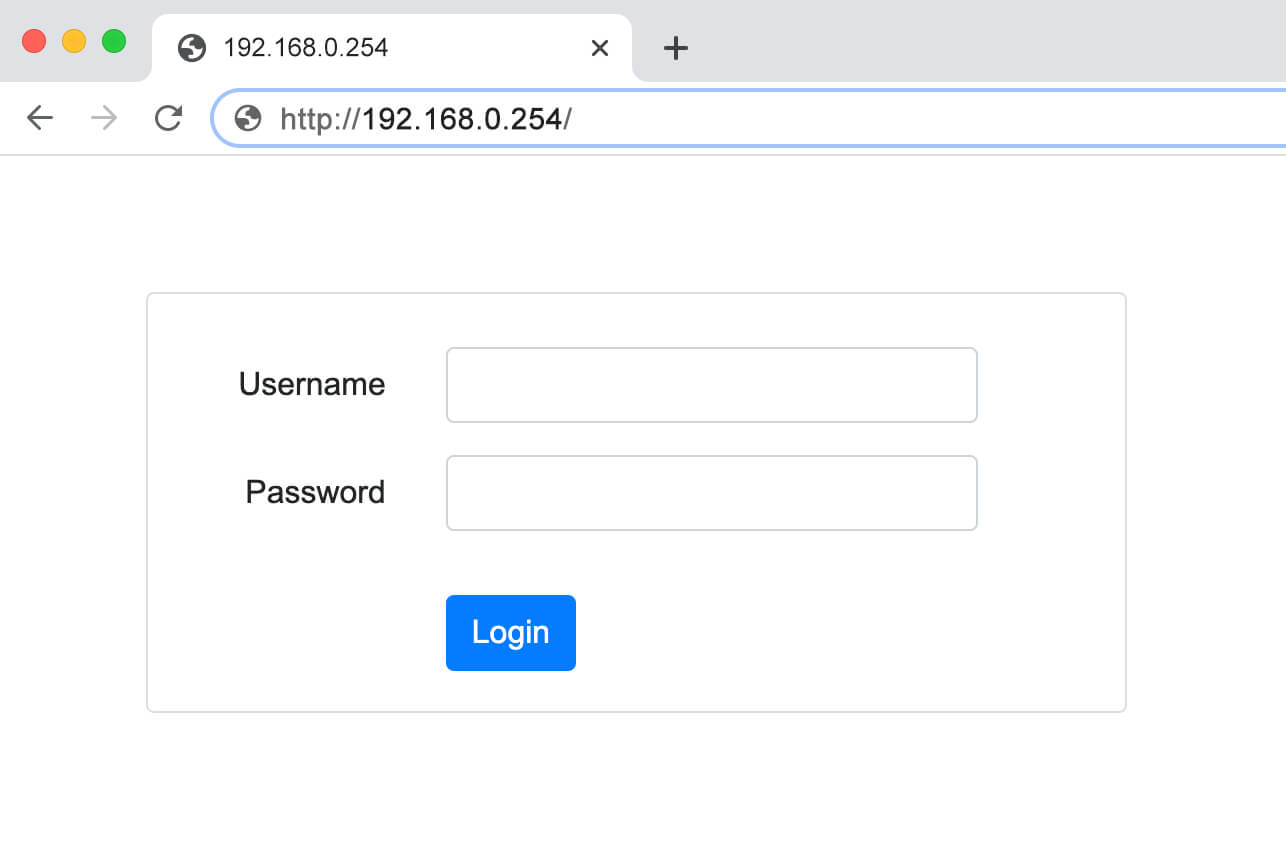
Note: If the default IP address is other than 192.168.0.254 then this IP address won’t work, instead, you will have to type that IP address. You also need to connect your PC to Wi-Fi Router or Wi-Fi Repeater. You can do this by connecting directly using an Ethernet cable or connecting to the Wi-Fi network of the router.

ADVERTISEMENT

How to change the Wi-Fi Network SSID and Password?

You can change the Wi-Fi Network SSID and Password among other settings that you can manage and configure from the Admin Console. The Wi-Fi Network SSID and Password are usually set by the manufacturer. The password is usually a random combination of alphabets and words that can be easily cracked and hence, it should be changed to improve the security of the Wi-Fi Network.

If you want to change the Wi-Fi Network SSID, Password, or both then you can follow the simple guides given below to change the Wi-Fi Network SSID and Password:

Change the Wi-Fi Network SSID:

  1. Login into the Admin Console of your Wi-Fi Router.
  2. Once logged in, go to Home > Wireless.
  3. Here look for Wi-Fi Network Name/SSID field. There you will find your current Wi-Fi SSID.
  4. Enter the new Wi-Fi SSID in the given field.
  5. Now, click on Apply to save changes.
  6. The Wi-Fi Router will reboot and after it reboots, the SSID will be changed and you will have to reconnect to the Wi-Fi Network with the new SSID.

Change the Wi-Fi Network Password:

  1. Login into the Admin Console of the Wi-Fi Router using the method mentioned above.
  2. Go to the Wireless section from the home page.
  3. Under the Security section, look for the Wi-Fi Password field.
  4. Here, enter the new Wi-Fi Password in the given field.
  5. Click on Apply to save changes.
  6. The password of the Wi-Fi Network would be changed and you can connect to the network using the new password.
ShareTweetSendShareScanSharePinShareShare
Google Add as a Preferred Source on Google
Previous Post

NETGEAR Orbi Login

Next Post

192.168.49.1

NyongesaSande News Desk

NyongesaSande News Desk

Nyongesa Sande offers diverse content across news, technology, entertainment, and more, aiming to provide readers with a wide range of informative and engaging articles. NYONGESA SANDE's dedicated team provides our audience not only with the highly relevant news but also with outstanding interactive experience.

Related Posts

Telegram Wear OS App Returns With Full Chats, Voice Messages and More
Tech News

Telegram Wear OS App Returns With Full Chats, Voice Messages and More

51 minutes ago
Strava Route Saving, Off-Route Alerts and Map Upgrades Roll Out
Tech News

Strava Route Saving, Off-Route Alerts and Map Upgrades Roll Out

55 minutes ago
Waze Traffic Lights Feature Rolls Out to More Users
Tech News

Waze Traffic Lights Feature Rolls Out to More Users

59 minutes ago
YouTube Direct Messaging Expands to More Countries, Including the US
Tech News

YouTube Direct Messaging Expands to More Countries, Including the US

1 hour ago
iPhone 18 Pro Max Rumored Specs, Features, Camera and Release Window
Tech News

iPhone 18 Pro Max Rumored Specs, Features, Camera and Release Window

1 hour ago
DJI Sues Insta360 Over Luna Ultra Camera in Osmo Pocket Patent Fight
Tech News

DJI Sues Insta360 Over Luna Ultra Camera in Osmo Pocket Patent Fight

1 hour ago
Load More
Next Post
Sparklight Router Login

192.168.49.1

Three Router Login

192.168.101.1

Trending

  • Top 10 Richest People in Tripura (2026)

    Top 10 Richest People in Tripura (2026)

    169 shares
    Share 68 Tweet 42
  • Product Review: Bose Portable Smart Speaker

    184 shares
    Share 74 Tweet 46
  • QVSELP Scam Warning: Why Kenyans Should Be Careful

    4 shares
    Share 2 Tweet 1
  • ZimLoan: A Quick Guide to Salary Advance Loans in Zimbabwe

    288 shares
    Share 115 Tweet 72
  • Top 10 Richest People in Manipur (2026)

    58 shares
    Share 23 Tweet 15
  • List of All Phone Numbers for the Kenyan 13th Parliament – Contact your MP today

    156 shares
    Share 62 Tweet 39
  • Final World Cup 2026: Messi, Ronaldo and Veteran Stars Facing Their Last Dance

    1 shares
    Share 0 Tweet 0
  • 2026 World Cup Absentees: Biggest Stars Missing the Tournament

    1 shares
    Share 0 Tweet 0
  • Top 10 Richest People in Jammu & Kashmir (2026)

    90 shares
    Share 36 Tweet 23
  • Top 10 Richest People in Meru County

    86 shares
    Share 34 Tweet 22
ADVERTISEMENT
ADVERTISEMENT

Who We Are

Nyongesa Sande

NyongesaSande.com is a digital news and media platform covering breaking news, business, technology, AI, politics, sports, world affairs and African innovation.

News Sections

  • News
    • World
    • Africa
  • Politics
  • Business
  • Tech
  • AI
  • Telecom
  • Sports
  • Opinion
  • Lifestyle
  • Live
  • World Cup 2026
    • World Cup 2026 Standings
    • World Cup 2026

Editorial Standards

  • Editorial Policy
  • Fact Checking Policy
  • Corrections Policy
  • Ethics Policy
  • AI Usage Policy
  • News Tips
  • Submit Press Release

Legal

  • Privacy Policy
  • Terms of Use
  • Cookie Policy
  • Risk Disclaimer
  • Disclaimer
  • DMCA
  • Ad Choices

Our Company

  • About Us
    • Nyosake Designers
      • Nyosake Webmasters
      • Nyosake Investment
  • Contact Us
    • Newsroom Contact
  • Ownership Disclosure
  • Advertise
  • Privacy Policy
  • Terms of Use
  • Cookie Policy
  • Risk Disclaimer
  • Disclaimer
  • DMCA
  • Ad Choices

NyongesaSande.com is an independent digital news and media platform covering Africa, business, technology, AI, politics and global developments.

© 2026 NyongesaSande.com. All rights reserved.

No Result
View All Result
  • News
    • World
    • Africa
  • Politics
  • Business
  • Tech
  • AI
  • Telecom
  • Sports
  • Opinion
  • Lifestyle
  • Live
  • World Cup 2026
    • World Cup 2026 Standings
    • World Cup 2026

NyongesaSande.com is an independent digital news and media platform covering Africa, business, technology, AI, politics and global developments.

© 2026 NyongesaSande.com. All rights reserved.