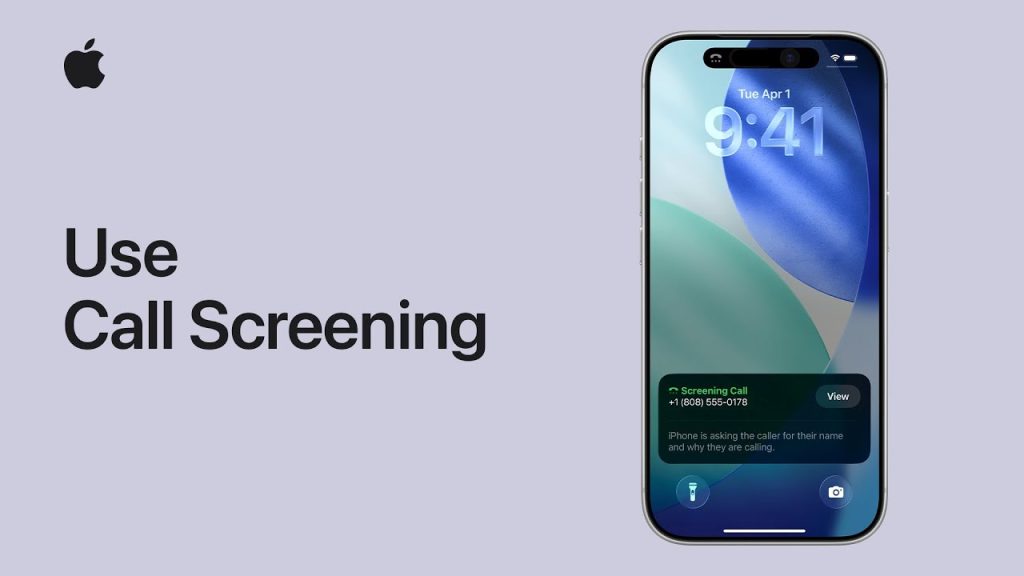
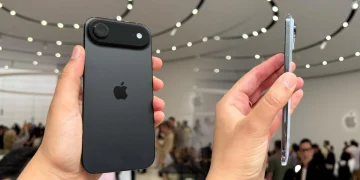
Call screening on iPhone is an incredibly useful feature that helps you manage your incoming calls more effectively. Whether you’re tired of spam calls, telemarketers, or just want to filter out unnecessary interruptions, call screening lets you take control of which calls get through and which ones don’t. This feature is part of the broader set of privacy and security tools Apple has integrated into its iOS devices, ensuring a more streamlined and manageable phone experience.
Using call screening on your iPhone can also give you peace of mind by screening unknown or blocked numbers, ensuring that only trusted calls come through. This guide will walk you through how to set up and use call screening on your iPhone, covering all the features and options available to help you take charge of your call management.
How to Set Up and Use Call Screening on iPhone
1. Enable Call Blocking and Identification
The first step in using call screening on your iPhone is enabling call blocking and identification. This feature allows your iPhone to recognize and filter out spam or unsolicited calls.
- Open Settings
Start by opening the Settings app on your iPhone. - Navigate to Phone Settings
Scroll down and tap on Phone. This will take you to your call-related settings. - Turn on Call Blocking & Identification
Tap on Call Blocking & Identification. Here, you’ll be able to enable apps that can block and identify calls. If you’ve downloaded a third-party call-blocking app (like Hiya, Truecaller, or RoboKiller), it will appear in this section. Toggle on the app you want to use for screening calls. - Allow Apps to Block Calls
Ensure that the apps you want to use for screening calls are allowed to block calls. You can toggle these apps on or off depending on your preferences.
2. Use Silence Unknown Callers
One of the simplest and most effective ways to screen calls is by enabling the Silence Unknown Callers feature. This automatically silences calls from numbers that aren’t in your contacts, aren’t recent outgoing calls, or aren’t in your Siri Suggestions.
- Activate Silence Unknown Callers
Go back to Settings and tap Phone. Scroll down to find the Silence Unknown Callers option. Toggle it on to activate the feature. This will send unknown numbers straight to voicemail, letting you decide later if you want to return the call. - Voicemail Option
With this feature on, if someone calls from an unknown number, they’ll be sent directly to voicemail. You can listen to the voicemail and decide if you want to call them back.
3. Set Up Your iPhone’s Do Not Disturb Mode
If you want a more comprehensive approach to screening calls, consider using the Do Not Disturb mode. This allows you to limit incoming calls to only those from people in your contact list or favorites.
- Enable Do Not Disturb Mode
Go to Settings and tap on Focus. Select Do Not Disturb, then toggle the switch on to activate the mode. - Customize Do Not Disturb Settings
You can customize which calls get through during Do Not Disturb by tapping on People. Select Allow Calls From and choose Favorites or Contacts. This way, only calls from these groups will come through, and others will be silenced. - Set Up Scheduled Do Not Disturb
If you want Do Not Disturb to activate automatically during certain times (e.g., during work hours or at night), go to Settings > Focus > Do Not Disturb and enable Scheduled. Choose the times that work best for you.
4. Using Third-Party Call Screening Apps
There are many third-party apps available in the App Store that offer more advanced call screening features, such as identifying spam calls, blocking robocalls, and more.
- Download a Call Screening App
Apps like Hiya, Truecaller, and RoboKiller are popular choices. You can download one from the App Store and set it up by following the on-screen instructions. - Configure the App’s Call Screening Settings
Once the app is installed, open it and configure the call screening settings. Most apps allow you to block spam calls automatically or let you create a whitelist for known contacts. - Activate Call Blocking for the App
After configuring the app, return to Settings > Phone > Call Blocking & Identification and enable the app to start screening your calls.
5. Blocking Individual Numbers
If you receive repeated calls from a particular number that you no longer wish to hear from, you can manually block that number.
- Block a Number from Recent Calls
Open the Phone app and tap on Recents. Find the number you want to block, tap the info (i) icon next to it, and scroll down to tap Block this Caller. - Block from Contacts
If the caller is in your contacts, open the Contacts app, find the contact, tap on it, and scroll down to tap Block this Caller.
6. Reviewing and Managing Blocked Numbers
If you ever want to review or manage your blocked numbers, you can do so by accessing your iPhone’s settings.
- View Blocked Numbers
Go to Settings > Phone > Blocked Contacts to see the list of numbers you’ve blocked. You can remove any numbers from this list if you wish to unblock them. - Unblock a Number
To unblock someone, tap Edit, then tap the red minus button next to the number you want to unblock. Afterward, confirm by tapping Unblock.
Why Call Screening Is Important
Call screening is an essential feature for managing spam calls, telemarketers, and other unwanted calls. It helps you keep your phone’s focus on important and meaningful interactions while minimizing distractions. By using features like Silence Unknown Callers, Do Not Disturb, and third-party apps, you can easily block unwanted calls and protect your privacy.
Final Thoughts on Using Call Screening on iPhone
Call screening on iPhone is an excellent tool for managing your incoming calls and keeping unwanted interruptions at bay. By using built-in features like Silence Unknown Callers or third-party call-blocking apps, you can ensure that you only receive calls that matter. Whether you want to block telemarketers, screen unknown numbers, or simply reduce distractions, your iPhone gives you the tools you need to take control of your calls.