Nyongesa Sande
No Result
View All Result
  • News
    • World
    • Africa
  • Politics
  • Business
  • Tech
  • AI
  • Telecom
  • Sports
  • Opinion
  • Lifestyle
  • Live
  • World Cup 2026
    • World Cup 2026 Standings
    • World Cup 2026
Nyongesa Sande
  • About Us
    • Nyosake Designers
      • Nyosake Webmasters
      • Nyosake Investment
  • Contact Us
    • Newsroom Contact
  • Ownership Disclosure
  • Advertise
No Result
View All Result
Nyongesa Sande
No Result
View All Result
  • News
  • Politics
  • Business
  • Tech
  • AI
  • Telecom
  • Sports
  • Opinion
  • Lifestyle
  • Live
  • World Cup 2026
ADVERTISEMENT

Home » Sparklight Router Login

Sparklight Router Login

NyongesaSande News Desk by NyongesaSande News Desk
2 years ago
in Technology
Reading Time: 4 mins read
A A
Sparklight Router Login

Sparklight web-based user interface allows you to change WiFi password, Network Name (SSID), and default modem or router settings at http://192.168.0.1.

  • How to login to Sparklight router?
    • Default Sparklight Router Username and Password
    • How to change Sparklight Wi-Fi Password and Network Name?
    • Hitron
    • Sparklight non-Hitron model modem
    • Sparklight Motorola SURFboard

192.168.0.1 Login

How to login to Sparklight router?

  1. Open a browser and type http://192.168.0.1 in the address bar.
  2. Enter the Username and Password and click Login.
  3. You will be logged in to the Sparklight router settings.

Default Sparklight Router Username and Password

Note: The default IP Address, Username and Password can be found on a sticker located on the back, side, or bottom of your wireless modem or router.

ADVERTISEMENT
Modem modelUsernamePasswordIP Address
Hitroncusadminpasswordhttp://192.168.0.1
Sparklight non-Hitron model modemadminpasswordhttp://192.168.0.1
Motorola SURFboardadminmotorolahttp://192.168.0.1
http://192.168.100.1

How to change Sparklight Wi-Fi Password and Network Name?

Select your modem:

  • Hitron
  • Sparklight non-Hitron model modem
  • Sparklight Motorola SURFboard

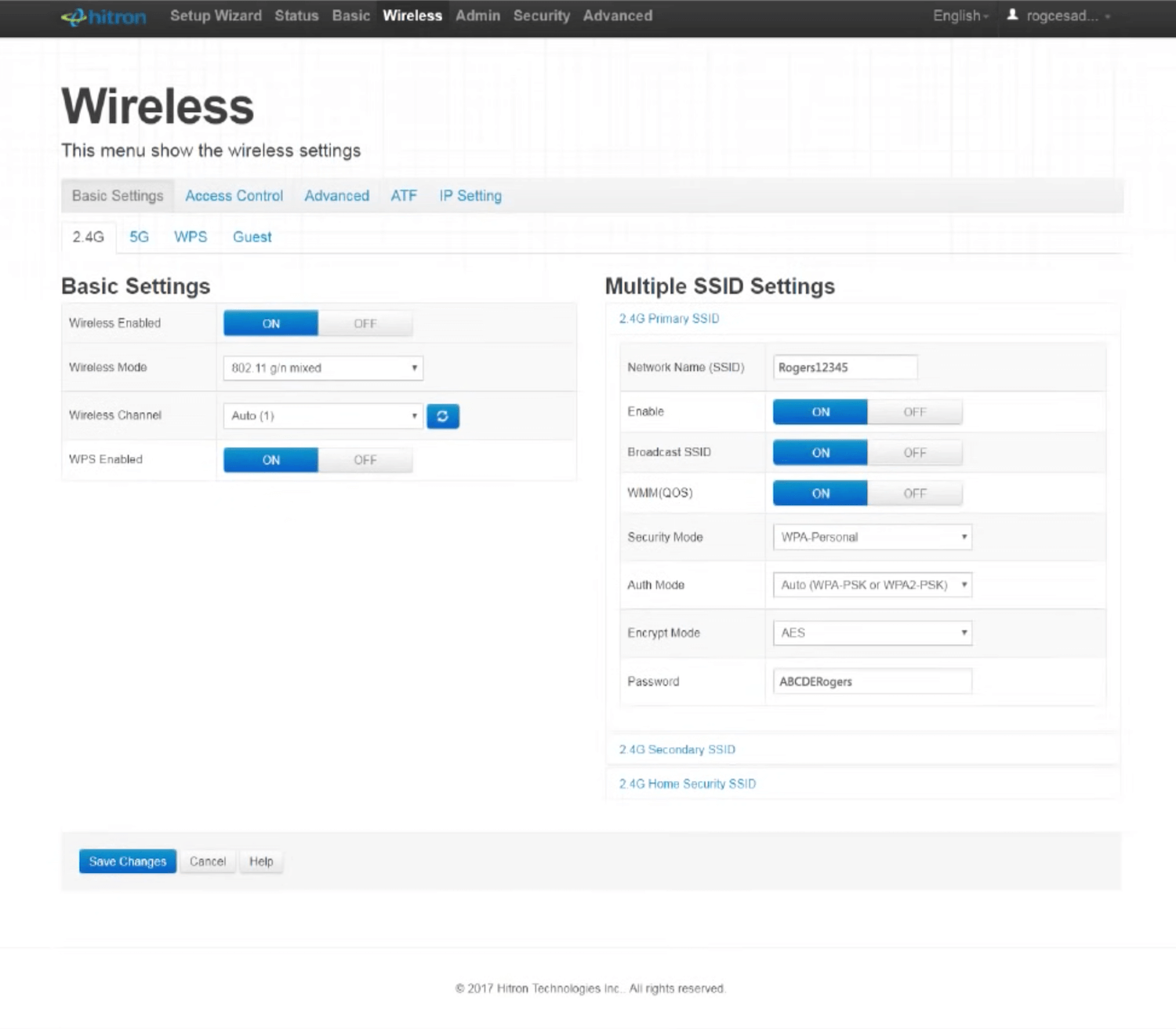
Hitron

  1. Log in to the router’s settings.
  2. Select Wireless from the top menu and click on the Basic Settings tab.
  3. Select 2.4G or 5G network band.
  4. Enter the Wi-Fi Network Name in the Network Name (SSID) field.
  5. Enter the Wi-Fi Password in the Password field.
  6. Click Save Changes.

Sparklight non-Hitron model modem

  1. Log in to the Sparklight Internet service.
  2. Select Basic Setup from the top menu.
  3. Enter the Wi-Fi Network Name in the Wireless Network Name (SSID) field.
  4. Select Security Settings.
  5. Enter the Wi-Fi Password in the Pre-shared Key field.
  6. Click Apply to save changes.

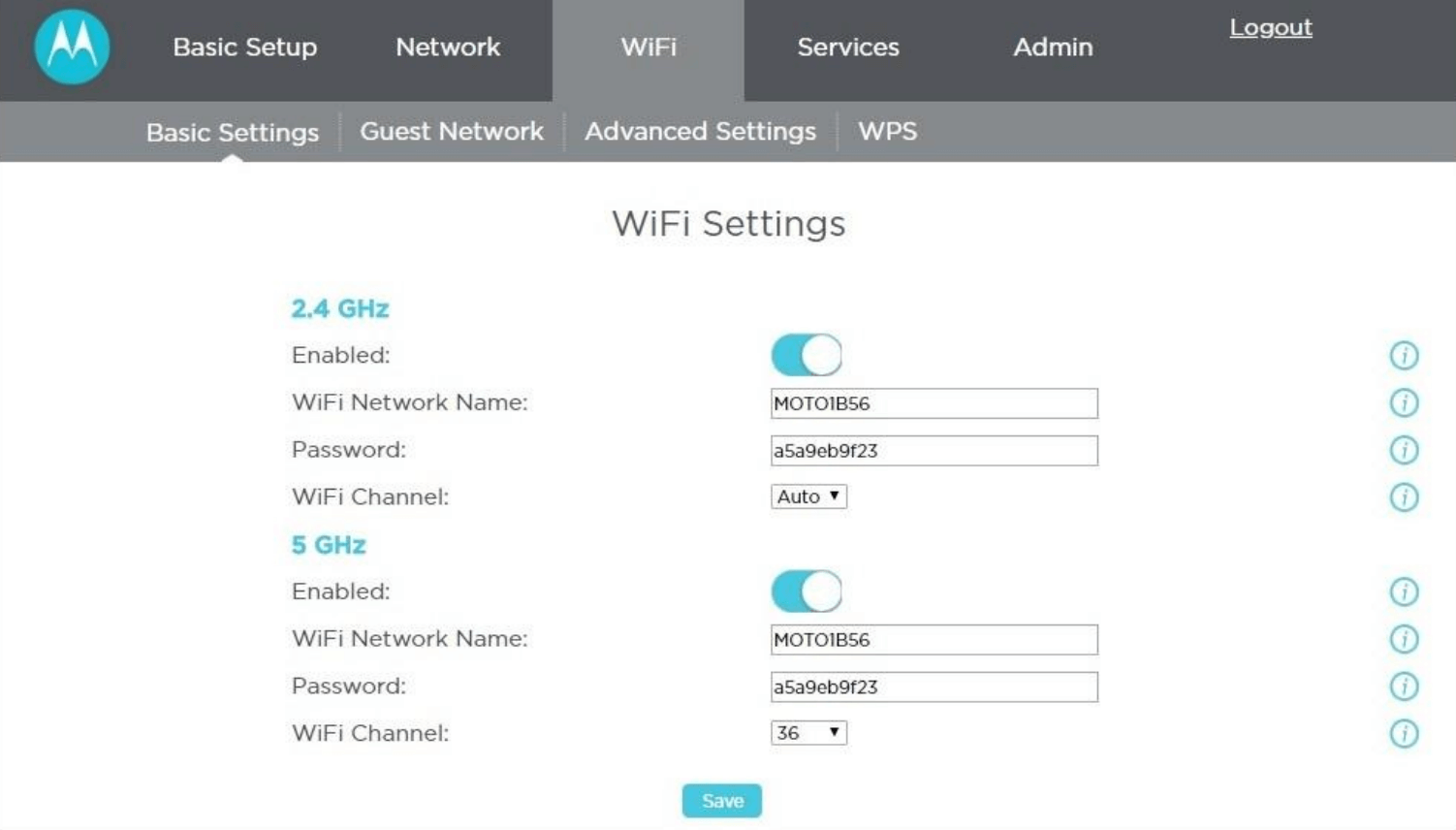
Sparklight Motorola SURFboard

  1. Log in to the router’s settings.
  2. On the top menu select Wi-Fi then Basic Settings.
  3. Enter the Wi-Fi Network Name in the Wi-Fi Network Name field.
  4. Enter the Wi-Fi Password in the Password field.
  5. Click Save.
Share1Tweet1SendShareScanSharePinShareShare
Google Add as a Preferred Source on Google
Previous Post

Eir Router Login

Next Post

How To Change WiFI Password?

NyongesaSande News Desk

NyongesaSande News Desk

Nyongesa Sande offers diverse content across news, technology, entertainment, and more, aiming to provide readers with a wide range of informative and engaging articles. NYONGESA SANDE's dedicated team provides our audience not only with the highly relevant news but also with outstanding interactive experience.

Related Posts

IMO vs WhatsApp: Best Messaging App Compared
Technology

IMO vs WhatsApp: Which App Is Best for International Messaging?

6 days ago
Galaxy Z Fold8 Could Be Lighter Than S26 Ultra
Tech News

Galaxy Z Fold8 Could Be Lighter Than S26 Ultra

1 week ago
Nvidia Vera CPU Promises 80% Faster AI Performance
Tech News

Nvidia Vera CPU Promises 80% Faster AI Performance

1 week ago
AMD Unveils 5800X3D, 7700X3D and RX 9070 GRE
Tech News

AMD Unveils 5800X3D, 7700X3D and RX 9070 GRE

1 week ago
Leaked iPhone Fold Photo Reveals New Design
Tech News

Leaked iPhone Fold Photo Reveals New Design

1 week ago
Google Opens First Store Outside the US
Tech News

Google Opens First Store Outside the US

1 week ago
Load More
Next Post
T-Mobile Router Login

How To Change WiFI Password?

Three Router Login

How To Recover WiFi Username and Password?

Trending

  • FIFA 2026 World Cup Stadiums: Everything to Know

    FIFA 2026 World Cup Stadiums: Everything to Know

    3 shares
    Share 1 Tweet 1
  • List of Elected MCAs in Nakuru County for the 2017 General Elections

    23 shares
    Share 9 Tweet 6
  • World Cup 2026 Venues, Tickets and Fan Festivals

    2 shares
    Share 1 Tweet 1
  • World Cup 2026 Tickets and Hospitality

    1 shares
    Share 0 Tweet 0
  • List of 2022 – 2027 mps contacts in Kenya

    586 shares
    Share 234 Tweet 147
  • List of Elected MCAs in Meru County for the 2017 General Elections

    11 shares
    Share 4 Tweet 3
  • Levi’s Stadium World Cup 2026 Guide: Capacity, Location, Matches and Round of 32 Venue

    1 shares
    Share 0 Tweet 0
  • Germany vs Curaçao: 2026 World Cup Match Preview

    1 shares
    Share 0 Tweet 0
  • MTN Router Login

    14 shares
    Share 6 Tweet 4
  • QVSELP Scam Warning: Why Kenyans Should Be Careful

    2 shares
    Share 1 Tweet 1
ADVERTISEMENT
ADVERTISEMENT

Who We Are

Nyongesa Sande

NyongesaSande.com is a digital news and media platform covering breaking news, business, technology, AI, politics, sports, world affairs and African innovation.

News Sections

  • News
    • World
    • Africa
  • Politics
  • Business
  • Tech
  • AI
  • Telecom
  • Sports
  • Opinion
  • Lifestyle
  • Live
  • World Cup 2026
    • World Cup 2026 Standings
    • World Cup 2026

Editorial Standards

  • Editorial Policy
  • Fact Checking Policy
  • Corrections Policy
  • Ethics Policy
  • AI Usage Policy
  • News Tips
  • Submit Press Release

Legal

  • Privacy Policy
  • Terms of Use
  • Cookie Policy
  • Disclaimer
  • Risk Disclaimer
  • DMCA
  • Ad Choices

Our Company

  • About Us
    • Nyosake Designers
      • Nyosake Webmasters
      • Nyosake Investment
  • Contact Us
    • Newsroom Contact
  • Ownership Disclosure
  • Advertise
  • Privacy Policy
  • Terms of Use
  • Cookie Policy
  • Disclaimer
  • Risk Disclaimer
  • DMCA
  • Ad Choices

NyongesaSande.com is an independent digital news and media platform covering Africa, business, technology, AI, politics and global developments.

© 2026 NyongesaSande.com. All rights reserved.

No Result
View All Result
  • News
    • World
    • Africa
  • Politics
  • Business
  • Tech
  • AI
  • Telecom
  • Sports
  • Opinion
  • Lifestyle
  • Live
  • World Cup 2026
    • World Cup 2026 Standings
    • World Cup 2026

NyongesaSande.com is an independent digital news and media platform covering Africa, business, technology, AI, politics and global developments.

© 2026 NyongesaSande.com. All rights reserved.