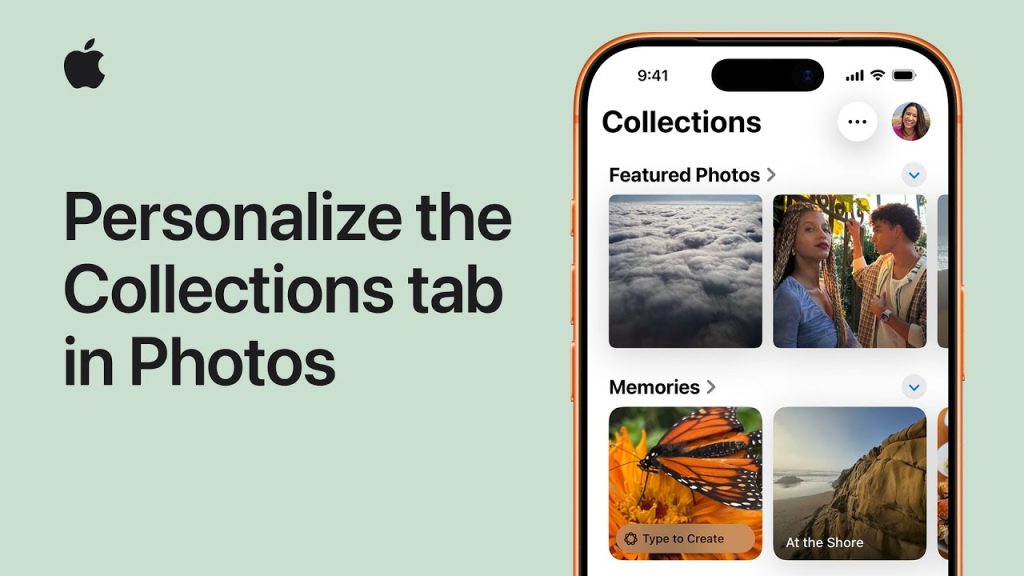
The Photos app on iPhone is designed to help you store, manage, and enjoy your precious memories. One of its most useful features is the Collections tab, which groups your photos based on events, trips, or other categories. However, customizing this tab to suit your needs can make it even more efficient and personalized. With the right setup, you can easily find and access your favorite memories, while organizing your collection in a way that works best for you.
In this guide, we’ll show you how to personalize the Collections tab in the Photos app on iPhone. From creating custom albums to organizing your photos in a way that fits your lifestyle, you’ll be able to tailor your iPhone’s photo organization for maximum efficiency and convenience.
Steps to Personalize the Collections Tab in Photos on iPhone
1. Organizing Your Photos into Albums
The Collections tab is built around automatically generated albums that group photos based on specific events or trips. However, you can further personalize your iPhone’s Photos app by creating custom albums to make your collection more organized and easily accessible.
- Create a New Album
Open the Photos app and navigate to the Albums tab. Scroll down and tap + in the top-left corner, then choose New Album. Give your album a name that suits the photos you want to group together, such as “Family Vacations” or “Birthday Celebrations.” - Add Photos to the Album
After creating the album, tap Save. The app will prompt you to add photos to the album. You can either select photos from your existing library or choose to add new ones as they are taken. - Rearrange Albums for Easy Access
Once your albums are created, you can rearrange them by tapping Edit in the top-right corner of the Albums tab. Then, drag the albums into your preferred order. Place the albums you access most frequently at the top for quick access.
2. Utilizing Memories for Personalized Collections
Apple Photos automatically generates Memories based on significant events, such as holidays, trips, or special moments. You can personalize these Memories by creating new ones, editing their titles, or sharing them with others.
- Find and Edit Memories
Open the Photos app and tap on the For You tab to access your Memories. You’ll see suggestions based on recent events or past photos grouped by dates. To edit or personalize a Memory, tap on it, then select the three-dot menu to rename it or adjust the photos included. - Create Custom Memories
If you want to create a custom Memory, tap + at the top of the For You tab. You can manually select a group of photos from your library, and Apple will automatically generate a new Memory for you to personalize. You can add a title, music, and filter effects to enhance the experience.
3. Using Favorites for Quick Access
Adding photos to your Favorites allows you to quickly access your most cherished images. This is particularly useful for photos you want to keep front and center in your Collections tab.
- Add Photos to Favorites
To add a photo to your favorites, simply tap the heart icon when viewing any photo. This will instantly save the image to your Favorites album. - View and Organize Favorites
To view your Favorites, go to the Albums tab and select Favorites. You can view and manage your favorite photos here, keeping them easily accessible in your Collection. If you want to remove a photo from Favorites, tap the heart icon again.
4. Filter and Sort Photos within Collections
Once you’ve created custom albums and added photos to the Favorites section, organizing and filtering your photos within each album is essential for personalizing your Collections tab.
- Sort Photos by Date, Title, or Custom Order
In any album, tap Select in the top-right corner to select multiple photos. You can then reorder photos within the album, drag and drop them into a new position, or delete unwanted images. Sorting photos manually gives you full control over the arrangement. - Filter by Media Type
When browsing an album, you can filter photos by type, such as Selfies, Live Photos, Videos, or Panoramas. Tap Filter at the top of the album screen and choose your desired filter type to quickly view specific categories of photos.
5. Create Shared Albums for Collaborative Memories
Sharing photos with family or friends is a great way to collaborate on memories. Shared albums allow others to view, comment, and even contribute photos to your personalized collection.
- Create a Shared Album
In the Albums tab, tap + and select New Shared Album. Choose a name for the album and invite people to join by entering their contact details or sharing a link. - Add and Share Photos
Once your shared album is created, you can add photos from your library. Other participants can also add photos, making it a collaborative space for family trips, events, or group activities. You can comment and like photos within the shared album, creating an interactive experience.
6. Use the Search Function to Filter Collections
If you have a large photo library, the Search function can be extremely helpful for filtering your collections based on dates, locations, or people. You can use it to find specific photos and group them accordingly.
- Search for Specific Photos
Tap the Search tab at the bottom of the screen. Type keywords like “Beach”, “John’s Birthday”, or even specific dates to find photos from a particular event or time. - Filter by People or Location
If you’ve enabled facial recognition, you can search for photos of specific people. Additionally, photos with location data will show up when you search for a specific place.
Why Personalizing the Collections Tab Matters
Personalizing your Collections tab helps you create an organized and easily accessible photo library. By customizing albums, favorites, and memories, you can streamline your workflow and find the photos that matter most to you with ease. Whether you’re preparing to share memories with others or simply want to keep your personal photos organized, the Collections tab is a powerful tool for enhancing your photo experience on iPhone and iPad.
Final Thoughts on Personalizing the Collections Tab in Photos
Personalizing the Collections tab in the Photos app allows you to take full control over your photo library, making it easier to access, organize, and share your memories. By creating albums, filtering photos, and using shared albums, you can tailor your photo experience to fit your unique needs. Whether you’re curating memories for a special occasion or simply organizing everyday photos, these tools will help you make the most of your iPhone and iPad’s Photos app.