


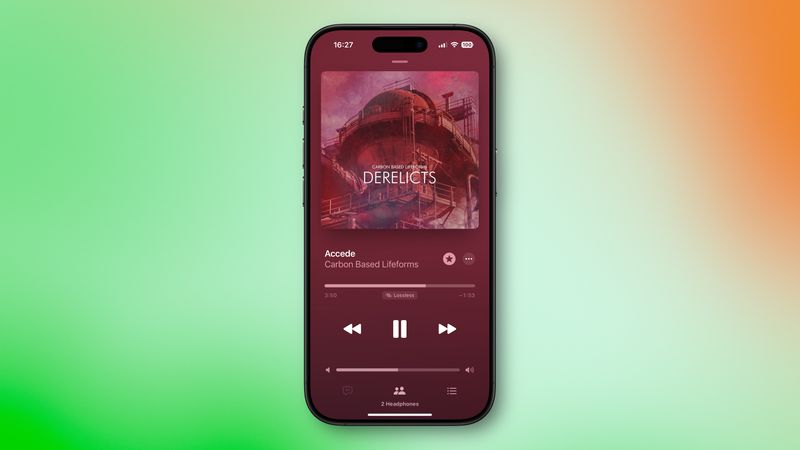
Apple’s Audio Sharing feature in iOS 18 and later lets you connect two wireless headphones to one iPhone or iPad. Whether you’re watching a movie together or jogging side by side, this feature allows you to share audio on iPhone without sacrificing sound quality—or bothering anyone around you.
Device Compatibility
Before using Audio Sharing, make sure your iPhone/iPad and headphones support the feature.
✅ Supported iPhone Models:
- iPhone 8 or later
- iPhone SE (2nd generation or newer)
✅ Supported iPad Models:
- iPad (5th generation or newer)
- iPad mini (5th generation or newer)
- iPad Air (3rd generation or newer)
- iPad Pro 10.5-inch and newer (all 11″ and 12.9″ from 2nd gen)
🎧 Compatible Headphones:
- All AirPods models
- AirPods Pro (1st & 2nd Gen)
- AirPods Max
- Beats Fit Pro, Beats Flex, Beats Solo Pro
- Beats Solo3, Studio3, Powerbeats, Powerbeats Pro, Powerbeats3
- BeatsX
How to Share Audio on iPhone With AirPods
Follow these steps to share audio on iPhone using two sets of AirPods:
- Connect your AirPods to your iPhone or iPad and place them in your ears.
- Start playing music, video, or any audio content.
- Open the Now Playing panel:
- In the Music app, tap the AirPods icon at the bottom.
- Or swipe down for Control Center, then tap the audio source icon at the top-right of the playback widget.
- Tap “Share Audio…”
- Bring your friend’s AirPods case (with the lid open) near your device.
- When prompted, tap “Share Audio” to connect.
- If requested, press the button on the back of their AirPods case.
Control Volume Independently
Once connected:
- The host device can control both volume levels.
- Each listener can also adjust their own headphone volume using onboard controls.
This provides a seamless listening experience without needing splitters or wires.
Bonus Tip: Use With Apple TV
Audio Sharing is also available on Apple TV 4K (tvOS 14 or later).
- Open Control Center on your Apple TV.
- Follow similar prompts to connect two pairs of AirPods or Beats.
Perfect for watching late-night movies without disturbing the household.
Why Use Audio Sharing on iPhone?
Here are some use cases for this convenient feature:
- Watch a movie together on a plane
- Listen to the same playlist while working out
- Share a guided meditation or podcast
- Watch lectures or YouTube videos side-by-side
- No need for headphone splitters
Conclusion
The ability to share audio on iPhone using two pairs of AirPods or compatible Beats headphones is a game-changer for shared listening. With just a few taps, you and a friend can enjoy synchronized sound—without sacrificing personal comfort or clarity.
Whether you’re traveling, working out, or relaxing at home, Audio Sharing delivers double the joy from a single device.


