


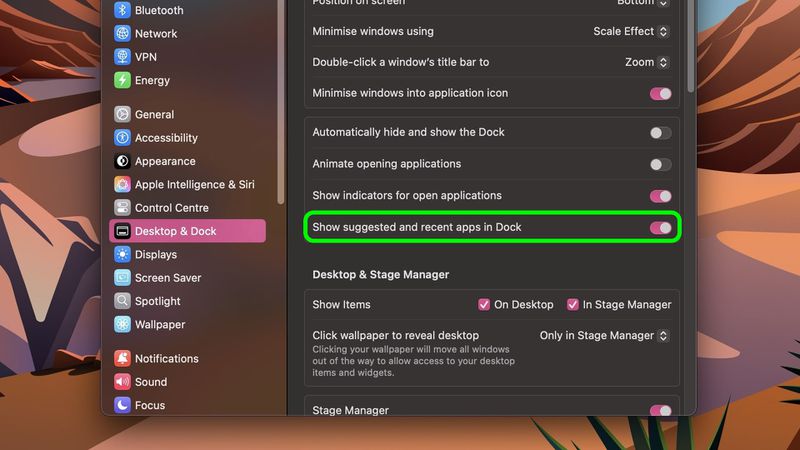
By default, your Mac shows up to three recently used apps on the Dock—those not permanently pinned but launched recently. This helps users quickly reopen tools relevant to their workflow. But what if you want to show more recent apps on your Mac Dock to suit your multitasking habits?
In this guide, you’ll learn how to increase or decrease the number of recent apps shown on the right side of your Dock using both the graphical interface and Terminal.
What Are Suggested and Recent Apps in macOS?
macOS includes an option called “Show suggested and recent applications in Dock”, found under:
System Settings ➝ Desktop & Dock ➝ Dock behavior
When enabled, your Dock shows:
- A divider on the right side
- Currently open apps not pinned to the Dock
- Up to 3 recently used apps that were closed
This feature offers quick access to apps without cluttering your Dock with permanent icons.
Method 1: Use System Settings (Default Behavior)
- Click the Apple menu and go to System Settings.
- Select Desktop & Dock from the sidebar.
- Scroll down to the Dock section.
- Enable “Show suggested and recent applications in Dock.”
This will show up to 3 recent apps by default. Want to show more? Use Terminal.
Method 2: Use Terminal to Show More Recent Apps
To customize the number of recent apps shown in the Dock:
Step-by-Step:
- Open Terminal from
/Applications/Utilities/. - Paste the following command and press Enter:
defaults write com.apple.dock show-recents -bool true;
defaults write com.apple.dock show-recent-count -int 10;
killall Dock
This will:
- Enable recent apps
- Display 10 recent apps
- Restart the Dock to apply changes
Note: You can replace
10with any number between 1 and 20, depending on how many recent apps you want to appear.
How to Revert Back to Default (3 Recent Apps)
To return to the original setting (3 recent apps):
defaults write com.apple.dock show-recent-count -int 3;
killall Dock
Tips for Managing Recent Apps in the Dock
- Pin apps permanently: Drag them left of the divider
- Remove recent apps entirely: Disable the toggle in System Settings
- Reduce clutter: Show only essential recents using a lower number
- Improve productivity: Set to a higher count if you use many temporary apps
Conclusion
If you’re someone who juggles many apps or prefers faster access to tools you’ve just used, knowing how to show more recent apps on Mac Dock can enhance your efficiency. A quick Terminal tweak gives you control over how macOS manages app visibility in the Dock.
Try it today and customize your Dock for smarter workflows!


