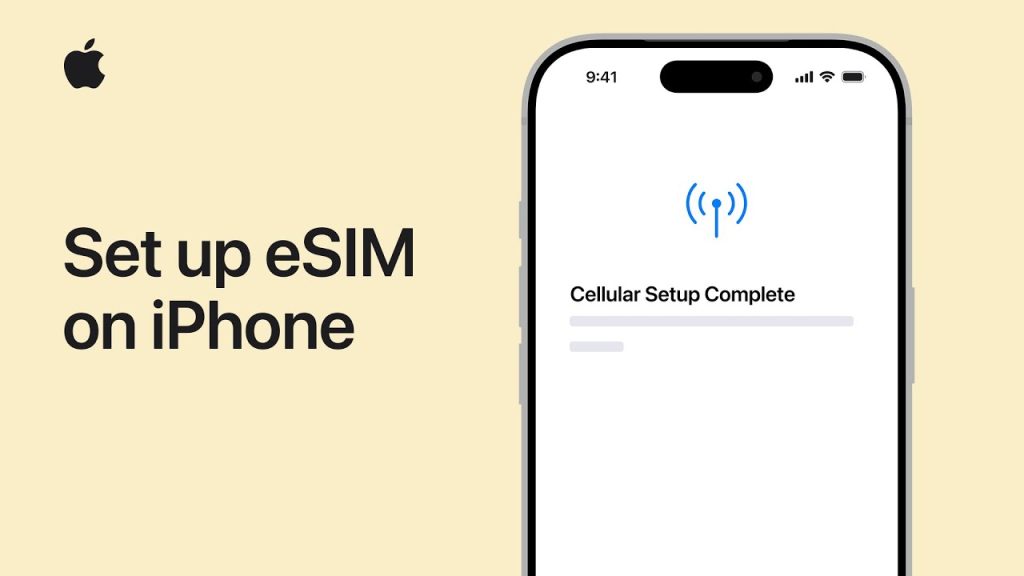
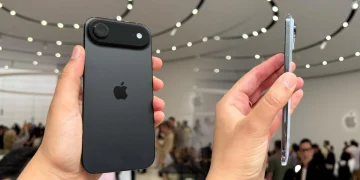
Setting up eSIM on your iPhone is a quick and simple process that offers a host of benefits, such as dual SIM capabilities, improved flexibility, and eliminating the need for a physical SIM card. With eSIM, your iPhone can support multiple phone numbers and data plans without requiring additional SIM cards. This feature is especially useful for international travelers, business professionals, and those who want to separate work and personal lines on the same device.
In this guide, we will walk you through the process of setting up eSIM on your iPhone. From activating your eSIM with your carrier to troubleshooting common issues, we’ll ensure you’re able to take full advantage of eSIM technology to stay connected with ease.
Steps to Set Up eSIM on iPhone
1. Check Carrier Compatibility
Before you set up eSIM on your iPhone, ensure that your carrier supports eSIM. Most major carriers around the world, such as AT&T, T-Mobile, Verizon, and others, support eSIM, but it’s always good to double-check.
- Confirm with Your Carrier
Contact your carrier or check their website to confirm that they offer eSIM services. Some carriers may require additional steps for activation, so it’s important to verify this before proceeding. - Ensure Your iPhone Is Compatible
eSIM is available on iPhone XS models and later, so make sure your iPhone supports the feature. To check, go to Settings > General > About and look for the eSIM section to confirm.
2. Get an eSIM Activation Code from Your Carrier
In most cases, your carrier will provide you with an eSIM activation code, which is typically in the form of a QR code. If you’re switching from a physical SIM to eSIM, your carrier may give you this code directly or send it via email or SMS.
- Obtain Your eSIM Activation Details
If you don’t have an eSIM QR code, ask your carrier for the necessary details, such as the SM-DP+ Address and Activation Code. - Request eSIM Online
Some carriers offer the option to request an eSIM through their mobile app or website. Follow the on-screen instructions to receive your eSIM details.
3. Activate eSIM on Your iPhone
Once you have the eSIM activation details, you can begin setting it up on your iPhone.
- Open Settings
Go to Settings on your iPhone and tap Cellular. - Add Cellular Plan
Tap on Add Cellular Plan to start the eSIM setup process. - Scan the QR Code
If your carrier provided a QR code, tap Scan QR Code and use your iPhone’s camera to scan the code. This will automatically configure your eSIM with the correct settings. - Enter Activation Information Manually (if needed)
If you don’t have a QR code, you can manually enter the eSIM details. Select Enter Details Manually and input the SM-DP+ Address and Activation Code provided by your carrier. - Label Your eSIM
Once the eSIM is activated, you’ll be asked to label it. For example, you can label it “Work” or “Personal” to easily differentiate it from your physical SIM, if you have one. - Finish Setup
Follow the on-screen prompts to complete the setup. After this, your eSIM should be activated and ready to use.
4. Set Default Line for Calls, Texts, and Data
After setting up your eSIM, you can choose which line to use for calls, messages, and data. This is especially helpful if you have both an eSIM and a physical SIM installed on your iPhone.
- Set Default Line for Calls
Go to Settings > Cellular, then select Default Line under the Cellular Plans section. Choose whether to use your eSIM or physical SIM for making calls. - Choose a Default Line for Data
Tap Cellular Data to select which line (eSIM or physical SIM) you want to use for mobile data. - Enable Data Switching Between Lines
If you want to switch between your eSIM and physical SIM for mobile data, enable Allow Cellular Data Switching. This is useful when you’re traveling internationally or need to use different carriers for data and voice.
5. Using Dual SIM on Your iPhone
Once your eSIM is set up, you can take full advantage of the Dual SIM feature. This allows you to have two different phone numbers on your iPhone, such as one for personal use and another for business.
- Select Which Line for iMessages and FaceTime
In the Settings > Messages and Settings > FaceTime, you can choose which line to use for sending iMessages and making FaceTime calls. - Customize Call Forwarding and Voicemail
You can customize call forwarding settings for each line in the Settings > Phone menu. You can also configure voicemail for each line individually. - Switch Between Lines for Calls and Texts
When making calls or sending texts, you can manually select which line (eSIM or physical SIM) to use. You can do this by tapping the line label that appears at the top of the screen when making a call or sending a message.
6. Troubleshooting eSIM Setup
If you experience issues during eSIM setup or activation, here are a few tips:
- Check for Carrier or Service Issues
If the eSIM isn’t activating, check with your carrier to ensure there are no service outages or account issues preventing activation. - Restart Your iPhone
Sometimes, restarting your iPhone can help resolve activation issues. Simply turn off your iPhone, wait a few seconds, and turn it back on. - Contact Your Carrier
If the eSIM still doesn’t activate, contact your carrier for further assistance. They may need to manually provision the eSIM on their end or provide additional setup instructions.
7. Managing and Switching Between eSIMs
If you have more than one eSIM on your iPhone, you can easily manage and switch between them.
- Switch Between eSIMs
Go to Settings > Cellular, and you’ll see all your cellular plans listed. Tap on the plan you want to use as your default for calls, texts, and data. - Remove an eSIM
If you no longer need a specific eSIM, go to Settings > Cellular, select the plan, and tap Remove Cellular Plan to deactivate and delete it.
Why eSIM is Useful
eSIM provides greater flexibility, especially for international travel, by allowing you to switch between multiple carriers and data plans without needing to swap out physical SIM cards. It also helps reduce the physical footprint of your iPhone, leaving more room for other features.
Final Thoughts on Setting Up eSIM on iPhone
Setting up eSIM on your iPhone is a straightforward process that can significantly enhance your mobile experience. Whether you’re looking to use Dual SIM for personal and work purposes or simply want a more convenient way to manage your mobile plans, eSIM offers flexibility and ease. By following the steps outlined in this guide, you can quickly activate and start using eSIM to its fullest potential.