Nyongesa Sande
No Result
View All Result
  • News
    • World
    • Africa
  • Politics
  • Business
  • Tech
  • AI
  • Telecom
  • Sports
  • Opinion
  • Lifestyle
  • Live
  • World Cup 2026
    • World Cup 2026 Standings
    • World Cup 2026
Nyongesa Sande
No Result
View All Result
Nyongesa Sande
No Result
View All Result
  • News
  • Politics
  • Business
  • Tech
  • AI
  • Telecom
  • Sports
  • Opinion
  • Lifestyle
  • Live
  • World Cup 2026
ADVERTISEMENT

Home » How to Scan a QR Code with Your iPhone or iPad Camera – Easy Steps

How to Scan a QR Code with Your iPhone or iPad Camera – Easy Steps

A Simple Guide to Scanning QR Codes Using Your iPhone or iPad Camera

News Desk by News Desk
6 months ago
in Instructables
Reading Time: 5 mins read
A A

QR codes are everywhere—on advertisements, business cards, websites, and products—and scanning them with your iPhone or iPad is quick and easy. Apple has built-in QR code scanning functionality in the Camera app, making it simple to access websites, promotions, or information linked to a QR code.

  • How to Scan a QR Code with Your iPhone or iPad Camera
    • 1. Ensure QR Code Scanning Is Enabled
    • 2. Open the Camera App
    • 3. Point Your iPhone or iPad at the QR Code
    • 4. Tap the Notification to Follow the Link
    • 5. Use the QR Code to Perform Other Actions
    • 6. Troubleshooting QR Code Scanning
    • 7. Use Control Center for Quick Access to Camera
  • Why QR Code Scanning Is Useful
  • Final Thoughts on Scanning QR Codes on iPhone and iPad

In this guide, we’ll walk you through how to scan a QR code with your iPhone or iPad camera in just a few simple steps, so you can start using this feature effectively.

How to Scan a QR Code with Your iPhone or iPad Camera

1. Ensure QR Code Scanning Is Enabled

By default, your iPhone or iPad is set to scan QR codes with the Camera app. However, it’s always a good idea to double-check and make sure this feature is enabled.

ADVERTISEMENT
  1. Open Settings
    Start by opening the Settings app on your iPhone or iPad.
  2. Go to Camera Settings
    Scroll down and tap Camera.
  3. Enable Scan QR Codes
    In the Camera settings, make sure the Scan QR Codes toggle is turned on. This ensures that your camera will detect and read QR codes.

2. Open the Camera App

To begin scanning a QR code, you’ll need to open the Camera app on your iPhone or iPad.

  1. Launch the Camera App
    Open the Camera app by either tapping the Camera icon on your Home Screen or swiping right from the Lock Screen.
  2. Switch to Rear Camera
    Make sure the rear-facing camera is active (not the front-facing one). QR codes can only be scanned with the rear camera, so ensure you’re pointing the back of your device toward the code.

3. Point Your iPhone or iPad at the QR Code

Now that your camera app is open, it’s time to scan the QR code:

ADVERTISEMENT
  1. Align the QR Code in the Frame
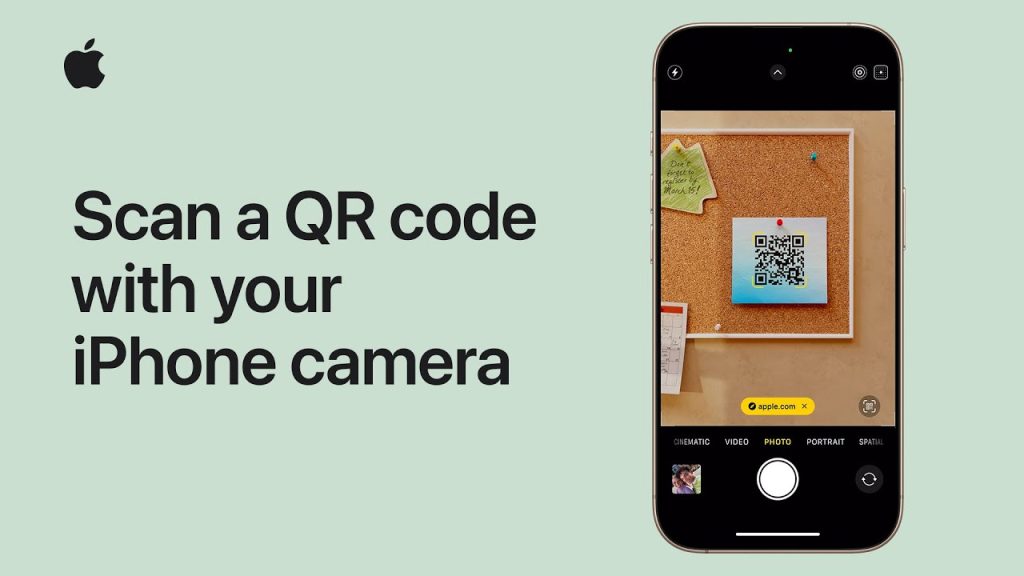
    Hold your iPhone or iPad steady and point the camera toward the QR code. The camera will automatically detect the code within the frame. You don’t need to tap or focus manually—just aim the camera at the QR code.
  2. Wait for the QR Code to Be Scanned
    The camera will recognize the QR code almost instantly. You’ll see a notification pop up at the top of your screen with a link or action associated with the QR code.

4. Tap the Notification to Follow the Link

Once the QR code is detected, the notification will appear with the action linked to the QR code, such as opening a website or showing a promotion.

  1. Tap the Notification
    To access the information linked to the QR code, tap the notification. For example, if the QR code links to a website, tapping it will open Safari with the website URL.

5. Use the QR Code to Perform Other Actions

QR codes can do more than just open websites. They can be linked to a variety of actions, such as adding a contact to your address book, sending a message, or opening an app. Simply tap the notification that appears after scanning to take the desired action.

6. Troubleshooting QR Code Scanning

Sometimes, scanning a QR code may not work immediately. Here are a few tips to troubleshoot:

ADVERTISEMENT
  1. Ensure the QR Code is Clear
    Make sure the QR code is large enough, well-lit, and not distorted. If it’s blurry or partially cut off, the camera may have difficulty scanning it.
  2. Hold Your iPhone or iPad Steady
    Hold your device still while scanning to give the camera time to detect and focus on the QR code.
  3. Check for Obstructions
    Ensure there’s nothing in the way of the QR code or your camera lens, such as fingerprints or a case that might obstruct the view.
  4. Try Scanning Again
    If the QR code doesn’t scan the first time, try repositioning the camera or adjusting the distance between your device and the code.

7. Use Control Center for Quick Access to Camera

If you don’t want to open the Camera app manually, you can quickly scan QR codes using the Control Center:

  1. Swipe Down (iPhone X or Later)
    On iPhones with Face ID, swipe down from the top-right corner of the screen to open the Control Center.
  2. Swipe Up (iPhone 8 or Earlier)
    On iPhones with a Home button, swipe up from the bottom of the screen to access the Control Center.
  3. Tap Camera Icon
    In the Control Center, tap the Camera icon to open the camera app and start scanning QR codes right away.

Why QR Code Scanning Is Useful

QR code scanning on iPhone and iPad makes it quick and easy to access information, websites, promotions, and more. It saves you time and effort by eliminating the need to manually type in long URLs or search for specific information. Whether you’re shopping, visiting a website, or scanning a code on a product, this built-in feature makes your iPhone or iPad an even more powerful tool.

Final Thoughts on Scanning QR Codes on iPhone and iPad

Scanning QR codes with your iPhone or iPad is a fast, convenient, and reliable way to access a wide range of information. Whether it’s for a website link, product details, or even contact info, QR code scanning is now easier than ever with your device’s camera app. By following the steps in this guide, you’ll be able to scan QR codes seamlessly and take full advantage of this helpful feature.
Tags: iPad QR codeQR code camera scanScan QR code iPhoneuse QR code iPhone
Share1Tweet1SendShareSharePinShareShare
Google Add as a Preferred Source on Google
Previous Post

How to Use Categories in Mail on iPhone, iPad, and Mac – Organize Your Inbox

Next Post

How to Set Up Your Mac Using Your iPhone or iPad – Easy Setup Guide

News Desk

News Desk

Nyongesa Sande offers diverse content across news, technology, entertainment, and more, aiming to provide readers with a wide range of informative and engaging articles. NYONGESA SANDE's dedicated team provides our audience not only with the highly relevant news but also with outstanding interactive experience.

Related Posts

How To Send Please Call Me On Airtel Kenya
Instructables

Can You Share Data on Airtel Kenya?

3 months ago
Recover Lost or Permanently Deleted Data from iPhone
Instructables

Recover Lost or Permanently Deleted Data from iPhone

3 months ago
How to Clean the Meshes on Your AirPods
Instructables

How to Clean the Meshes on Your AirPods

6 months ago
How to Customize Notification Summaries on iPhone or iPad – Full Guide
iPad

How to Customize Notification Summaries on iPhone or iPad – Full Guide

6 months ago
How to Use AirPlay to Stream Video or Mirror the Screen on iPhone and iPad – Easy Guide
Instructables

How to Use AirPlay to Stream Video or Mirror the Screen on iPhone and iPad – Easy Guide

6 months ago
How to Add Your Home Address in Contacts and Maps on iPhone or iPad – Easy Guide
Instructables

How to Add Your Home Address in Contacts and Maps on iPhone or iPad – Easy Guide

6 months ago
Load More
Next Post

How to Set Up Your Mac Using Your iPhone or iPad – Easy Setup Guide

How to Add and Edit Widgets on Your iPhone – Easy Customization Tips

How to Add and Edit Widgets on Your iPhone – Easy Customization Tips

ADVERTISEMENT

Who We Are

Nyongesa Sande

NyongesaSande.com is a digital news and media platform covering breaking news, business, technology, AI, politics, sports, world affairs and African innovation.

Our Brands

  • YouTube
  • Forums
  • Law Archive
  • Sandes Kitchen

News Sections

  • News
    • World
    • Africa
  • Politics
  • Business
  • Tech
  • AI
  • Telecom
  • Sports
  • Opinion
  • Lifestyle
  • Live
  • World Cup 2026
    • World Cup 2026 Standings
    • World Cup 2026

Editorial Standards

  • Editorial Policy
  • Fact Checking Policy
  • Corrections Policy
  • Ethics Policy
  • AI Usage Policy
  • News Tips
  • Submit Press Release

Legal

  • Privacy Policy
  • Terms of Use
  • Cookie Policy
  • Risk Disclaimer
  • Disclaimer
  • DMCA
  • Ad Choices
  • YouTube

Our Company

  • About Us
    • Nyosake Designers
      • Nyosake Webmasters
      • Nyosake Investment
  • Contact Us
    • Newsroom Contact
  • Ownership Disclosure
  • Advertise
  • Privacy Policy
  • Terms of Use
  • Cookie Policy
  • Risk Disclaimer
  • Disclaimer
  • DMCA
  • Ad Choices
  • YouTube

NyongesaSande.com is an independent digital news and media platform covering Africa, business, technology, AI, politics and global developments.

© 2026 NyongesaSande.com. All rights reserved.

No Result
View All Result
  • News
    • World
    • Africa
  • Politics
  • Business
  • Tech
  • AI
  • Telecom
  • Sports
  • Opinion
  • Lifestyle
  • Live
  • World Cup 2026
    • World Cup 2026 Standings
    • World Cup 2026

NyongesaSande.com is an independent digital news and media platform covering Africa, business, technology, AI, politics and global developments.

© 2026 NyongesaSande.com. All rights reserved.